Tickets is one of the most use feature of Vtiger crm system. SLA extension by VTExperts can be used to check and regulate the processing of the ticket in Vtiger CRM. In this article we will look at a SLA use case for tickets in Vtiger7.
Use case
- There is ticketing system, in which when a ticket is created its priority is set to “Low” . SLA starts to work when the ticket priority is “Low”.
- The SLA should keep on working until the ticket status is changed to “Close”
- But, if the ticket is not resolved in 5 minutes and priority is “Low”, then SLA extension will automatically change the status of the ticket to “Normal”
- Again if the ticket is not resolved in next 10 minutes after the priority is changed to “Normal”, then SLA will change the priority of the ticket to “High”
- Again if the ticket is not resolved in next 20 minutes after the priority is changed to “High”, then SLA will change the priority of the ticket to “Urgent”
So, to achieve above mentioned results we have to Configure three different SLA’s policies with accompanying workflows
First SLA policy for tickets
Lets start with the first SLA
When the ticket is created, its priority is set to “Low”
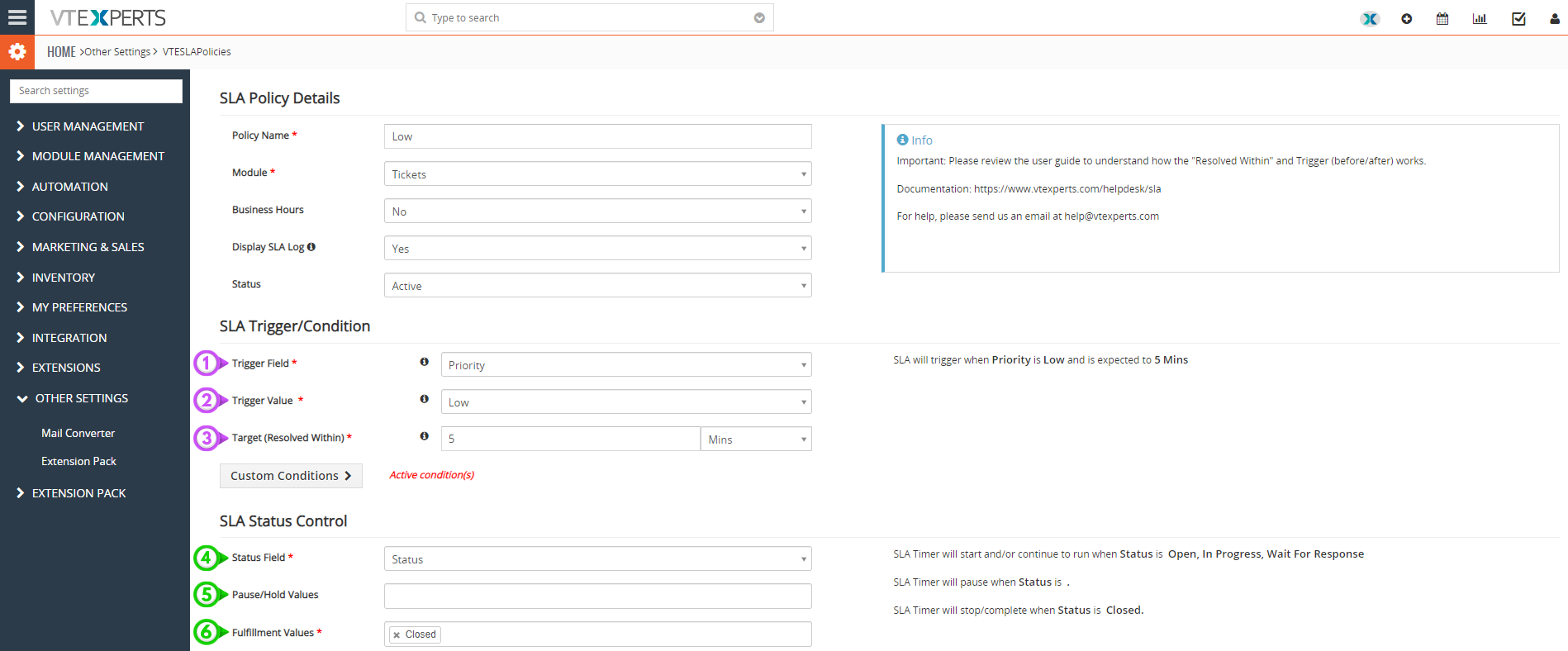 Specify the policy name, module and status
SLA trigger
1- Use “Priority” field in the ticket module as SLA trigger
2- SLA will trigger when trigger value is “Low”. i.e. when “Priority = Low” in ticket record
3- The resolve time is set to “5 minutes”
SLA status control
4- Status of the SLA depends on the “Status” field of the ticket module
5- Pause/Hold values, no value specified.
6- Fulfillment value is “Closed”
This means in this SLA, the SLA will keep on working if the status is anything but “Close”. If “Status = Closed” then SLA will stop working on that ticket
 SLA Action
7- Name: Specify the name of SLA
8- Type of escalation: Workflow
9- Trigger time: here it is 1 minute after the specified resolution time
10- Select the workflow (You have to configure the workflow separately)
Working of first SLA
Update ticket priority to “Normal” after 1 minute of the SLA breach through a workflow
For this you have to create a workflow that will update the priority of the ticket from “Low” to “Normal”
Workflow configuration
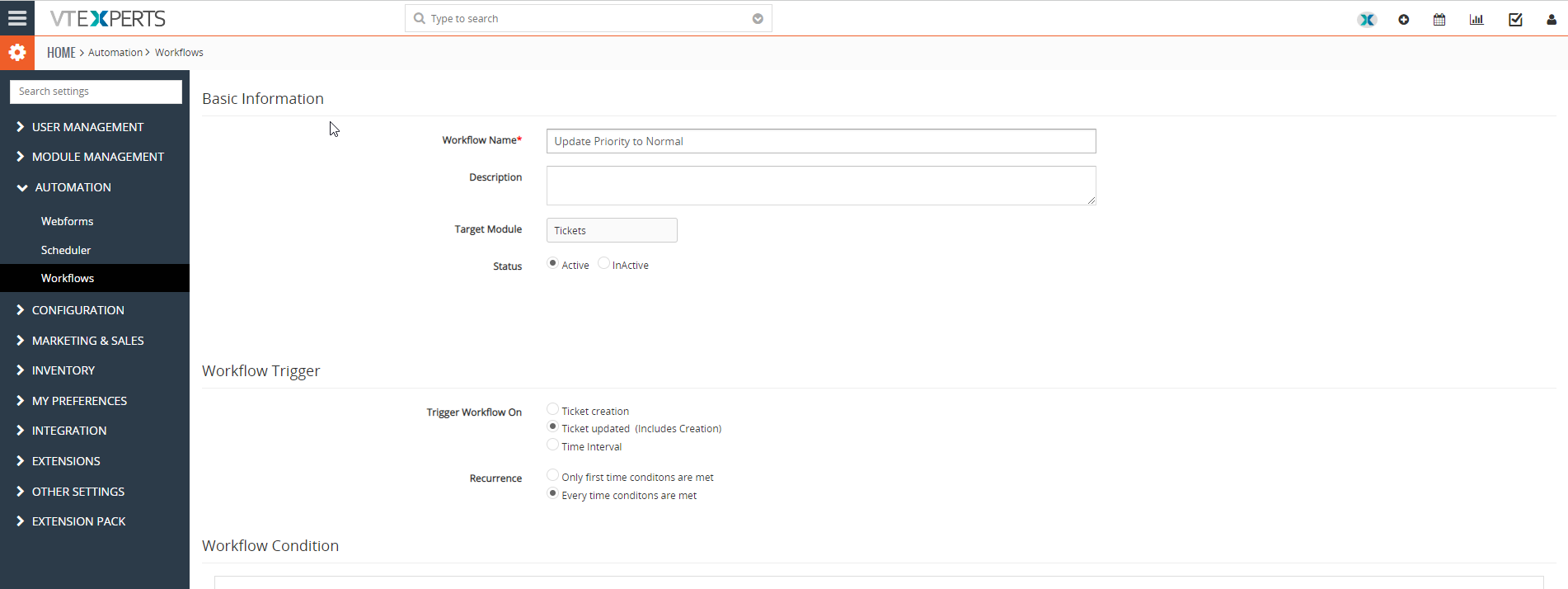
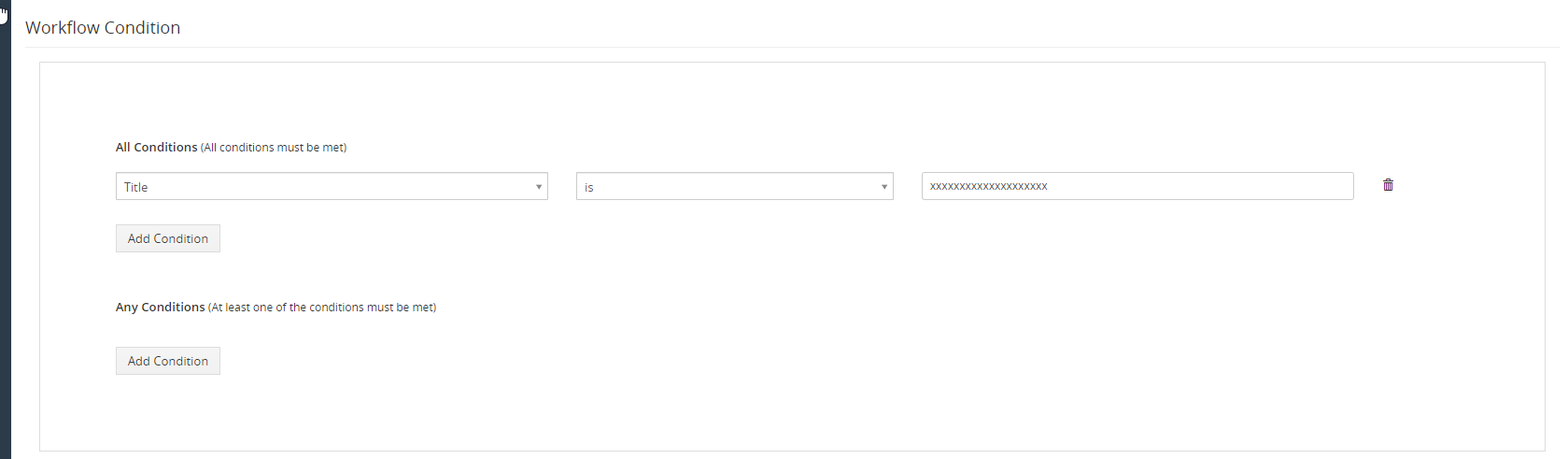
SLA will bypass all these conditions and will execute the “Workflow Action”
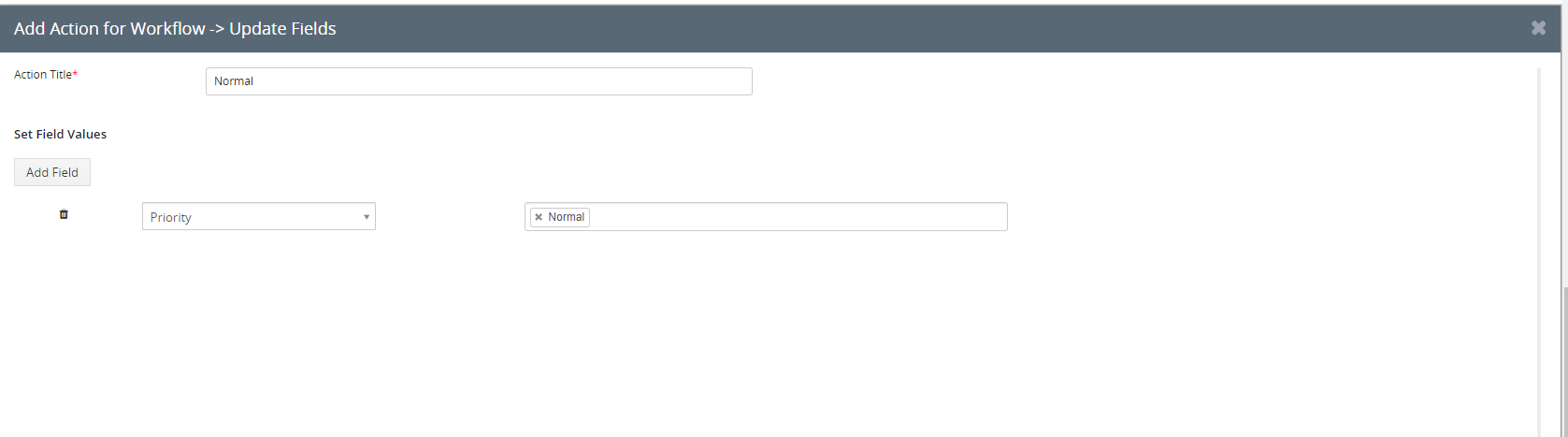 So after the six minutes if priority remains “Low” and the status is not “Closed” then another SLA policy will trigger and change the priority of the ticket to “Normal”
Second SLA policy for tickets
Now the ticket’s priority is set to “Normal” as per last workflow. This SLA will change the priority of the ticket to “High”, if ticket is not resolved in next 10 minutes..
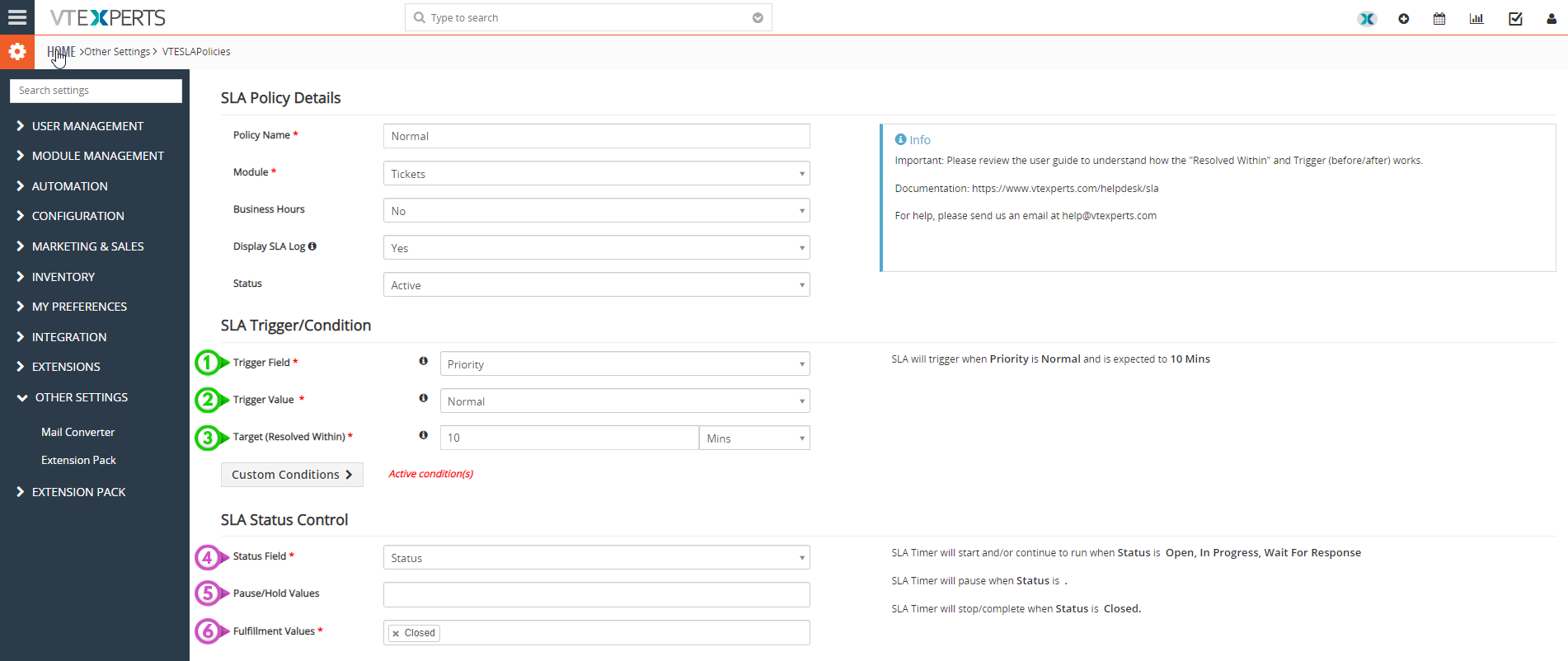 Specify the policy name (i.e. Normal), module and status
SLA trigger
1- Use “Priority” field in the ticket module as SLA trigger
2- SLA will trigger when trigger value is “Normal”. i.e. when “Priority = Normal” in ticket record
3- The resolve time is set to “10 minutes”
SLA status control
4- Status of the this SLA also depends on the “Status” field of the ticket module
5- Pause/Hold values, no value specified.
6- Fulfillment value is “Closed”
This means, the SLA will keep on working if the status is anything but “Close”. If “Status = Closed” then SLA will stop working on that ticket
 SLA Action
7- Name: Specify the name of second SLA action (i.e. Update to high)
8- Type of escalation is Workflow, similar to the first one.
9- Trigger time: here it is 1 minute after the specified resolution time
10- Select the workflow (You have to configure another workflow separately, which will update the ticket priority from “Normal” to “High”)
Working of Second SLA
Update ticket priority to “High” after 1 minute of the SLA breach through a workflow
For this you have to create a workflow that will update the priority of the ticket from “Normal” to “High”
Second Workflow configuration
Configure the workflow similar to the first one
Just change the workflow action and update the value of priority field to “High”

Third SLA policy
Now the ticket’s priority is set to “High” as per last workflow. This SLA will change the priority of the ticket to “Urgent”, if ticket is not resolved in next 20 minutes
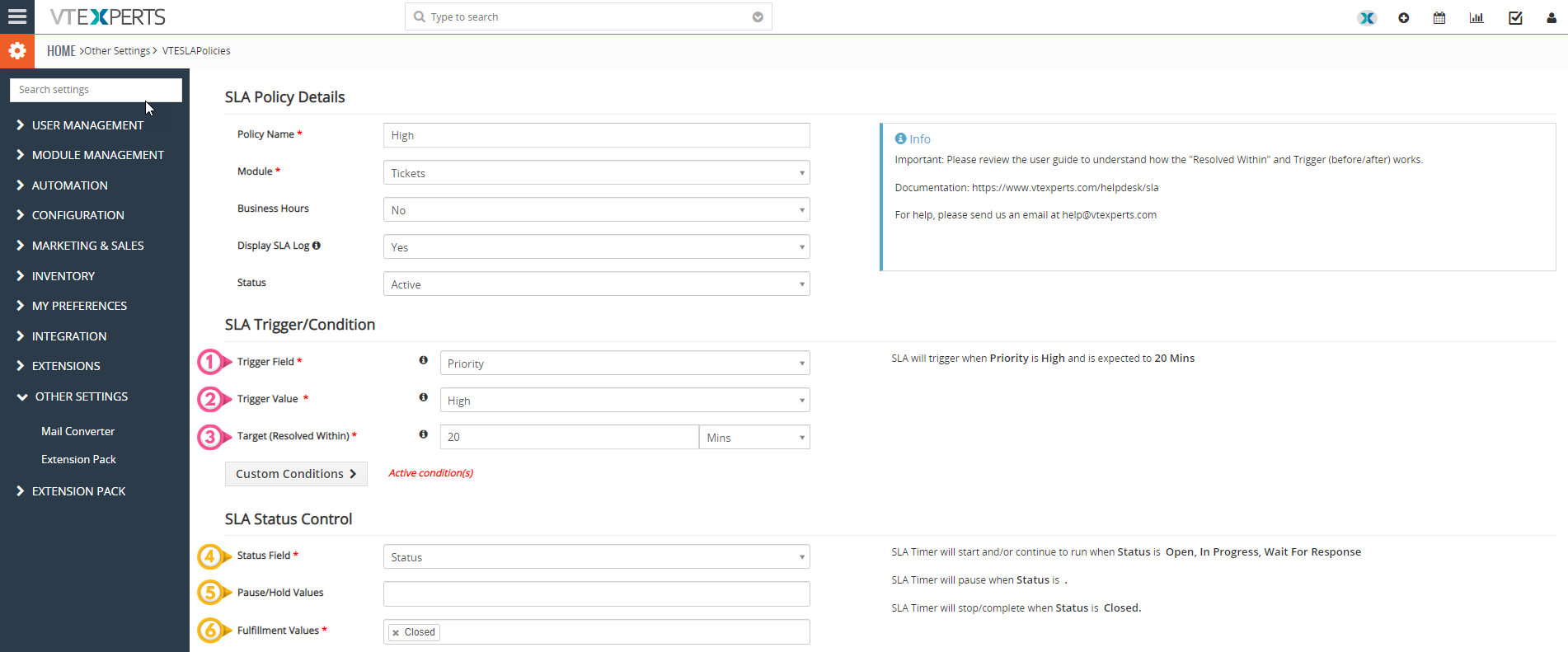 Specify the policy name (i.e. High), module and status
SLA trigger
1- Use “Priority” field in the ticket module as SLA trigger
2- SLA will trigger when trigger value is “High”. i.e. when “Priority = High” in ticket record
3- The resolve time is set to “20 minutes”
SLA status control
4- Status of the this SLA also depends on the “Status” field of the ticket module
5- Pause/Hold values, no value specified.
6- Fulfillment value is “Closed”
This means, the SLA will keep on working if the status is anything but “Close”. If “Status = Closed” then SLA will stop working on that ticket
 SLA Action
7- Name: Specify the name of second SLA action (i.e. Update to Urgent)
8- Type of escalation is Workflow, similar to the previous SLA’s
9- Trigger time: here it is 1 minute after the specified resolution time
10- Select the workflow (Configure third workflow, which will update the ticket priority from “High” to “Urgent”)
Working of Third SLA
Update ticket priority to “Urgent” after 1 minute of the SLA breach through a workflow
For this you have to create a workflow that will update the priority of the ticket from “High” to “Urgent”
Third Workflow configuration
Configure the workflow similar to the pervious workflows
Just change the workflow action and update the value of priority field to “Urgent”
 Whenever the status of the Ticket is changed to the “Close” the policy will be fulfilled. In the SLA actions, you can also specify to send email to a certain person a, reassign the ticket etc.
This is how you can configure SLA policies for tickets in Vtiger CRM
Check the VTExperts SLA extension here: SLA Policies