• Company
  • Blog
  • Case Studies
  • Partners
  • Contact

vtexpertswplogovtexpertswplogotransp2-white-small-2transp2-white-small-2

  • Home
  • Services
    • Services [custom]
  • Solutions
    • Solutions [custom]
  • Extensions
    • Extensions [custom]
  • Managed Hosting
  • Resources
    • Resouces [custom]
  • Extension List
  • Home
  • Managed Hosting
  • Extensions
    • Get Started
    • Installation Instructions
    • Pricing
    • FAQs
    • Extension List
  • Services
    • Support
    • Custom Development
    • Integrations
    • Vtiger Upgrade
    • Data Migration
  • Support Plans
    • Monthly Plans
    • Support Plans
    • Startup Packages
  • Resources
    • Helpdesk
    • Blog
    • Contact Us
    • Partners

Conditional Layout – Role Based Permission

Categories
  • vTiger 7
  • vTiger Tweaks
Tags
  • Add-on
  • automation
  • Conditional Layout
  • Conditon
  • crm
  • customization
  • integration
  • Management
  • Permissions
  • Role-based
  • VTExperts
  • vTiger
  • vtiger CRM
  • vTiger features

Conditional layout is a great extension and now user can set Conditonal layouts based on role permissions

Now, you can also set conditional layout based on roles of the user using the CRM.

To set conditional layout on role based permission, follow the below mentioned procedure:

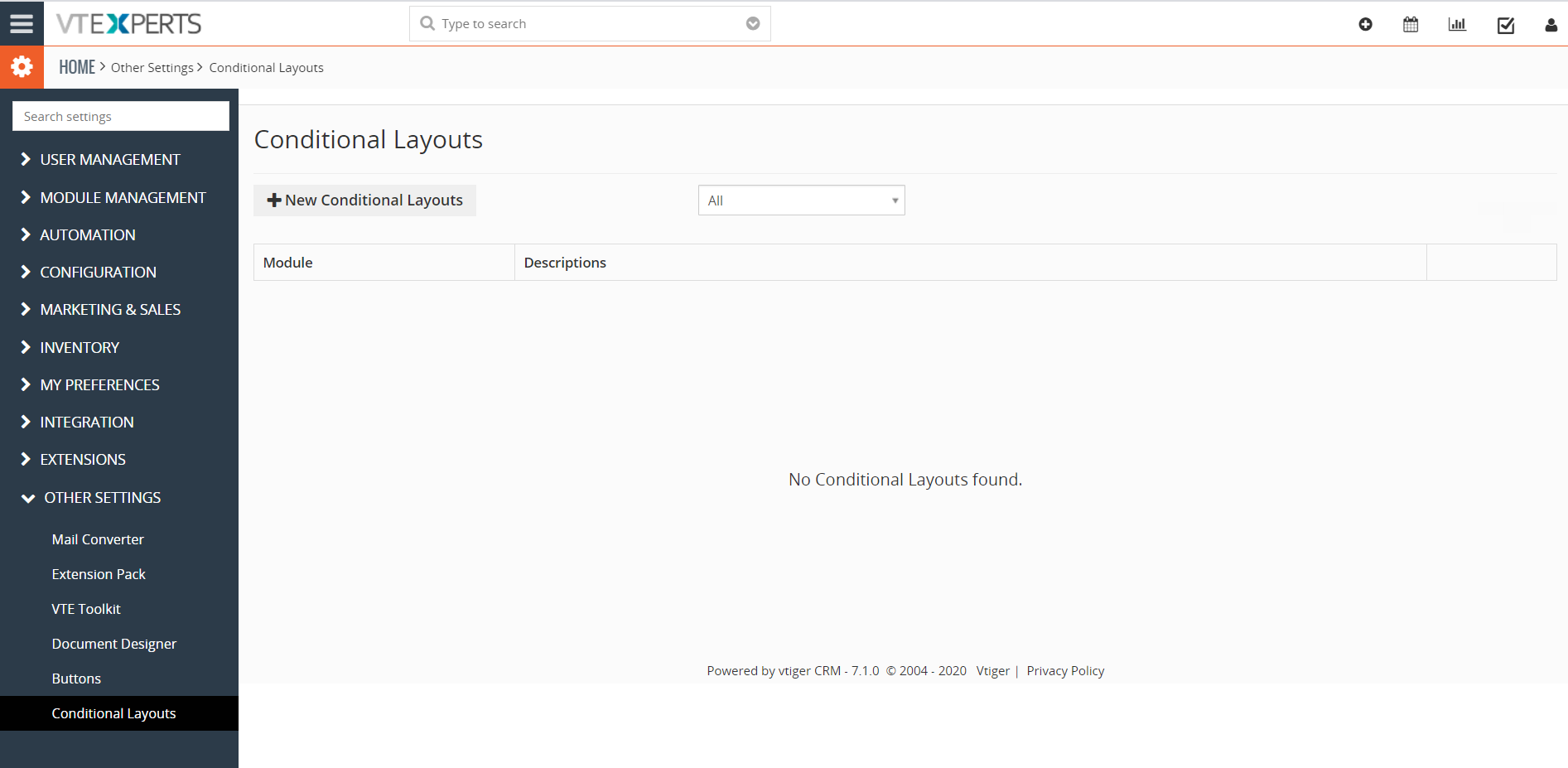
Go to Settings > Other Settings > Conditional Layout

Following screen will open
Conditional Layout Role-Based Permission

To set a conditional layout, click on “+ New Conditional Layouts” and select module. Set the condition based on role and finally set the action if condition is fullfilled.

Role based condition is shown in the figure below
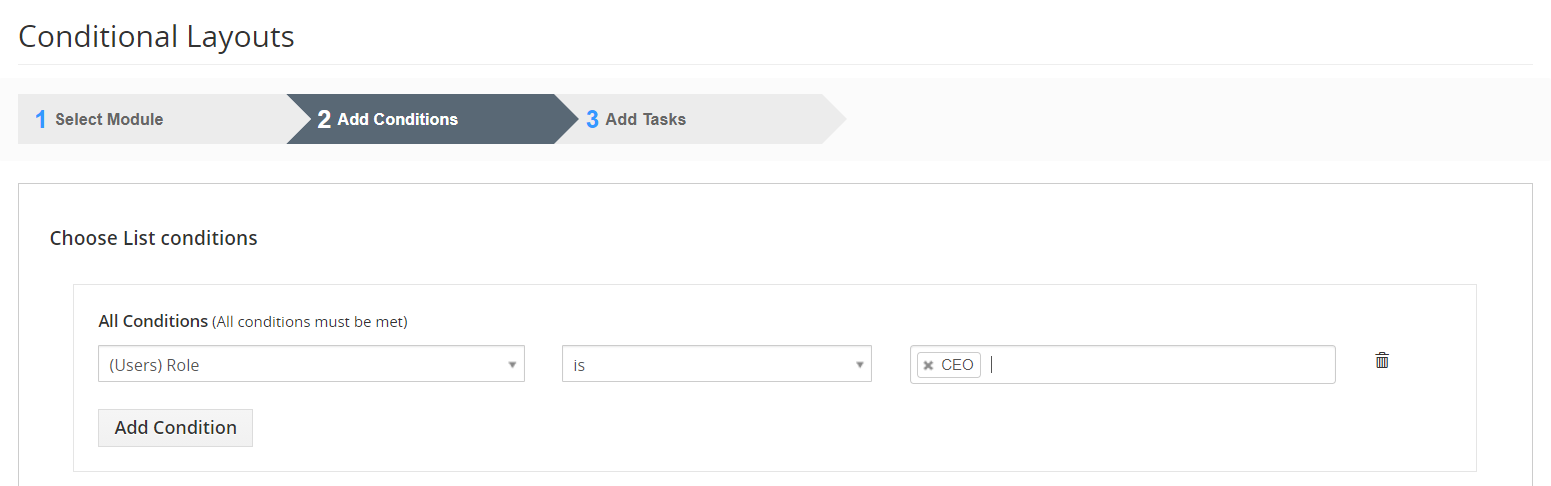
Conditional Layout Role-Based Permission


Example for Demonstrating How to use Role Based Conditional Layout

Here, we will demonstrate the usage of role based permission in Conditional layout with an example.

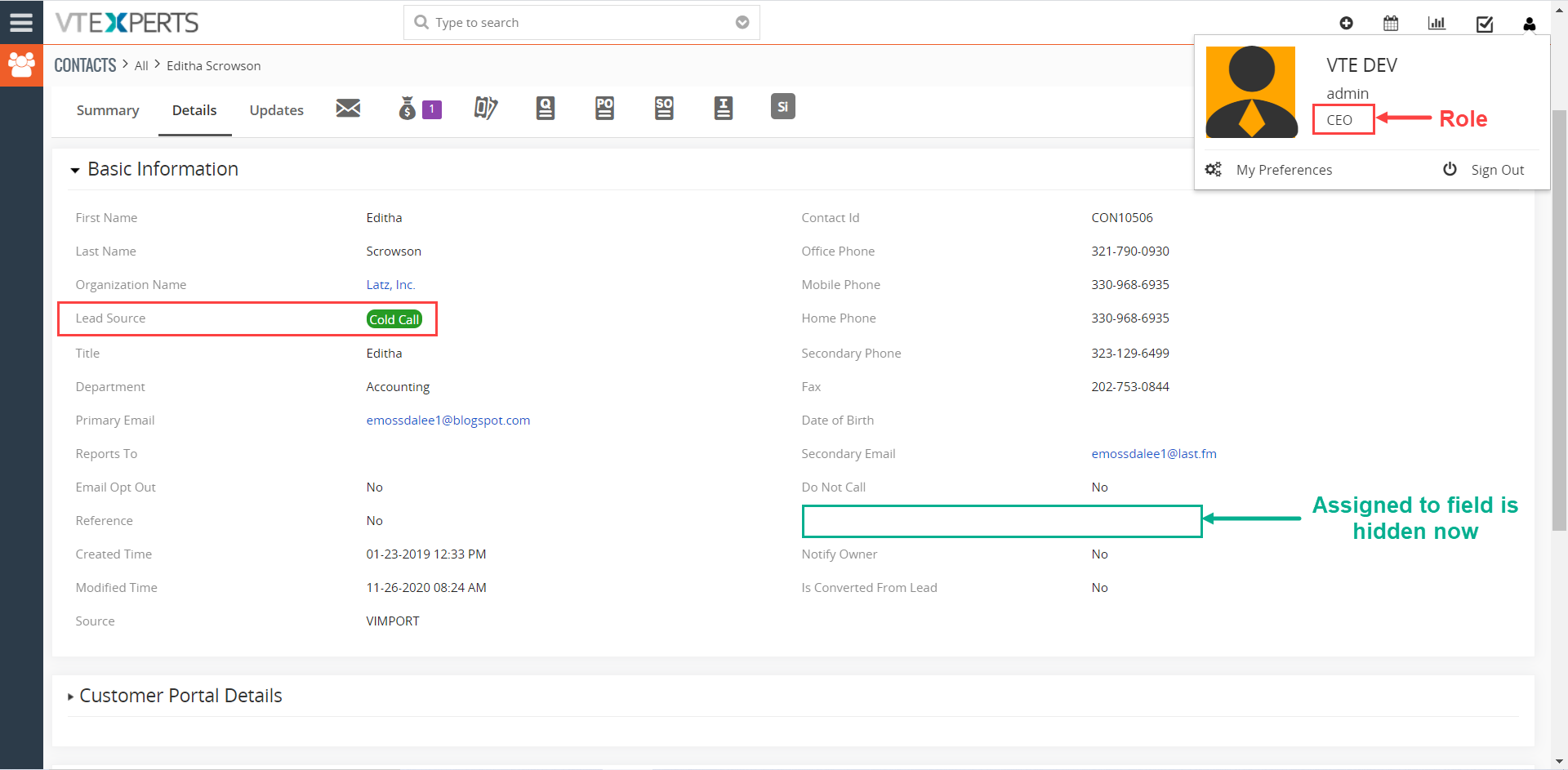
In this example the assigned to field in contact module will hide, if the role of the user is CEO and the lead source is Cold call
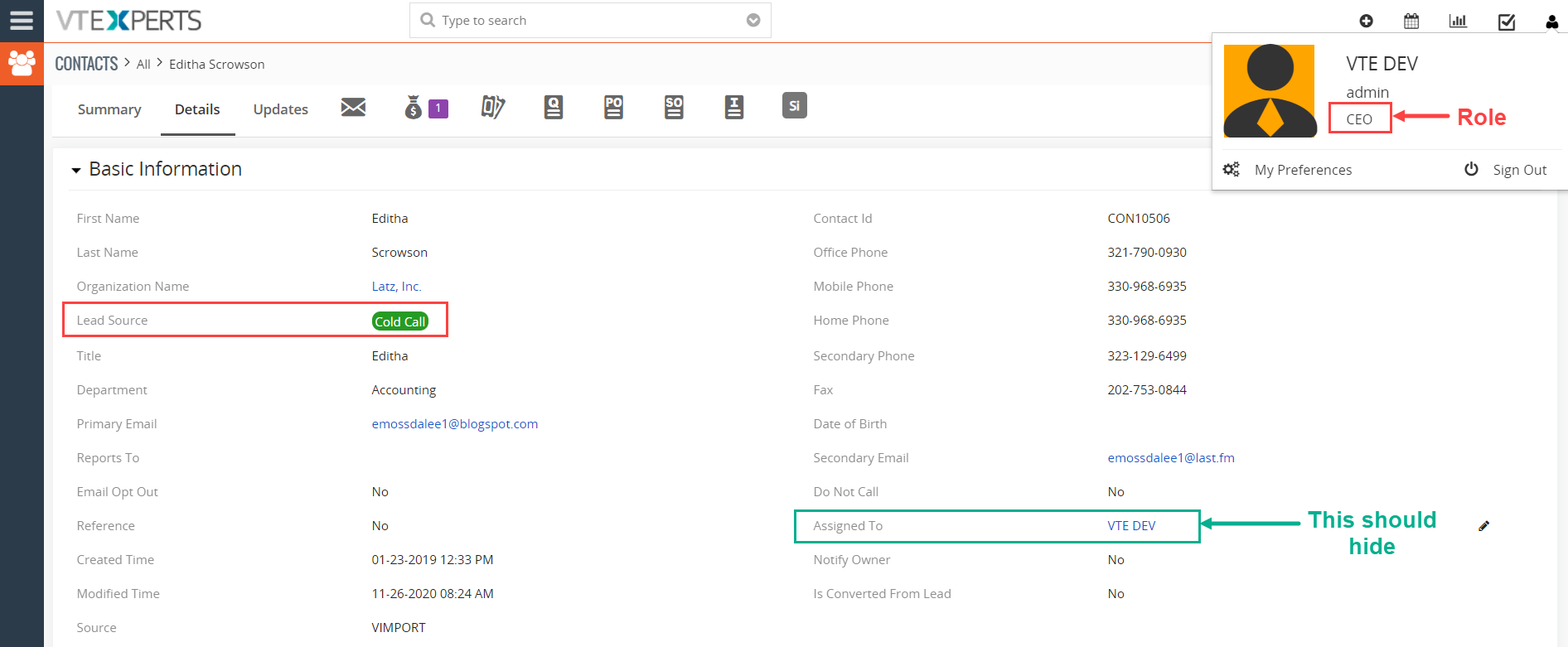
Conditional Layout Role-Based Permission

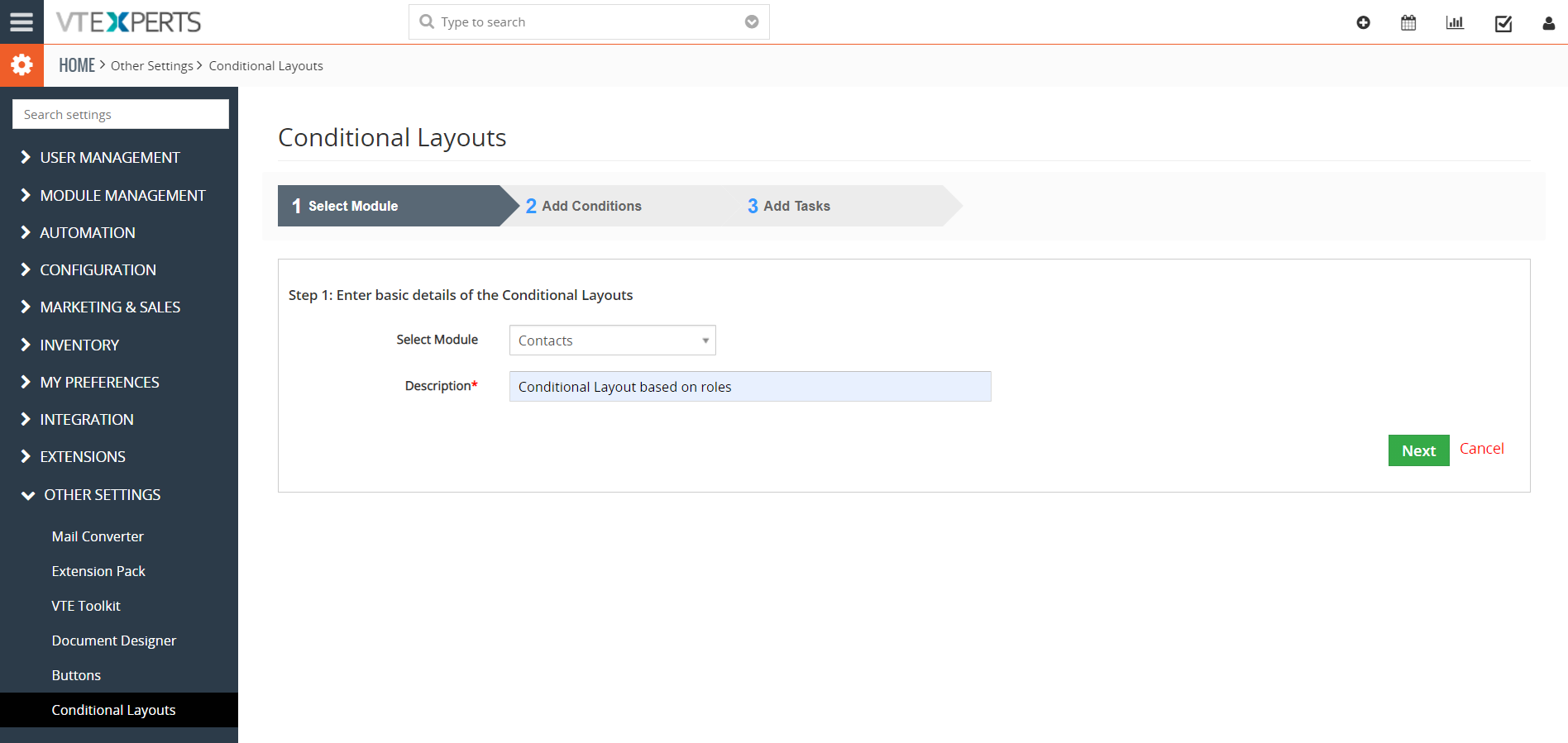
Step 1 : Select Module

In Select Module, choose Contacts

Provide the appropriate description for the conditional layout
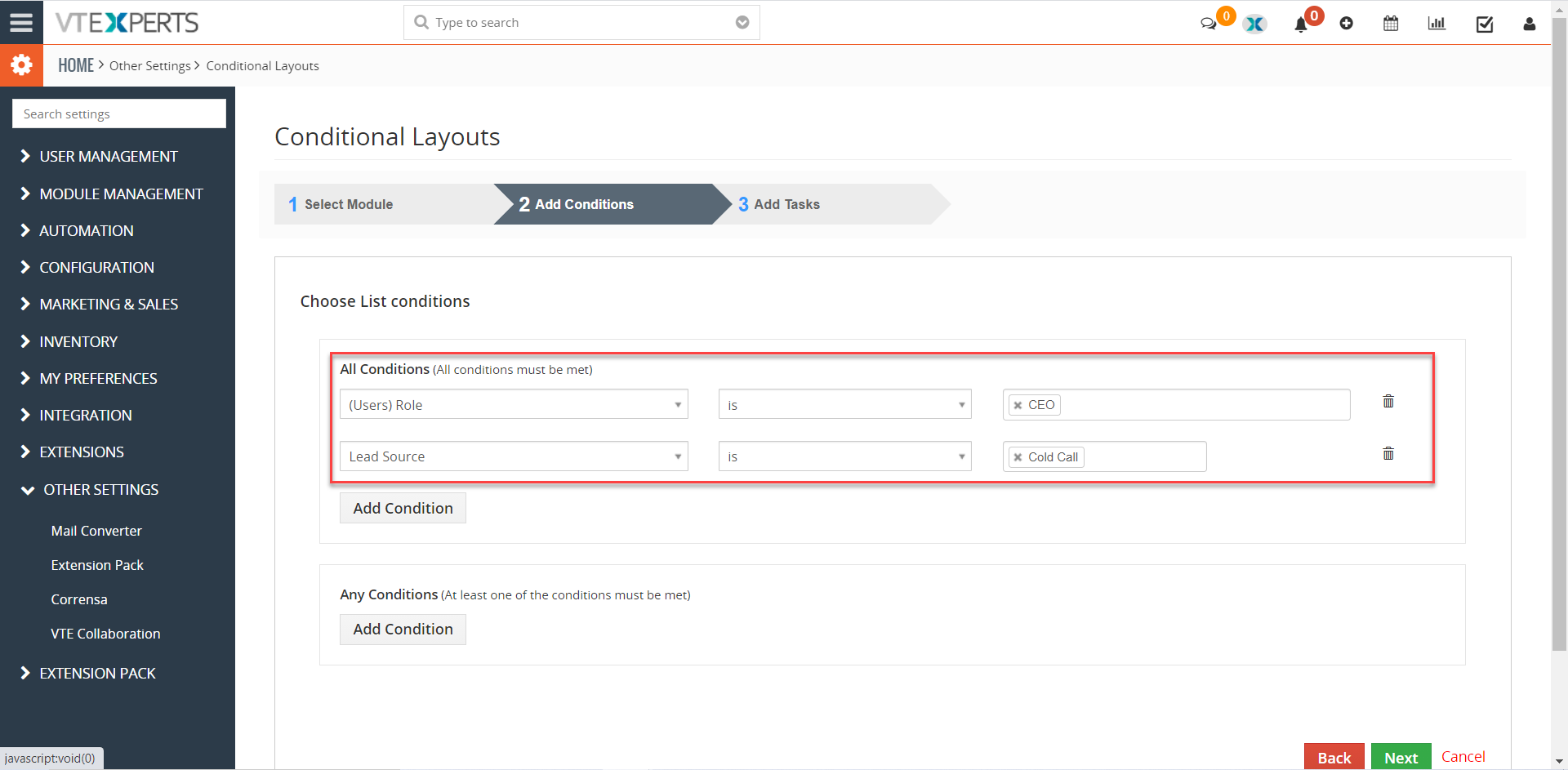
Step 2 : Add Condition

Here we will add two conditions in all condition section, i.e,

1- Role is CEO (means the role of the CRM user is CEO)

2- Lead source should be cold call
Step 3: Add Action

Set field Values : Set assigned to Hide Field
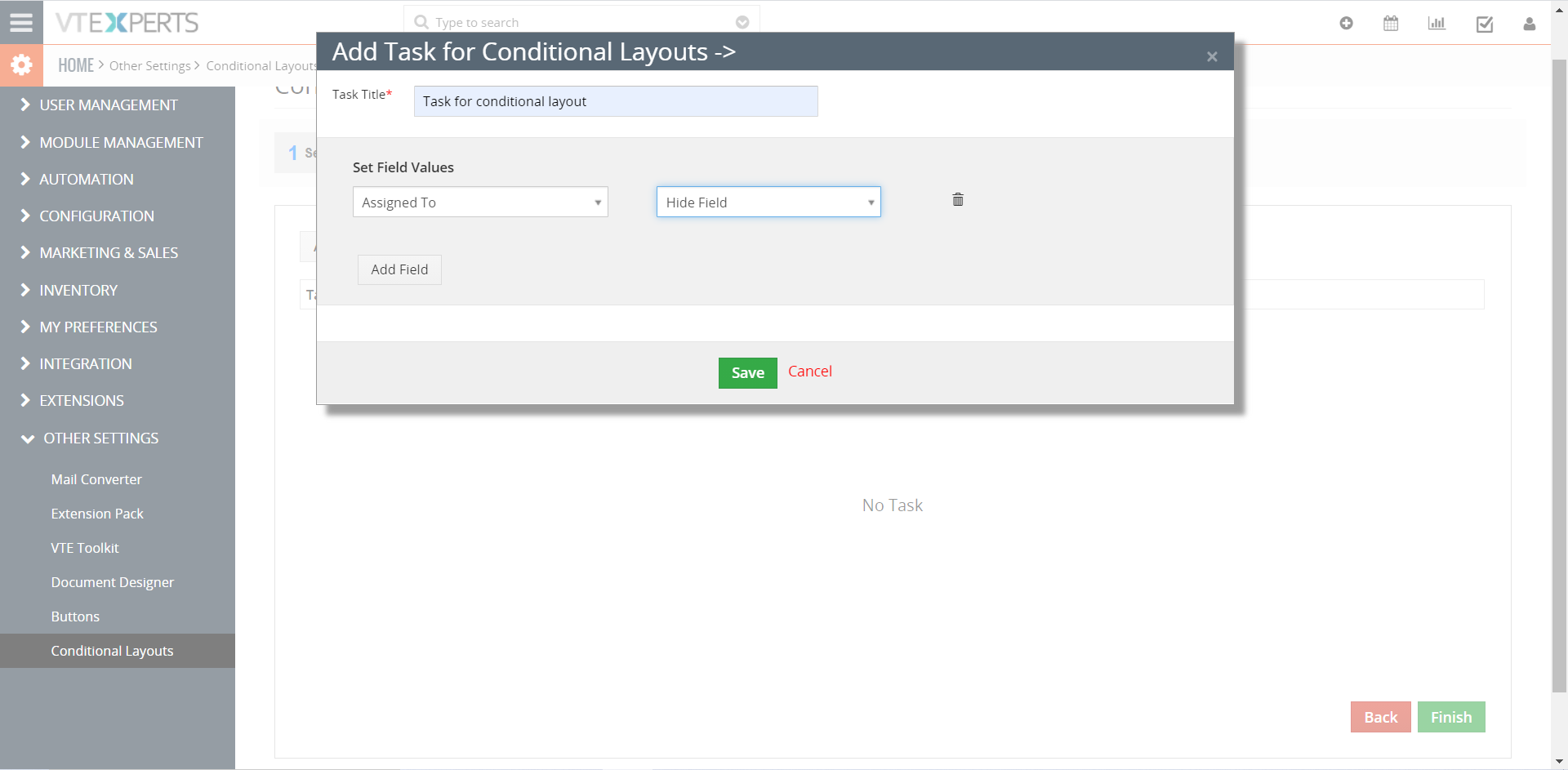
So, when the user using the CRM is CEO and the lead source is Cold call then assigned to field will be hidden

On execution of conditional layout, following result will be produced.
 

Next Article: Efficient Reporting with Vreports
 

Related posts

Multi-Currency Vtiger Quotes with VTExperts IDCA (Customziation)

Multi-Currency Vtiger Quotes with VTExperts IDCA (Customziation)

Vtiger Checklists by VTExperts Introduces Role-Based Sharing

Vtiger Checklists by VTExperts Introduces Role-Based Sharing

VTExperts Vtiger CRM AI Customer Portal Chat Assistant

VTExperts Vtiger CRM AI Job Description Generator

Leave a Reply Cancel reply

Your email address will not be published. Required fields are marked *

EXTENSION PACK

  • Extension List
  • Pricing
  • Extension Pack Details
  • Setup Instructions
  • Documentation

SERVICES

  • Support & Consulting
  • Hosting (Dedicated & Managed)
  • Customization & Development
  • Upgrade & Migration
  • Maintenance & Ongoing Support

LINKS

  • Gmail Plugin for VTiger
  • Outlook Plugin for VTiger
  • Blog (News & Tips)
  • Extension List
  • Contact Us Form

VTExperts

  • 341 W Scott Street
    Chicago, IL 60610
    United States
[email protected]
+1 (818) 495-5557
© 2009-2026 VTExperts.com All Rights Reserved
0
Cleantalk Pixel