vTiger Tips
Three Effective Tools Vtiger7 Provide To Automate The Process Of CRM Data Entry
March 11, 2016

Article
One of the most common ironies of current era is that too many resources are wasted by companies on easy tasks as data entry. In some scenarios, it is observed that the most valuable resources of the companies with huge potential of progress are just lavished away in the process of entering data into spreadsheets and other databases. If the same energetic talent is invested in some other productive activities rather than entering data manually in the spreadsheets, then obviously better results can be achieved. Further addition to the misery, the manual data entering mode is observed to cause different types of typo and missed data point. These errors are leading to the generation of faulty reports, thus causing damage to the efficiency and credibility of the database. Here comes Vtiger7 to save you from the hustle of entering data manually. It automatically updates the records whenever you receive data
Organize Data In VTiger By Fashioning Filters Of Your Choice
March 10, 2016
Article
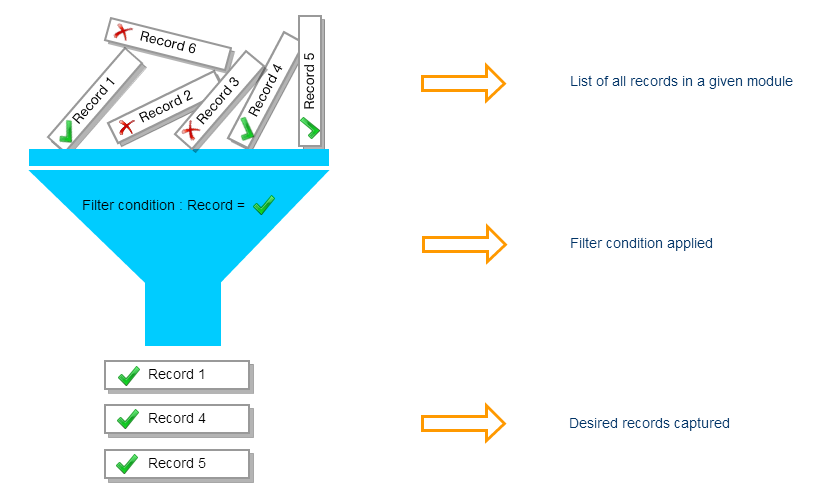
When working on a project, you may get overloaded by tons of data. Data handling is being enhanced day by day using hundreds of techniques depending on the quality of output. While working with a CRM, filters play a vital role in keeping track of your records. Vtiger 7, yet again, takes another step in reforming the modern techniques by introducing “Custom Filter” tool. It’s simple that using filters, locating the desired record gets easier. It also let you take bulk actions on the selected data. Utilizing Vtiger 7, Custom Filters can be designed according to your own requirements, and type of record. Getting started by developing a Custom Filter of your choice The following protocol works for every module. Let’s say we are in “Opportunities” module. Mirror these simple steps: 1. Press the Opportunities Tab 2. There will be a drop-down menu with Opportunities title 3. Click on the
Latest Hallmark Of Vtiger7 Helps In Keeping Track Of Your Customers’ Issues Using Advance Configurable Alert System
March 9, 2016
Article
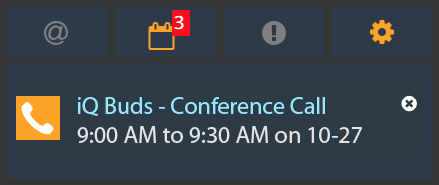
Your sales and support force are humans at the end of the day. They can only focus on the highlighted issues, but that does not mean catering the normal customers is of no significance. To run a successful business, human resource force should posses the ability to keep the track of every major happening, occurring around the business they are operating or the things in which they are taking part. It is a tough task and requires many human and capital resources. Vtiger7 allows a cost effective yet easy to use solution to this complication. The feature of smart alerts of Vtiger7 provides your human force (sales reps and support team) real time notification of every major happening in which they are involved. The different ways in which you can use Vtiger7 efficiently are as follow: Get notifications about an idle record which you have to follow Timely follow-ups are
Ramp Up Customer Satisfaction With Vtiger’s SLAs! Here’s How It Works!
March 8, 2016
Article
Your customer service team acts as the first line of defense when your customer yens for your attention. What experience your customer gets from your customer service team can build an immense amount of value by motivating repeat business, customer consistency, and encouraging referrals. But a poor experience can motivate customer to discontinue its operations and to discourage their network from conducting business with you. From a quick and professional response to frequent interactions, there are a lot of factors that contribute to giving your customer a great experience. However, there’s no rule for setting reasonable time for resolving customer case as it varies from business to business, type of issue and other variables. To ensure a high level of customer satisfaction, a business should first identify the relevant case and required time to resolve that case. There’s an agreement that defines case response and resolution time, and that’s called
How Vtiger7 Let You Appraise Your Customers Using Multi-channel Support
March 7, 2016
Article
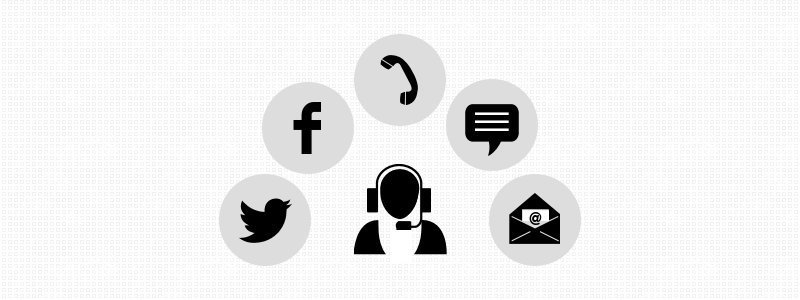
In the current modern era, customers are empowered because they can use different modes of communication like email, instant messaging, video conferencing etc. When one mode of communication fails to yield the desired result the customers switch to another one. As the result, only 25% of the customers stick to their first mode of communication. When one technique to commune fails its purpose, it results in the loss of customers, as they switch to different vendors who are offering same products with better help centre. Vtiger7 CRM provides another hallmark to serve optimal solutions for the cross channel communication of the customers. The customers can start the process of liaison through one channel and can continue the same conversations using some other media. The whole process to overcome customers’ cross-channel communication using Vtiger7 is simple yet very effective. It consists of three steps which are as follow: Connect to the
How Vtiger + Accounting System Integration Makes Information Exchange Seamless!
March 6, 2016

Article
An uninterrupted flow of information between the sales, support and accounting department, enriches the customer experience. Vtiger makes the exchange of information easier and error-free by letting the user to automatically mirror data between the Customer Relationship Management (CRM) and accounting software. It ensures that the sales, support and accounting team access the accurate data from the same page. Vtiger 7 integrates with commonly used accounting software like Xero, Tally and Quickbooks. If you are using any other accounting software, use Zapier to connect to it. Read on to know some major benefits of integrating your accounting software with Vtiger 7. Faster, error-free and without double-entry invoice creation After a deal is done by the sales department, billing information like customer name, billing address, shipping address and product/services purchased, is forwarded to the accounting department to generate an invoice. This billing information is gathered by the sales department and then
Vtiger 7’s Yet Another Hallmark Let You Work In Groups
March 4, 2016
Article
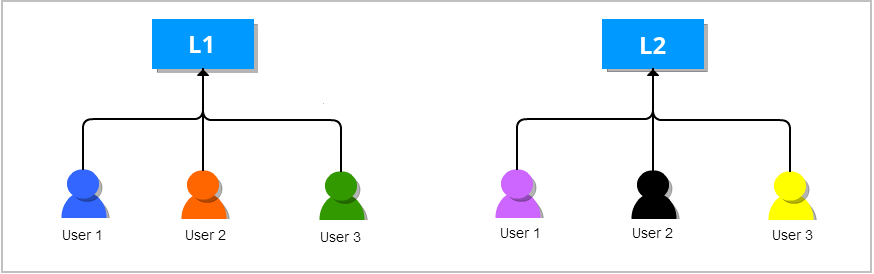
The characteristic that describes the group is the fact it is composed of individuals and groups within the organization. Teams are being built on the structure of a group to which possess a common record. The Vtiger 7 allows you to manage individuals in the form of groups and tasks allotted to them. Benefits of using Vtiger 7’s Groups functionality To improve the efficiency of a group, Vtiger 7 is an effective tool. Its key feature allows to assign a record. Using the tool, you can assign a record to any individual or a group. After the successful assignation the record is available to all of the members of that group and they can perform key tasks on the record. This helps people to work in the form of teams and improve productivity. If an individual from a group is unable to show up to the job, then there is
Picklist Dependency Setup Has Enhanced The Contemporaneity Of Vtiger
March 2, 2016
Article
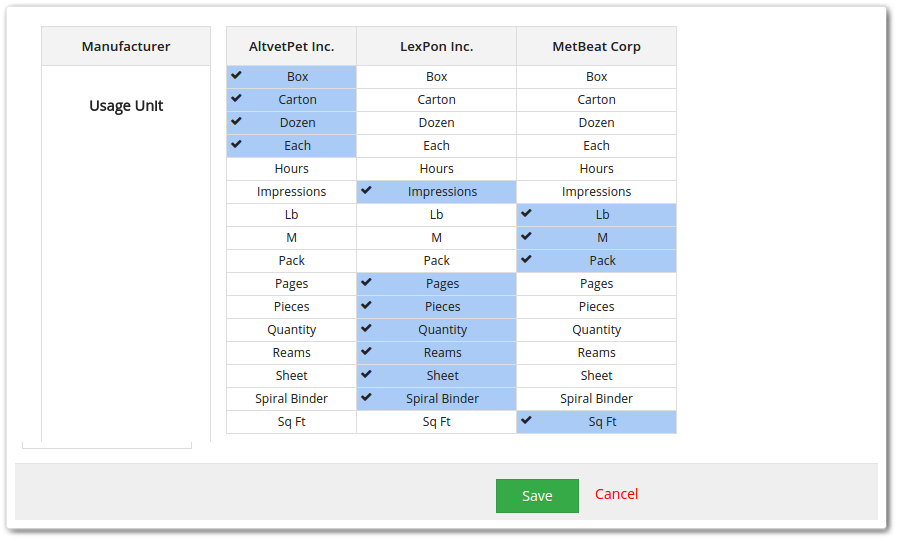
Picklist Dependency is a feature that helps in specifying the details of the product being selected. The outcome is accurate, discrete, and authentic, as the particular values are assigned via carefully designed table. The target field depends upon source field, which depends on module. Select a Module, pick its source, define target, and that’s it. It’s easier done than said. A Whole Package In One Box If there is still a hint of confusion left, this guide can get it going. Let’s say there are two products. Choose any one as your Module. Upon selection, manufacturers for that particular product will be accessible in the “Source Field” drop down menu. Go for your desired option, and the list of Usage Units specified for the selected manufacturer will be displayed in the “Target Field”. Develop Your Own Picklist Dependency In Few Steps There will be needed a module, a source field,
VTiger 7 New Main Menu (New Release)
March 1, 2016
Article
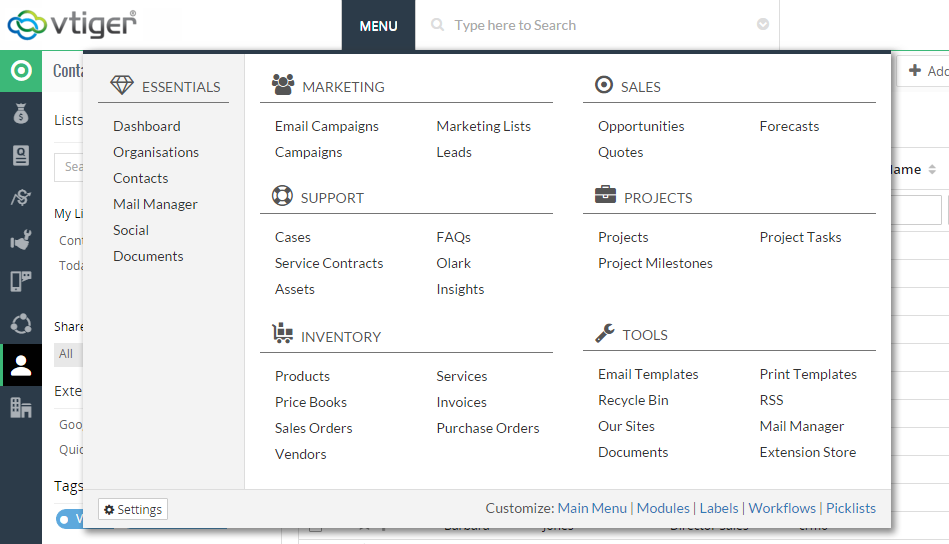
The users of Vtiger recently experienced the new main menu that is designed with an aim to make it more user-friendly. The new layout makes it very simple for the user to understand it and navigate through. This latest menu gets advantage over the previous left-sided menu, launched with Vtiger 7, in all the following ways: It’s easier and faster to access the main menu. Now user can access the main menu from almost middle of the screen instead of the upper-left corner. This is the position where you can take the cursor easily. It’s faster because it reduces the total distance covered to get that spot. There are no more nested menus to browse modules. The user is enabled to browse to any module from the main menu in a single motion. For this, the main menu has been split into two main portions: the left and the right.
2016 Roadmap for Vtiger! (Vtiger 7, Marketplace & New Layout)
January 11, 2016
Article
Vtiger is becoming one of the leading CRM ins the open source industry. In the last few years Vtiger improved greatly by releasing version 6.x, introducing marketplace, which already has over 100 Vtiger extensions & plugins. In addition, code.vtiger.com was introduced to allow developers to contribute to open source project and merge changes/updates to the core vtiger files. The year 2016 will be even greater! Vtiger has published unofficial roadmap in the developers community. Release of Vtiger 6.5 by the end of Q1 Bug fixes Greatly improved marketplace New features (we don’t have a list of new features yet). Release of Vtiger 7 by the end of Q4 of 2016/Q1 of 2017 New & responsible Layout New features/functionality (we don’t have a list yet, but we are assuming a lot of new features will be introduced with the new layout) Possible compatibility with PHP7
vTiger Outgoing Email Server & Amazon SES Integration
November 28, 2014
Article
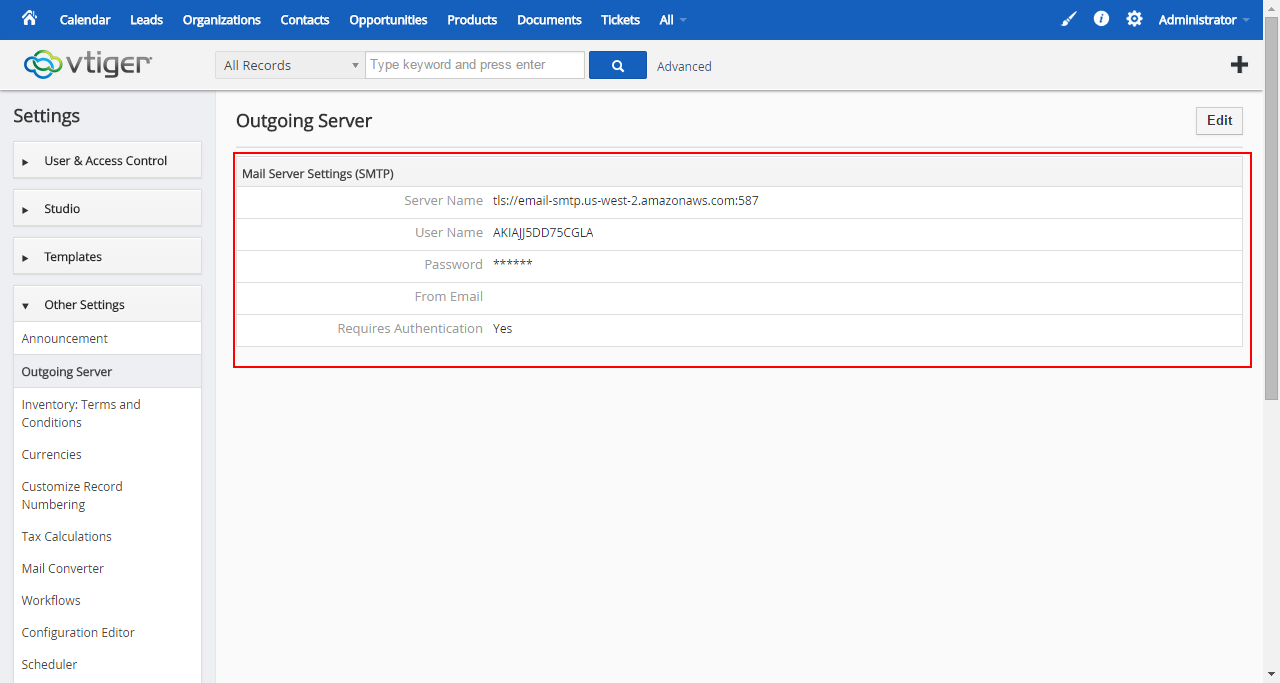
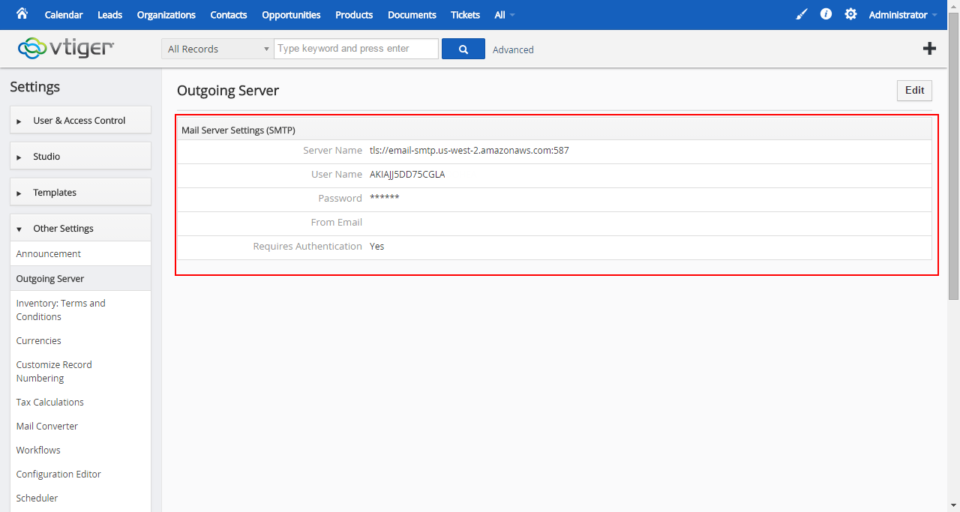
vTiger & Amazon SES Amazon Simple Email Service (Amazon SES) is a cost-effective outbound-only email-sending service built on the reliable and scalable infrastructure that Amazon.com has developed to serve its own customer base. With Amazon SES, you can send transactional email, marketing messages, or any other type of high-quality content and you only pay for what you use. vTiger has a built in Email client as well as some Email Marketing tools which require a reliable Outgoing Email Server. One of industry leaders – Amazon.com provides an excellent SMTP service which can be easily integrated with vTiger. Create Amazon Account First thing you need is an Amazon.com account. You can use the same account you use for shopping(if you have one), or just go into Amazon.com and sign up for new account. Once you have the account go to https://aws.amazon.com/ses/ and click “Sign into Console”(right upper corner), then under “Application Services” click
vTiger Office365 SMTP Outgoing Email Server Configuration
November 28, 2014
Article
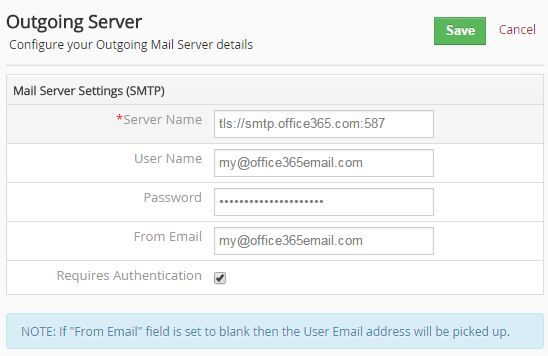
Microsoft product – Office 365 is become more and more popular and with more vTiger users use it as an Outgoing Email Server. Office 365 is similar to Google Apps which provides emails, spreadsheet and document management. One of the most common issues vTiger users run into is setting up vTiger Outgoing Email with Office365. The configuration is fairly simple, Office365 uses TLS authentication method and 587 port. Here are the sample settings that should be used with vTiger and Office365. Server Name: tls://smtp.office365.com:587 User Name: Your Office365 Email Address Password: Your Office365 Email Password From Email: Your Office365 Email Address If you have any issues configuring the vTiger Outgoing Email Server – feel free call or email us. How to get a hold of us? Email: [email protected] Phone: 1 (818) 495-5557 Contact Form: Contact VTExperts Support Chat: Gmail/Skype/Chat via website
vTiger on Synology Drive
November 27, 2014
Article
Synology DiskStations solve a variety of problems for everyone from the casual home user to a system administrator at a large company. Sharing files, backing up several computers at once, streaming media, and hosting websites are just a sample of what these powerful devices are capable of doing. One of the apps available on Synology drive is vTiger CRM. Depending on your Synology DSM version you might have vTiger 5.x or even latest vTiger 6.1 available. We had quite a few inquires regarding the vTiger Upgrades on Synology drive as well as backups & transfers out of the drive. If you are technical enough, you should be able to follow up our vTiger Upgrade to 6.1 Guide and perform the Upgrade, however if you are having issues – feel free to contact us and we’ll help you out. The most common request is “How to move vTiger off Synology Drive?“. Again,
Importance of vTiger Database and File Backups
October 18, 2014

Article
Having a powerful platform like vTiger can really improve your customer relationship management and help you reach your business goals. However, if you don’t have the proper backup systems in place, then all of your data is at risk. With our vTiger backup services, you can be confident your data will always be safe.
Upgrade Guide: VTiger 6.0 to VTiger 6.1
October 18, 2014
Article
When your business wants to improve workflow and get the most out of customer relationship management, you undoubtedly turn to the best software on the market. When performing a VTiger 6.0 to VTiger 6.1 Upgrade, you need to have an expert on your side. No matter what type of upgrade or implementation you need for your business, our VTiger Experts are here to help you. In case you decide to attempt the migration by yourself, here’s a guide how to Upgrade VTiger 6.0 to VTiger 6.1. Backup Your VTiger Files & Database This is the most important step of the procedure. You have to make a good backup of the database and the file system. In case the migration goes south and you don’t have a valid backup – you will run into a lot of issues. Download The VTiger 6.1 Upgrade Patch VTiger 6.1 Upgrade patch can be downloaded
vTiger 6.1 Demo – EA (Early Access) is now available
August 27, 2014
Article
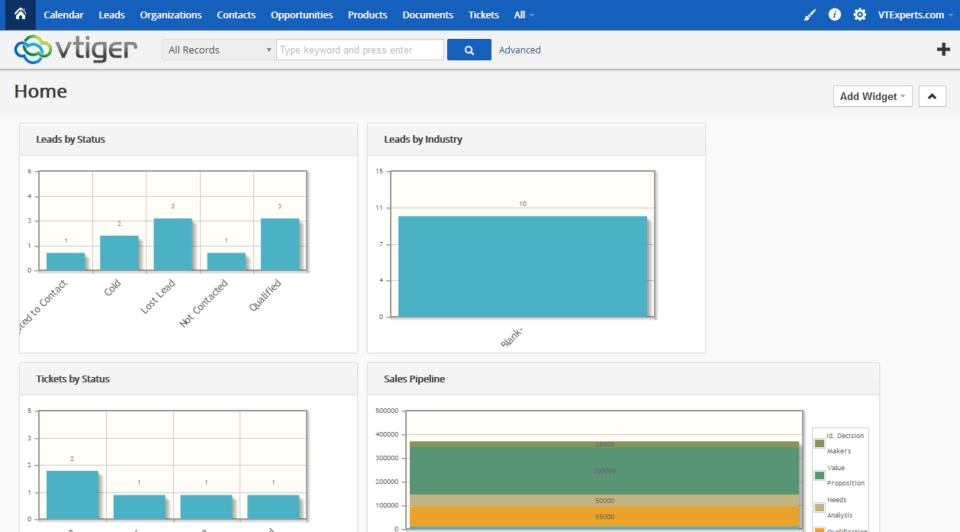
vTiger 6.1 Demo – EA (Early Access) is finally available for community evaluation. vTiger 6.1 has a lot of bug fixes as well as improved functionality & design. Features(Scheduled Reports, Search, Reporting Charts, RSS Module, Our Sites Module) that have been removed in 6.0 have been added on 6.1. In addition there was a major change in the vTiger Extension market – vTiger will now have a marketplace where everyone will be able to test out all available modules/extensions/addons and purchase them without having to go to the Vendor’s page. vTiger 6.1 EA Features: PHP 5.4, 5.5 support mysqli support Search within Listview Asterisk (PBXManager) Integration Scheduled Reports Report Charts Click through Charts Mass Edit for Documents Workflow for Documents RSS Module Our Sites Module Marketplace Integration (ExtensionStore) vTiger 6.1 Demo vTiger 6.1 Demo can be access using the link: https://demo.vtexperts.com/vtigercrm61ea/index.php Username: demo Password: demo *Note, the database will
vTiger Customer Portal Demo
July 11, 2014
Article
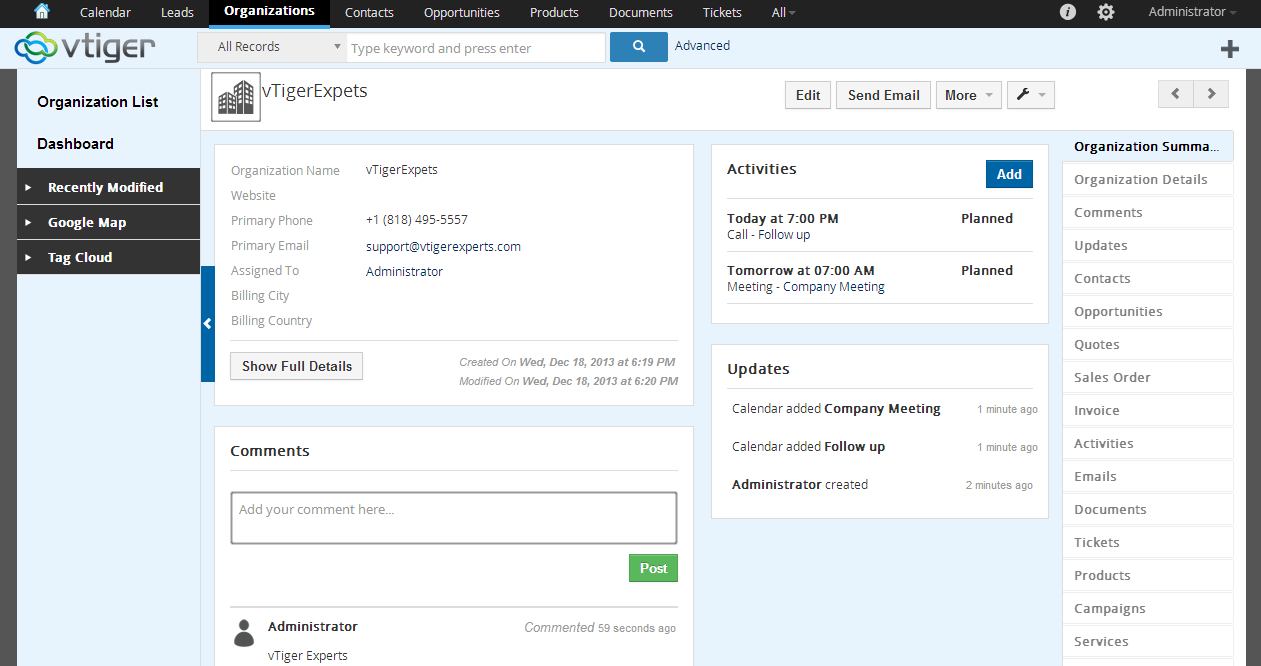
Customer Portal VTiger Customer Portal is a controlled, private, and secure platform that allows your customers to interact with their related records in CRM as well as your team. The Contacts and Organizations can access their tickets, invoices, assets, product details and order information, calendars, and what not. It also allows the Portal users (Contacts and Organizations) to easily search, view, and edit their relevant information in the VTiger CRM. The Customer Portal also enhances customer relationships by providing access to complete and up-to-date information 24/7. The Customer Portal is convenient and relevant – it contains everything that customers need in one place online. Through the well-designed customer portal, we provide customers only to access to the modules and records that is needed. Features of Customer Portal Here is a list of some of the most prominent features of VTiger Customer Portal: Controlled and secure access to Customer data from
How To Create Contacts/Organization Custom Lookup/Related To/Relationship Field in vTiger
July 10, 2014
Article
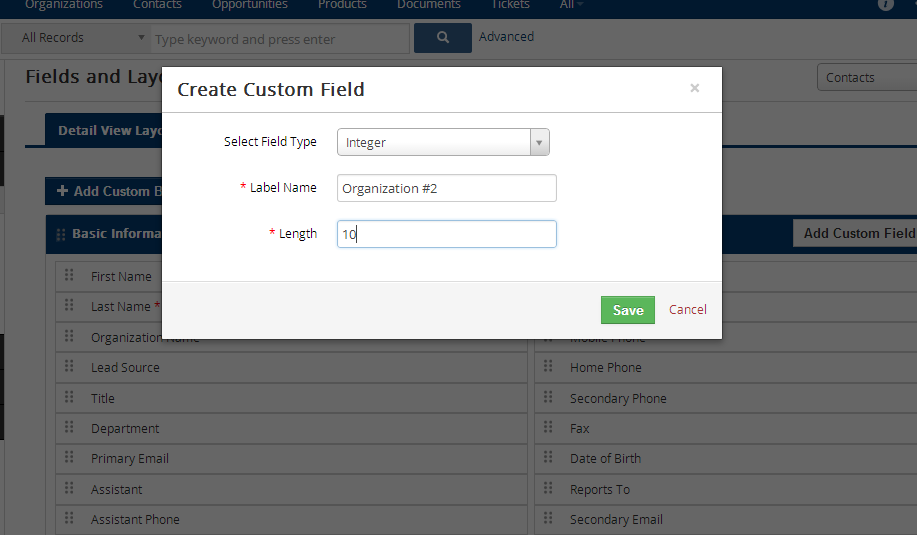
vTiger has a flexibility of creating custom picklist, text, currency… fields, however is lacking an option to create custom lookup/related to/relationship fields. We’ve created a detailed guide to walk you through creating a custom Contact or Organization relationship field. Note, it will require some knowledge of MySQL database and how to connect to it, but other than that – the steps are fairly simple. Creating a Custom Field Open Field Editor. (CRM Settings > Modules > Select the Module > Edit Fields) Create new Custom Field. Select field type as Integer as it will be storing record id. Length can be set to 10(or more if you are planning to have 10M+ records). Connecting to the vTiger Database via phpMyAdmin Easiest way to connect to vTiger Database is via phpMyAdmin. Once connected, open the table vtiger_field and find the new field just you created. The quickest way to find the
vTiger Quote/Invoice Product Price Markup
June 30, 2014
Article
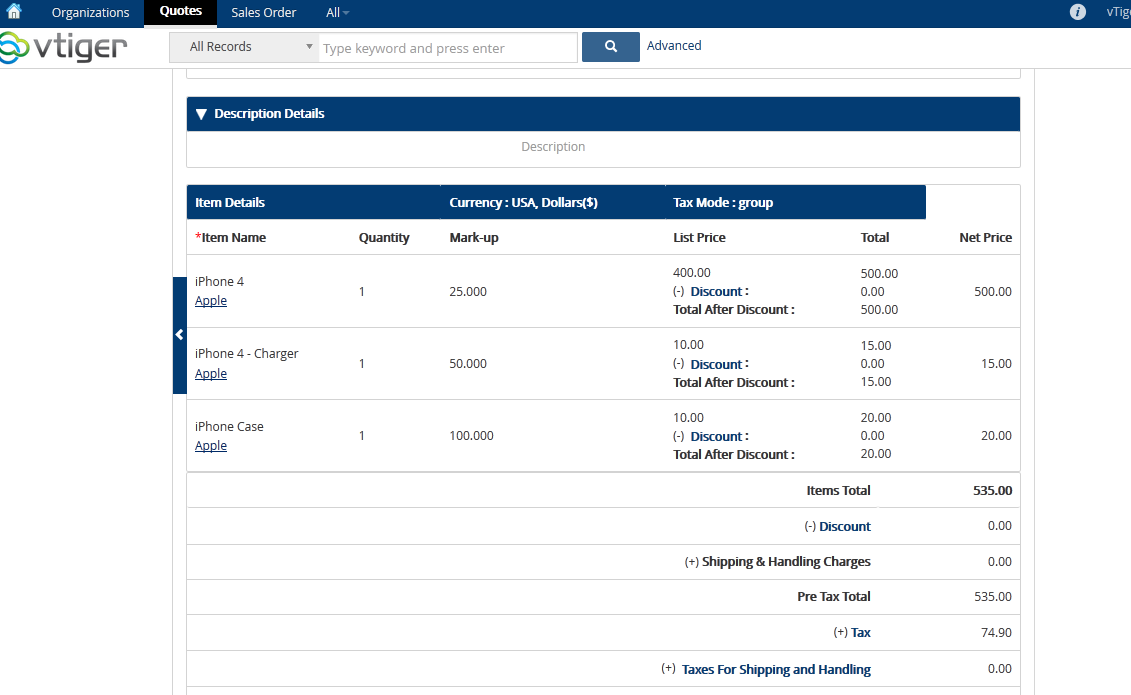
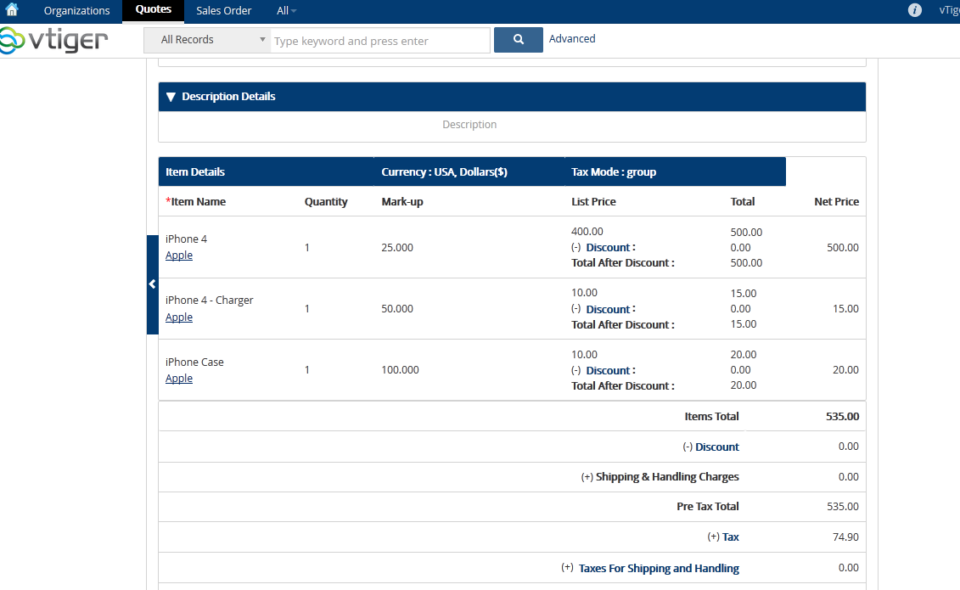
vTiger Quote/Invoice Product Price Markup will allow you to easily mark up the prices for all or individual products/services on the Quote or an Invoice. The Markup is calculated based on the Unit Price. Net Total, Tax & Grand Totals are updated based on the price markup. vTiger Quote/Invoice Product Price Markup is transferred to the Quote, Invoice & Sales Order. Demo can be found at: https://demo.VTExperts.com/markup/index.php Username: demo Password: demo Have questions or interested in this extension? Or have something in mind? Please contact us for more information!
vTiger 6.1 Demo
May 26, 2014
Article
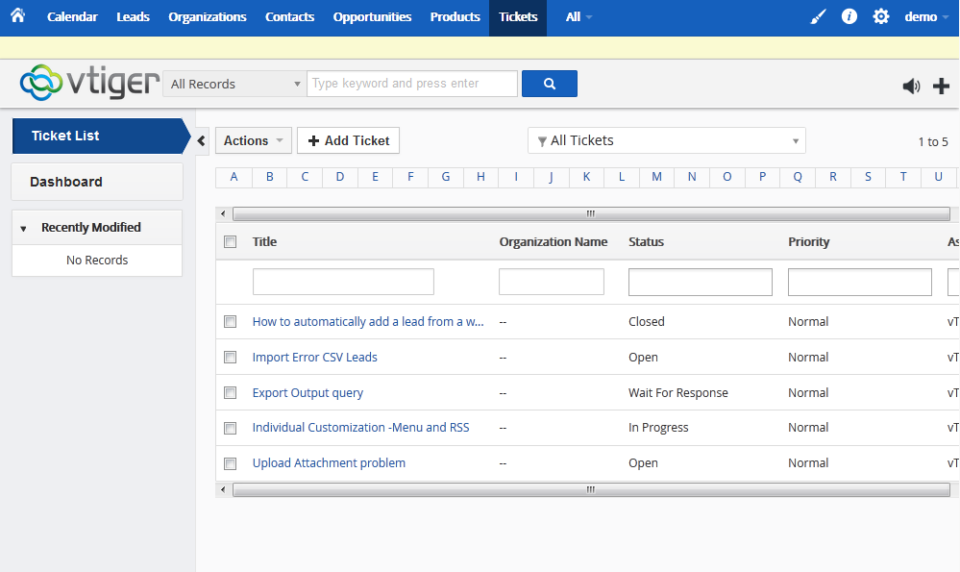
vTiger team has been working really hard to keep up with the demand of open source version of vTiger. As the release date of vTiger 6.1 is getting closer(targeting the end of June) most of the functionality is already available in the TRUNK for public to testing. vTiger 6.1 includes 70+ bug fixes and enhancements. List of bugs fixed in vTiger 6.1 Demo can be found at their official announcement page. Few things you will notice in vTiger 6.1 Demo that vTiger 6.0 does not have is: Enhanced Listview Search – vTiger has really stepped up it’s game and improved the search capabilities significantly. PBX Manager – A long waited add-on which was not part of the 6.0 release is now available on vTiger 6.1 More color Themes – Individual users can now select their theme using the icon on the menu bar. Redesigned interface – vTiger 6.0 had a completely
vTigerCRM 6 RC Is Now Available!
December 19, 2013
Article
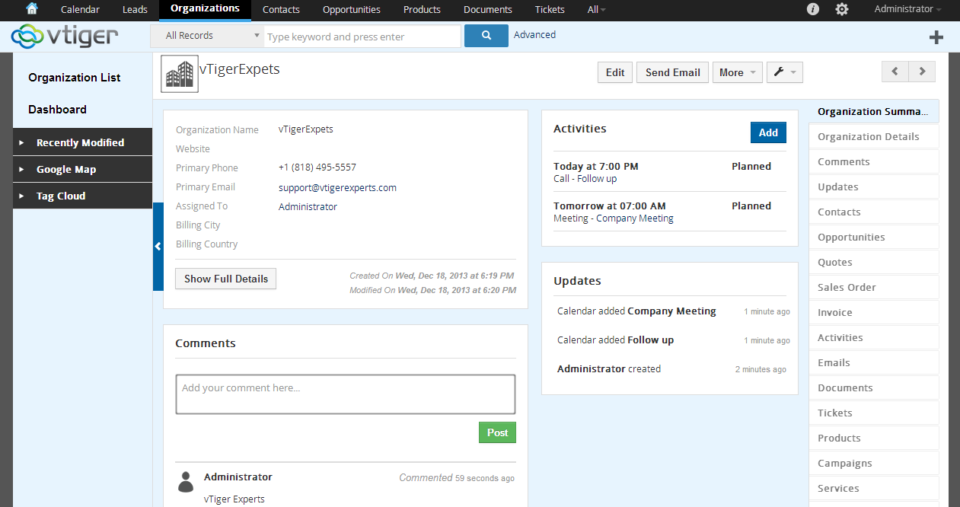
vTiger CRM 6 RC Has finally arrived! vTiger CRM 6 is a complete overhaul of the previous versions. vTiger CRM 6 has more modern and elegant look, a lot of improved functionality such as ability to add & link records on the fly, be able to see the records in a summary view, a more efficient way of seeing updates & linked activities as well as improved field & related list manager and many more.. The Installation of vTiger CRM 6 RC is a straight forward operation. Before you start the vTiger CRM 6 RC Installation – make sure you server is compatible with it. Make sure that your server has: Apache 2.1+ MySQL 5.1+ PHP 5.2+, 5.3 php-imap php-curl php-xml max_memory (min. 256MB) max_execution_time (min. 60 seconds) Once confirmed – move on to the vTiger CRM 6 RC Installation. 1. Download vTiger CRM 6 RC from one of the links
VTiger CRM 5.4 to vTiger CRM 6.0 Upgrade/Migration Tool
December 9, 2013
Article
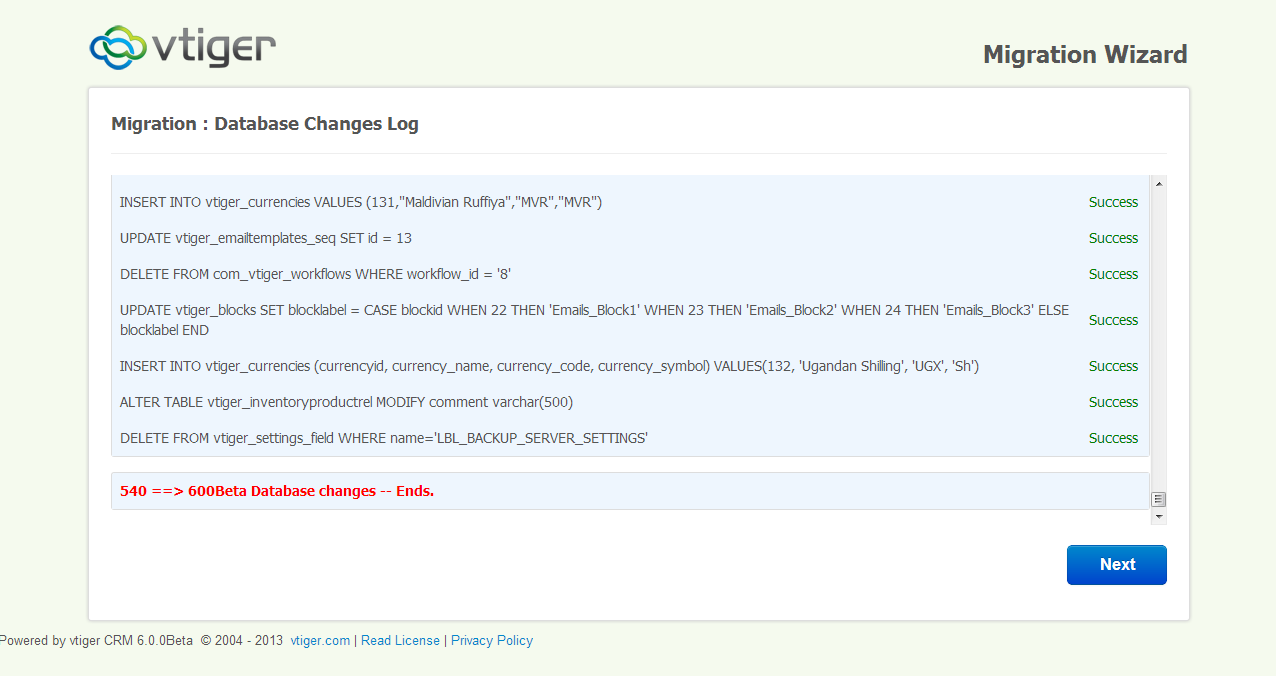
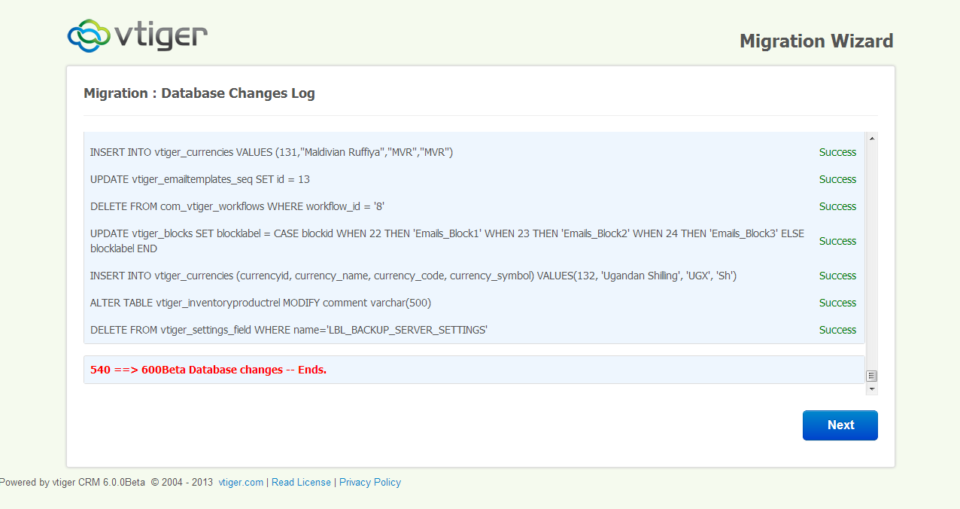
Long waited vTiger CRM 5.40 Upgrade/Migration Tool to vTiger CRM 6.0 has been released. Since there’s no stable or RC version of vTiger CRM 6.0 – this migration/upgrade tool only works with the beta version. According to vTiger CRM developers, this should not be used for production and is only for testing purposes, however if you want to move quickly and can not wait for RC/Stable version – you should be able to upgrade your vTiger CRM 5.40 to vTiger CRM 6.0. We’ve done few migrations already and it seems to be working as expected. The migration/upgrade process is quick and easy to perform, however if you don’t feel comfortable doing it – feel free to contact us and we’ll help you out. First and the most important step is – backups.You have to take a backup of you existing vTiger CRM database and the file structure. The way the
How to Create a Custom Module In vTigerCRM 6?
September 25, 2013
Article
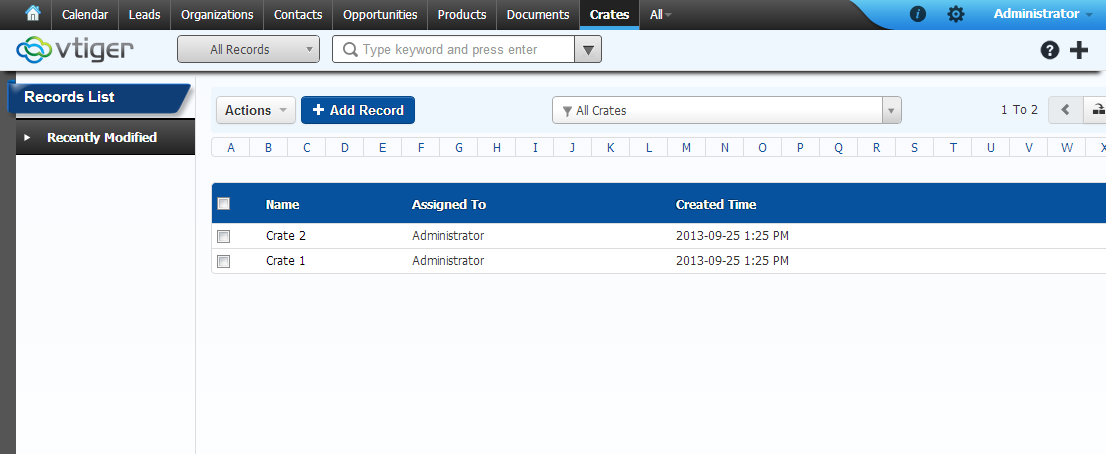
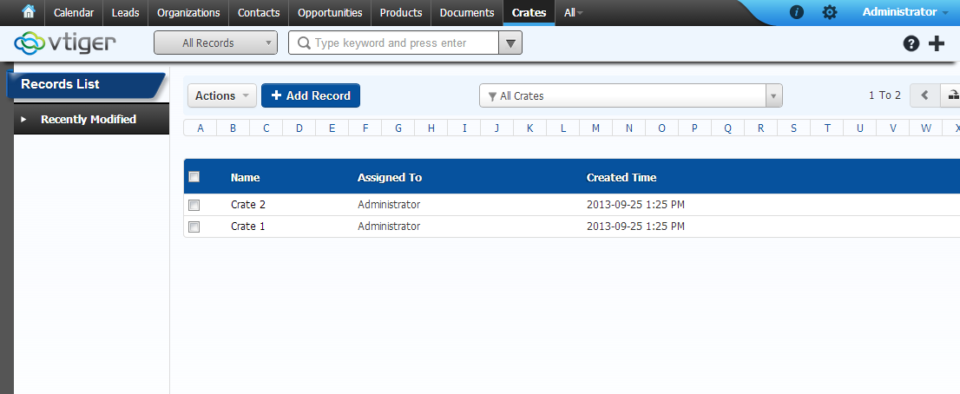
vTiger 6 came out with a very useful and easy to use tool to create custom modules. Unfortunately, the tool is not part of the user interface, however with a very little knowledge of unix and ability to navigate using SSH connection – you will be able to create a vTiger custom module within few seconds. Firs thing you need to do is find out how to connect to your server via SSH. For those how are using shared hosting, it is not always an option, so you should check with your hosting provider if this option is available. Assuming you have access and know how to connect, go ahead connect to the server and navigate to your vTiger directory. The tool is located at /yourvtigercrm6/vtlib/tools/ folder, go ahead and navigate to that folder, assuming you are in your vTiger6 folder, you would just do cd vtlib/tools/ There is a file
How to Change Default “Select Popup” Columns in vTiger?
August 30, 2013
Article
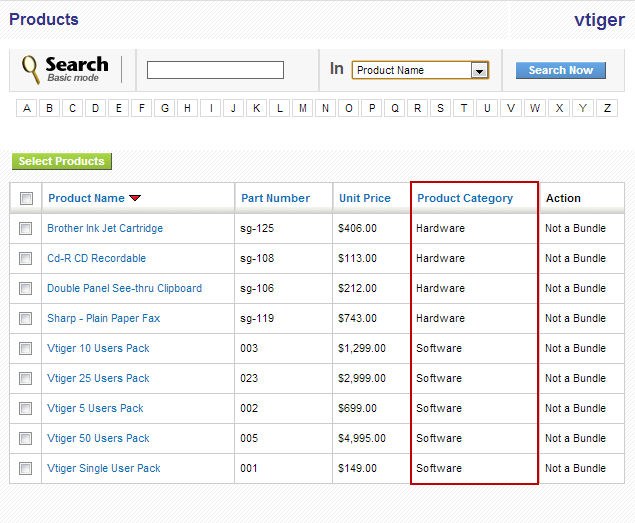
Out of the box vTiger does not allow users to configure the “Select Popup” columns using the interface. The work around requires some knowledge of vTiger database structure and basic php skill. The “Select Popup” is a popup which shows up when you click “Select Products” or “Select Services” or when you click on any “Select” button on the system. Note, once you change the columns for one module – the same columns will be displayed system wide. For example, if you change “Product” columns – every time you “Select Product” – customized columns will show up. The procedure below describes how to add “Product Category” to the “Select Popup” in vTiger. Go to “/vtigercrm/modules/Products“ Open “Products.php” with your favorite text editor Find the function “$list_fields” and add the desired field label, table and field name. Again, this requires some knowledge of database and php, but you should be able
How to Create Description Type Field/One Column Layout in vTiger?
August 30, 2013
Article
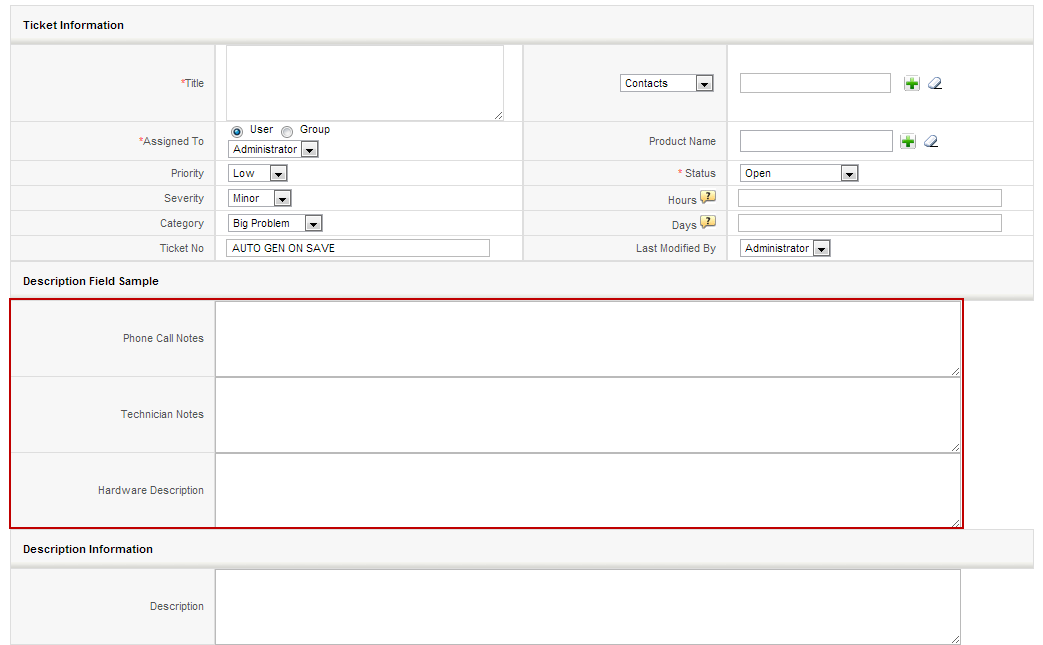
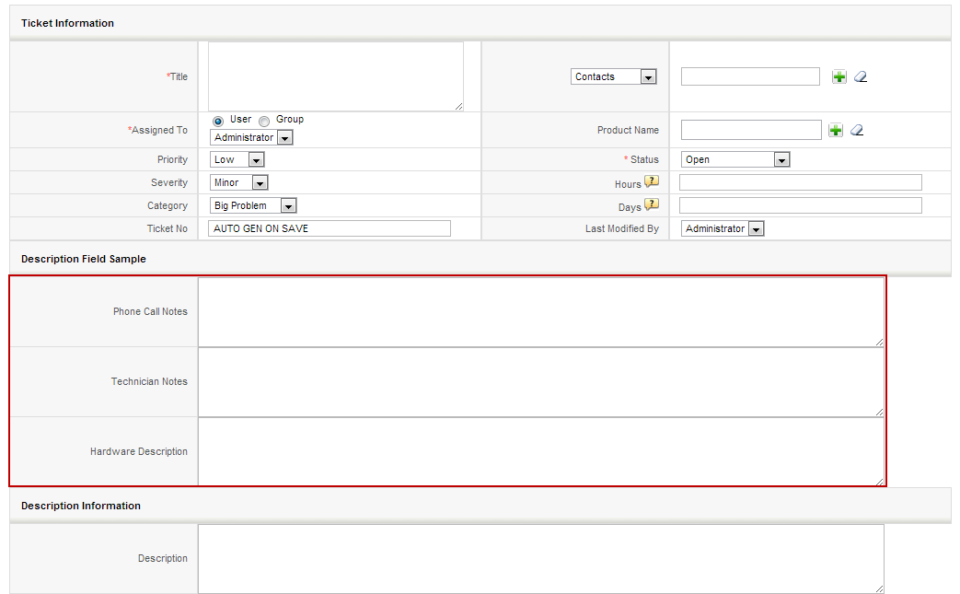
By Default vTiger does not allow to create “Description Type” fields using the “Field Layout Editor“. The “Description Type” vTiger field is a field which takes up the whole row in the block and no other field can be added next to it. In order to add the “Description Type” field in vTiger, you will have to: Create a “Text Area” Custom field. It’s just a custom field but the type is “Text Area” Next, you will need to modify the database. If you don’t feel comfortable doing that, please contact us and we’ll help you out with it. Connect to your vTiger MySQL Database Open table “vtiger_field“ Find the fields you just created set “uitype” to “19“ Save the changes and refresh the record screen. You will notice that the custom fields are now stretching through out the entire block. Note, you can also accomplish “One Column Layout” view