API key – An alphanumeric string that is used to connect your projects with the google billing account using the specific API or SDK. In this article we will go through the process of google API key generation.
How To Create A Google API Key
Follow these simple steps in order to create a Google API Key:
- Go to https://console.developers.google.com/apis/credentials?project=primordial-will-248203&supportedpurview=project
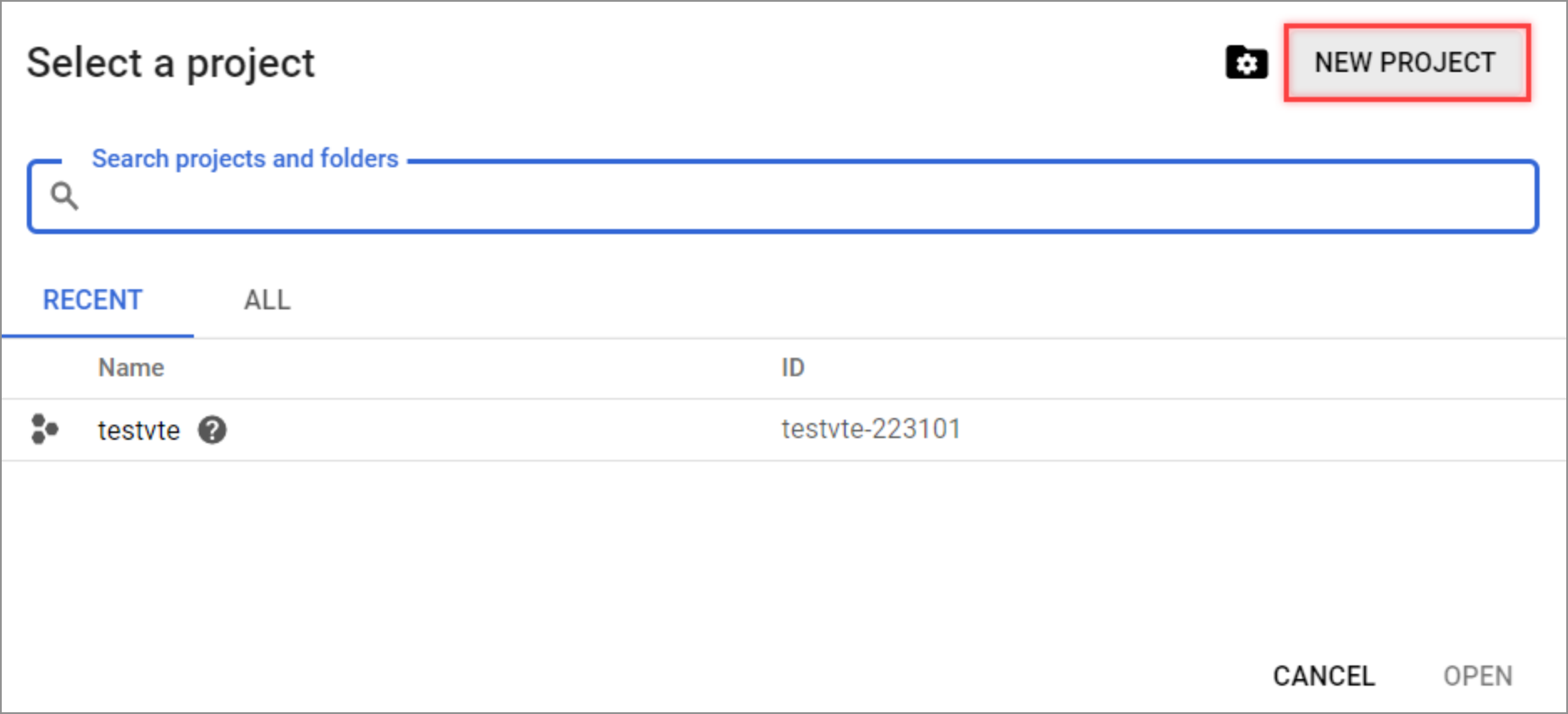
- Click “Select a Project”
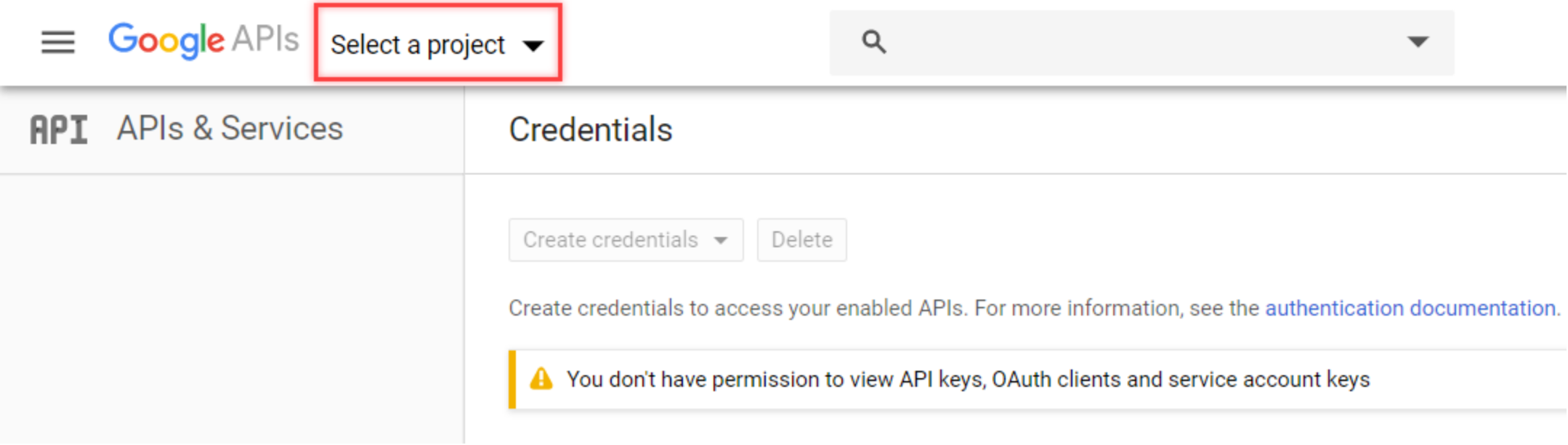
- It will open a Pop up, click “New Project”
- You’ll be directed to “New Project” creation page. Fill in the required info in the available fields:
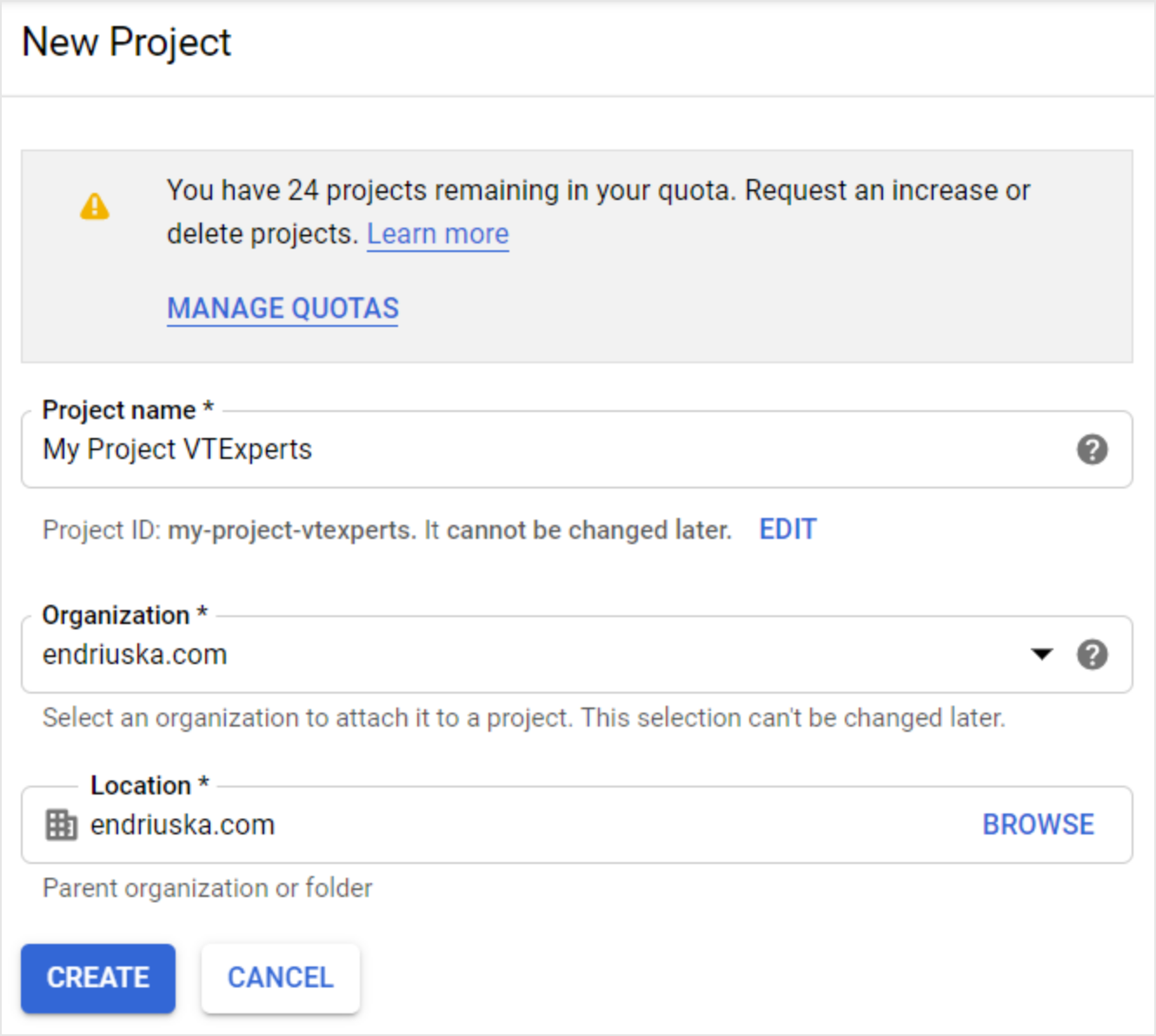
Project Name: Set your project’s name. Clicking “EDIT” will allow you to change Project ID which can’t be changed after.
Organization: It will automatically select the organization according to your email.
Location: You can choose another organization from the list if there exist multiple of those.
Click “Create” to complete creating the new Project.
Select API Type And Activate API Key
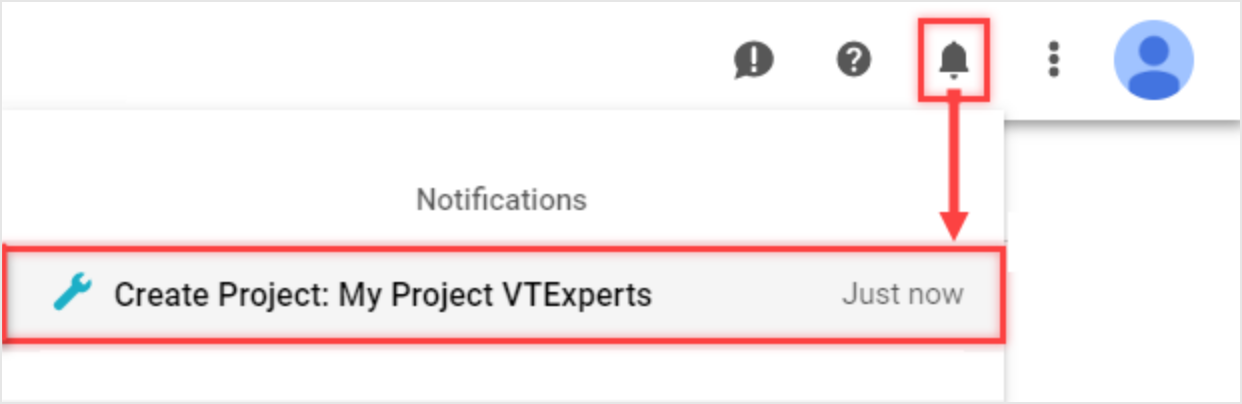
Once you create a new project, it will automatically show up in the notifications menu. Now we need to select correct type of the Google Maps API and create API Key for Google Address Lookup/Google Maps Scheduler extensions for VTiger Open Source.
- At the top right corner, click “Notifications” icon and select the newly created project.
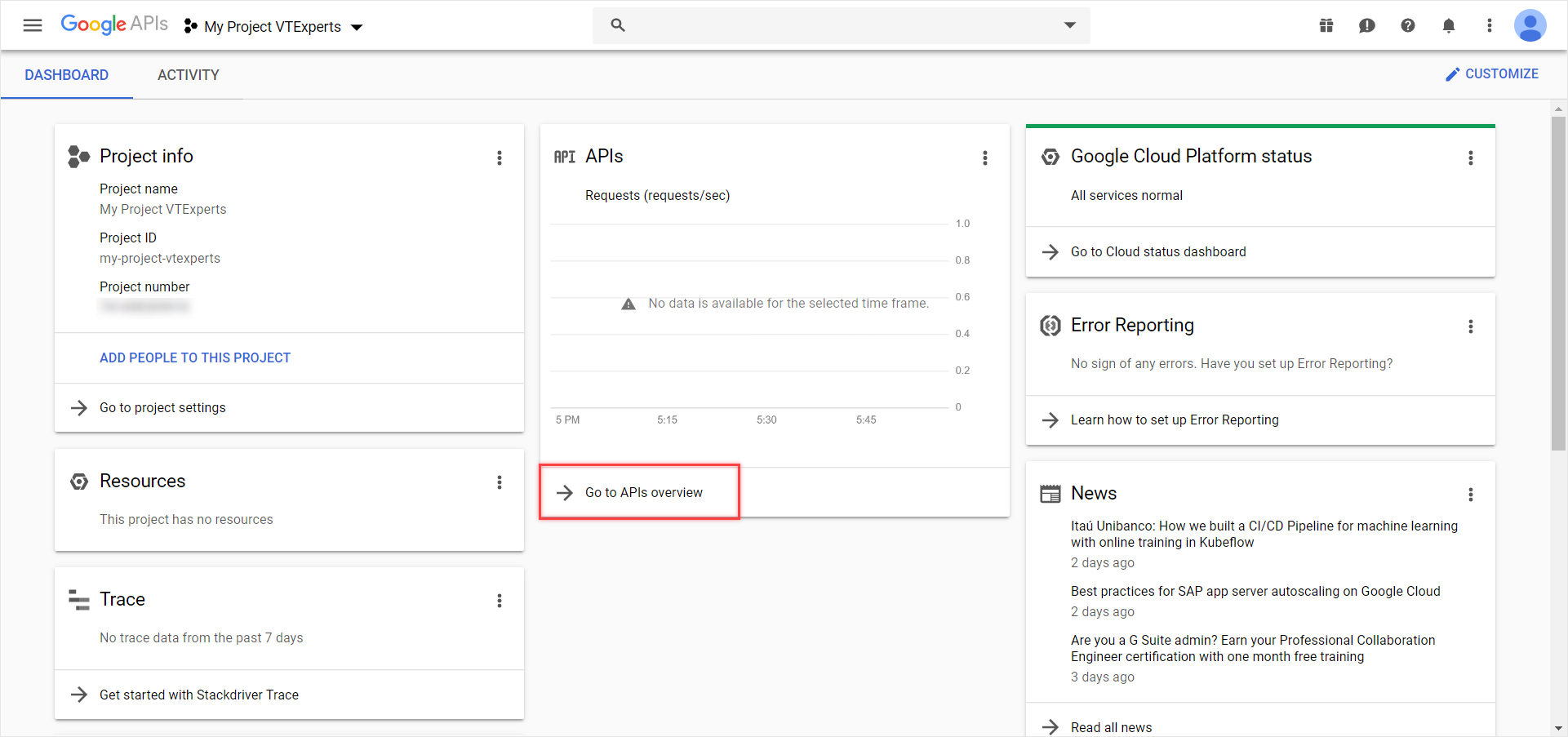
- It will open following dashboard. Under, “APIs” click “Go to API’s Overview”
- On the APIs & Services page, access the button to open Google API Library.
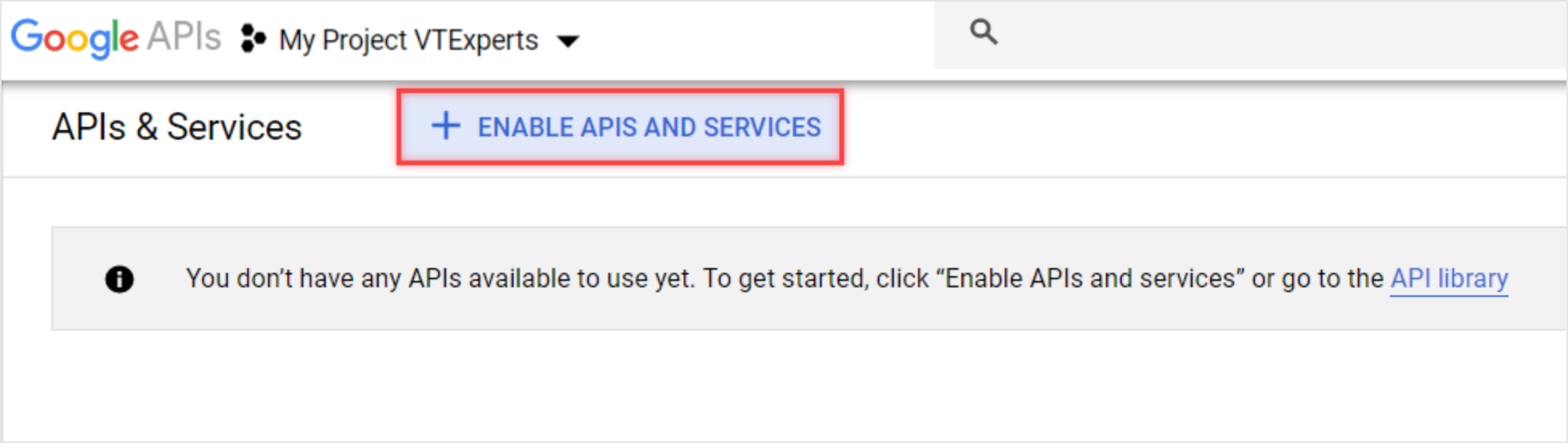
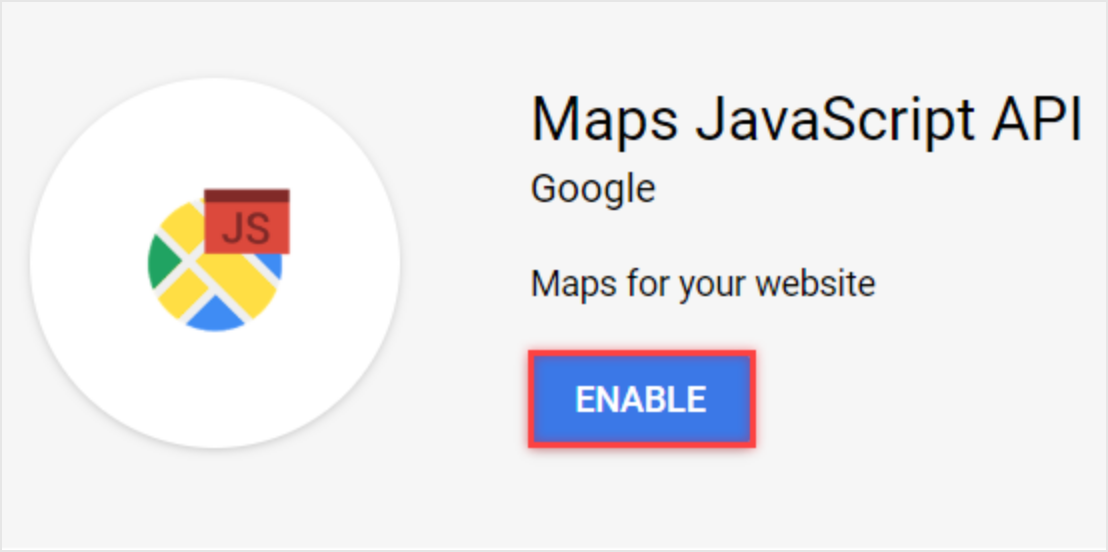
- Make Sure to enable the following API’s
– Maps Java Script API

– Geocoding API

– Geolocation API

– Places API

- Click “Enable”
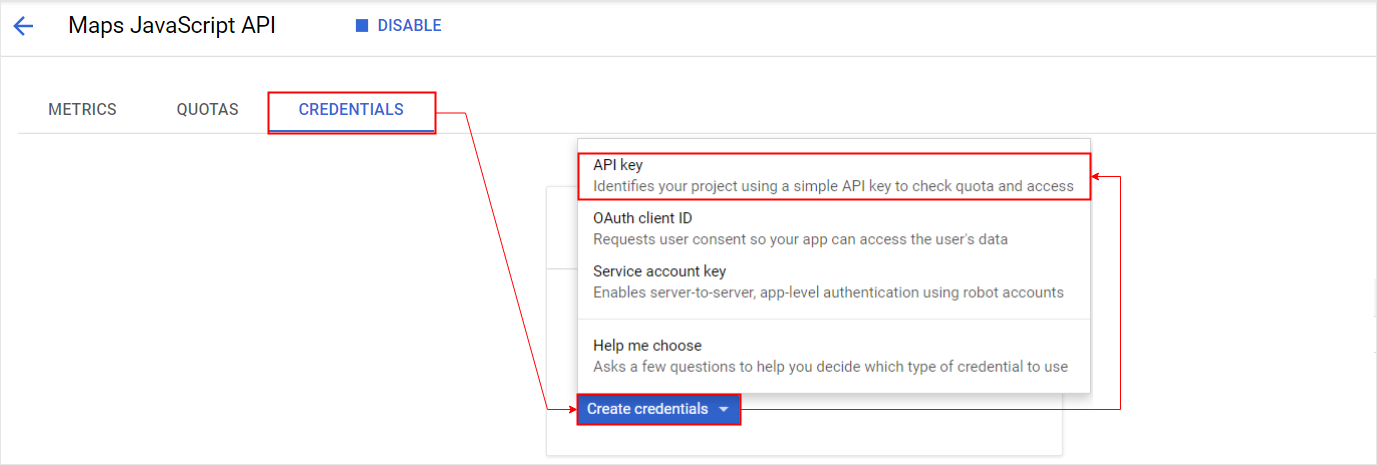
- Under “Credentials”, click “Create Credentials” and select “API key”
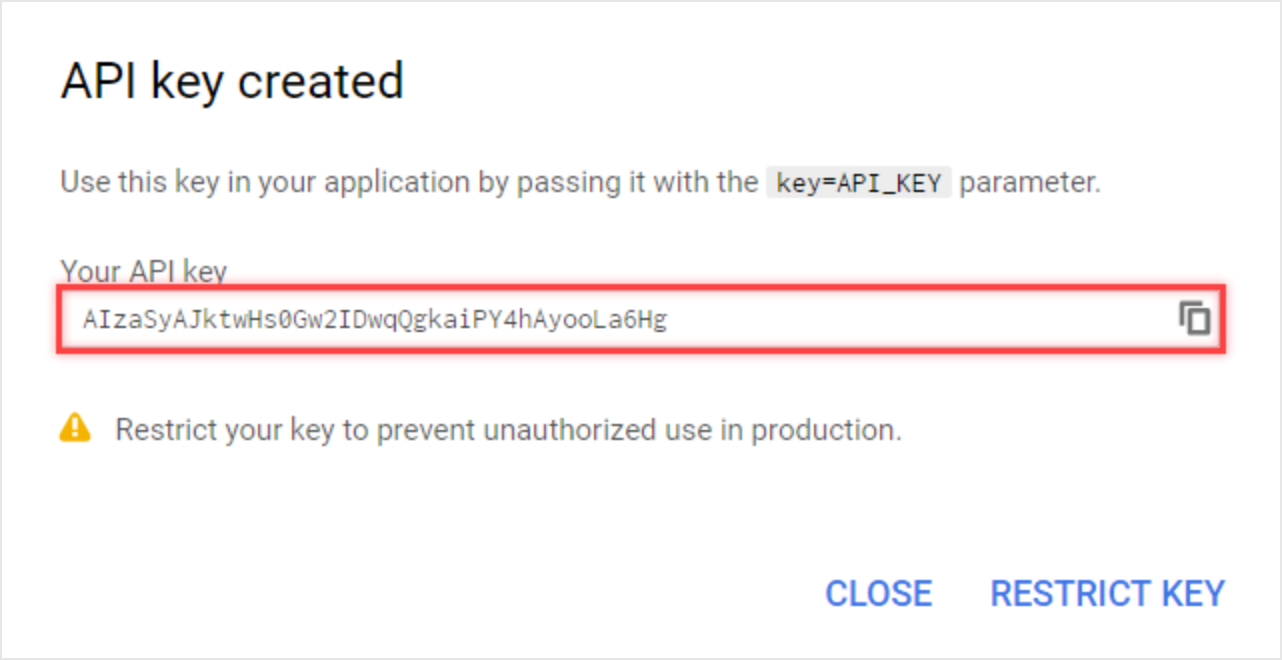
- A unique API key will be generated
Add Google API Key to VTiger CRM
The Last step is to copy the API Key in “Google Address Lookup” extension’s settings in VTiger.
- For that, go to “CRM Settings” , then “Extension Pack“. Under the “Extension List” , click “Google Address“
- Click Google ApiKey
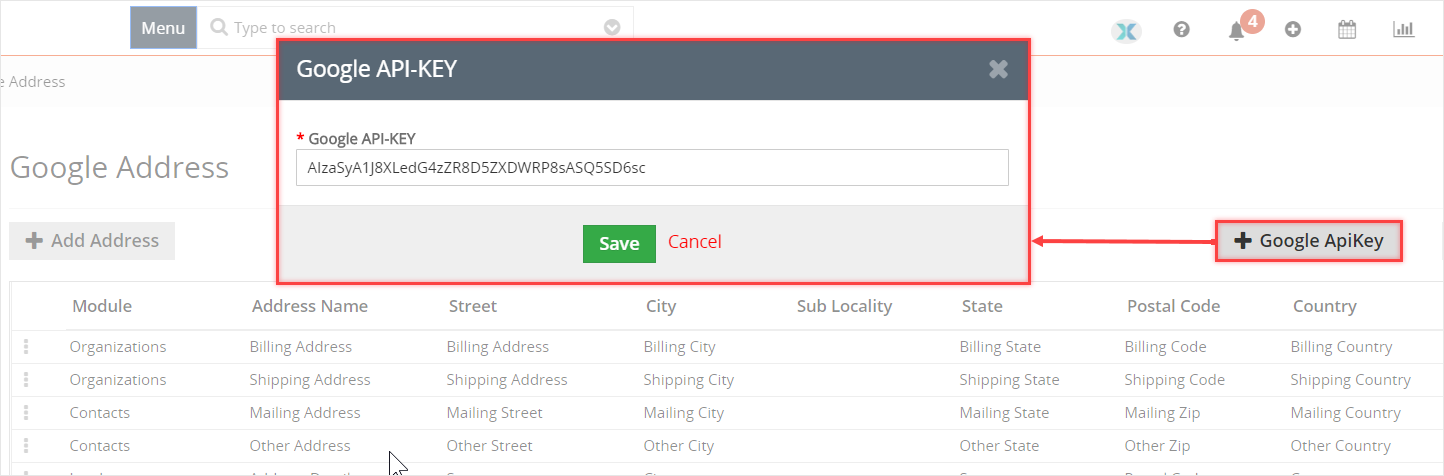
- Paste the created API Key into the popup and hit “Save” in order to apply the Key.
Note: Make sure that the billing is enabled on your Gmail account, else the feature will not work.
This is link to the enable-billing guide: Link
In case if the Google Address lookup and map routing still not working, then kindly follow the below mentioned trouble shooting guide
Troubleshoot
- Use google chrome for this. Go the the Vtiger module for which the google map routing/google address look up is configured. For example, here we will check the contact module
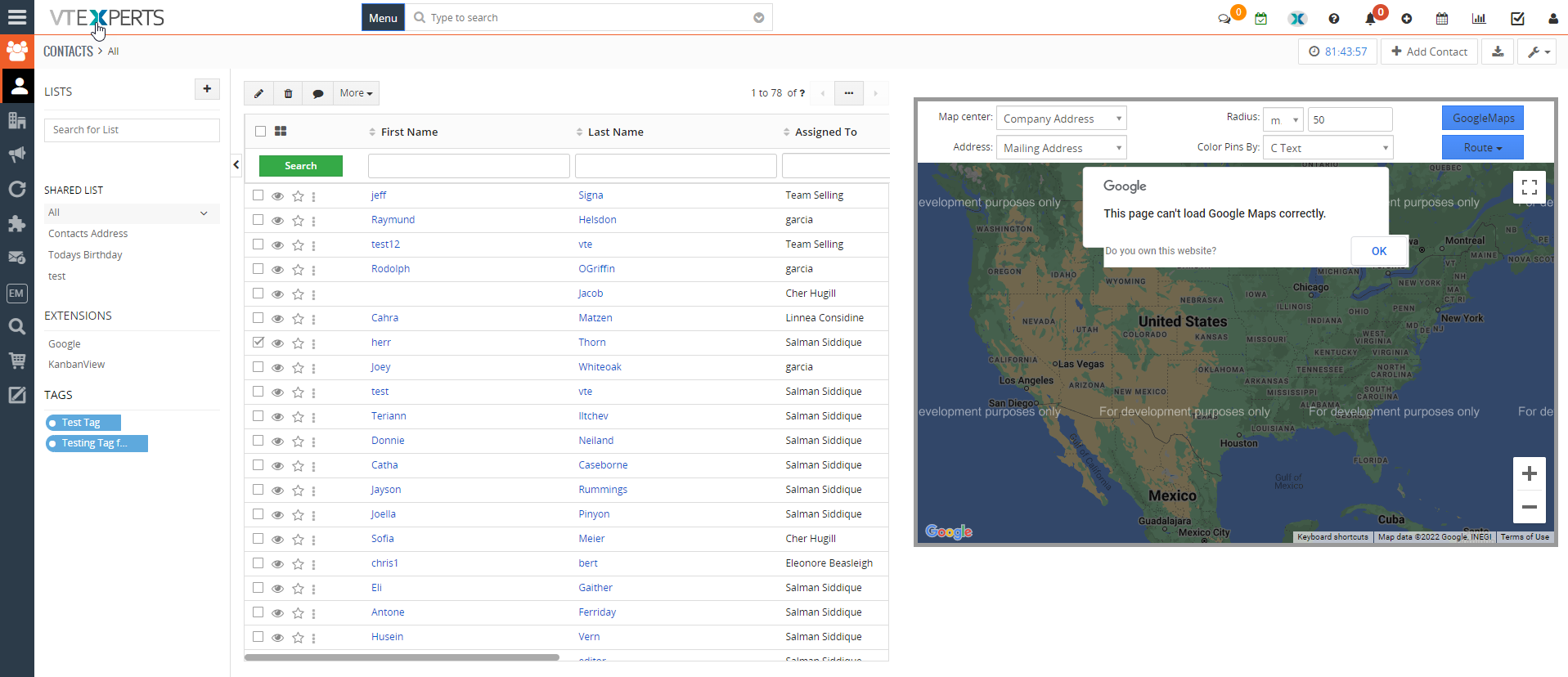
- Right click on the page and select “Inspect”
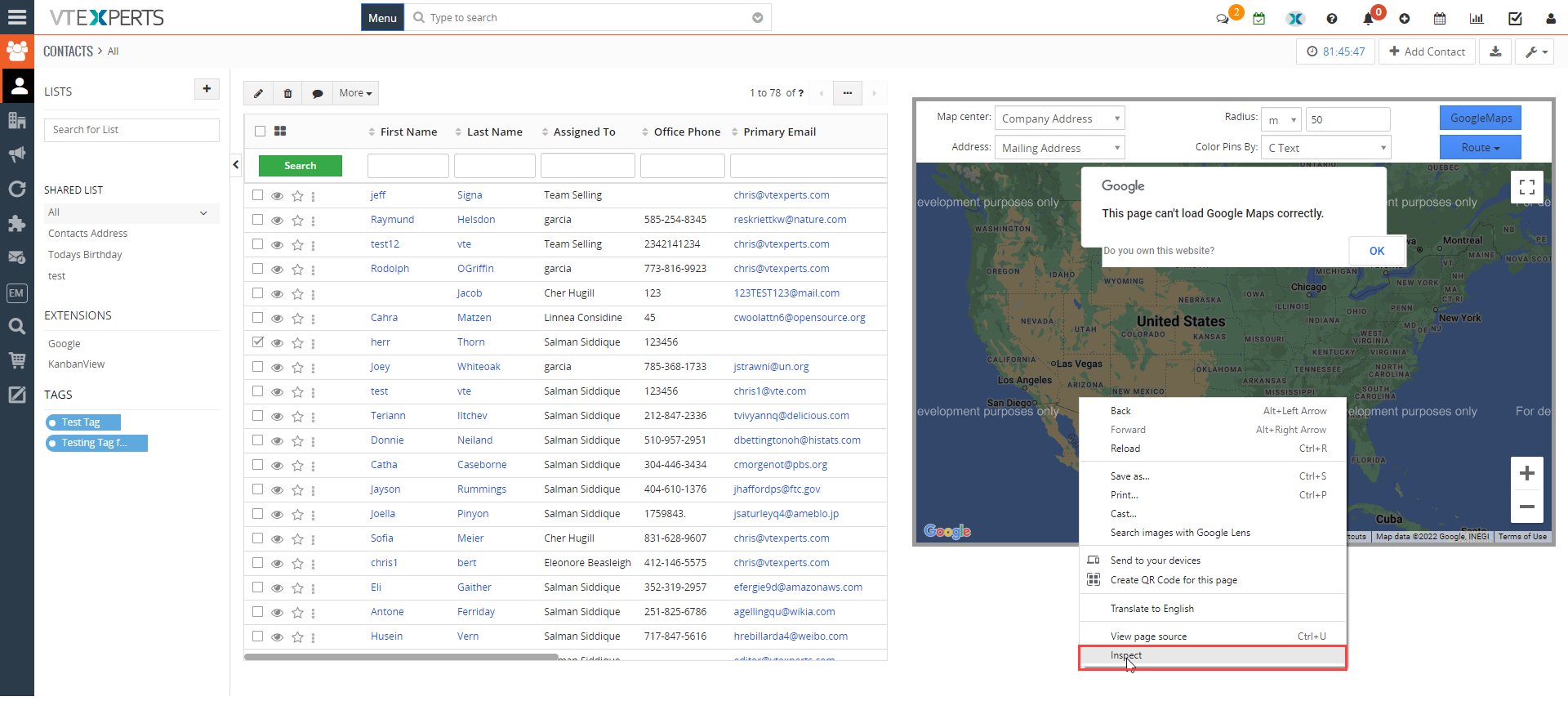
- In the inspect window
Click on the console tab, and it will start showing the reason, why the google map service is not working
For example in this case the reason of service failure is “Billing not enabled at Google Cloud Project”
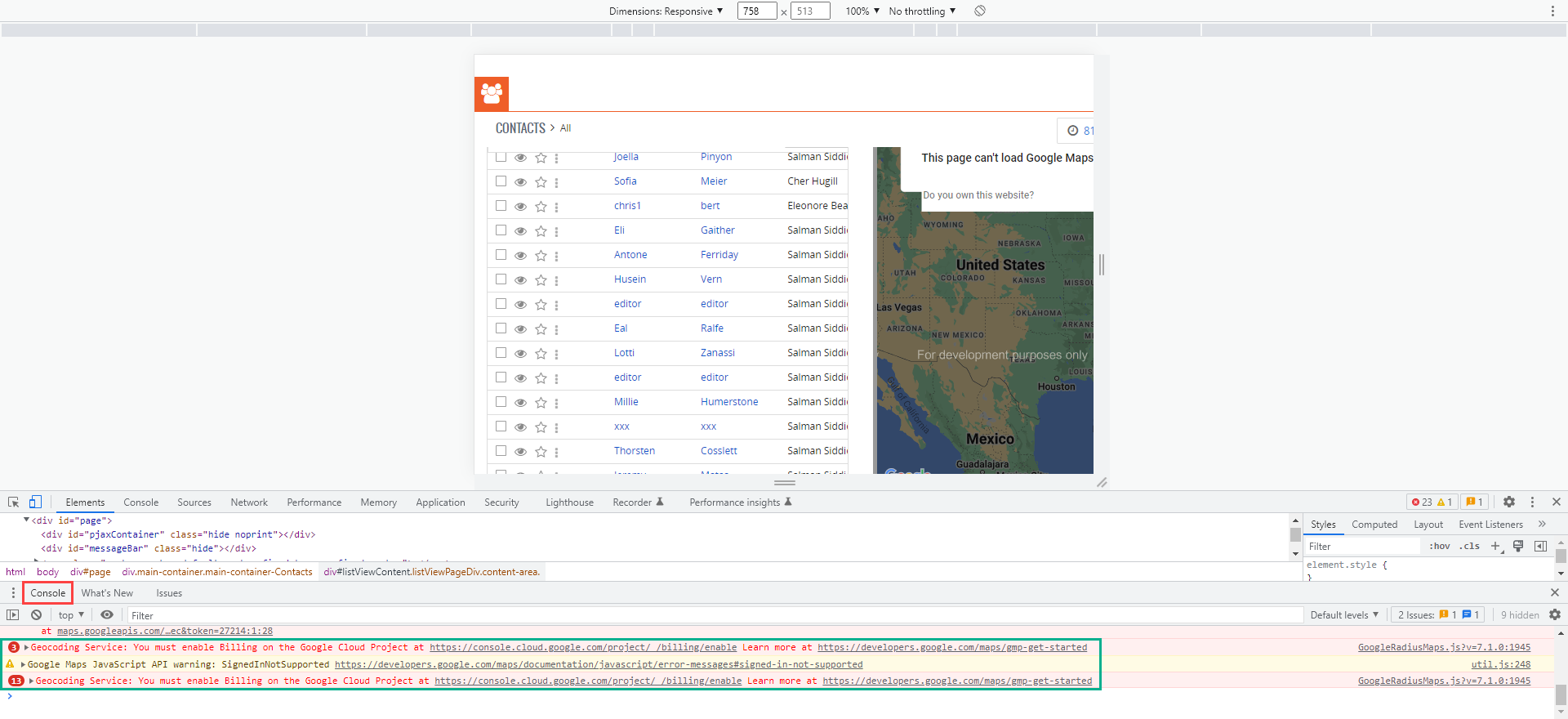
- The solution to this issue is to enable the billing in the Google cloud project
Check Google Address look up guide Here