In Vtiger 7 user can add color comments by using our Advanced Comments extension. It is simply an enhancement to existing comments functionality. It adds up to two picklist fields to the comments section and allows the user to “categorize” comments added. In addition, comments are highlighted based on the configured picklist value, which makes it even more useful. In addition, it supports rich text formatting in comments
How to Add Custom Fields in Comments
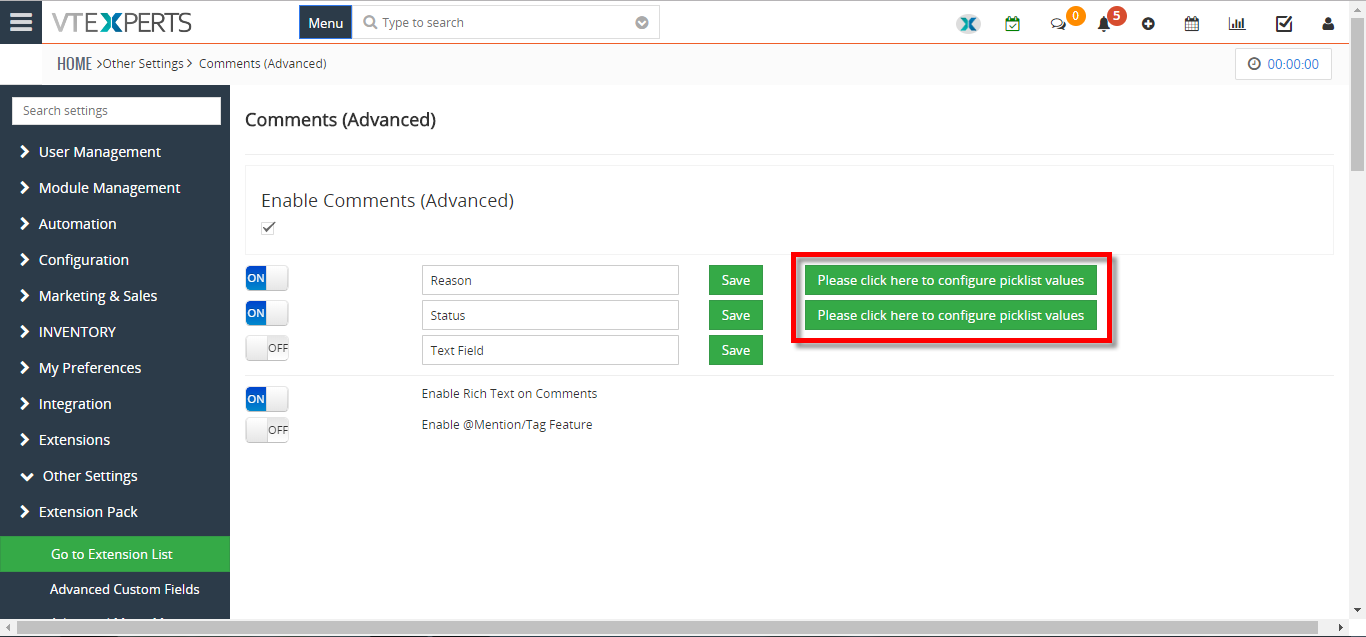
- Go to Menu > Settings > CRM Settings > Other Settings > Comments(Advanced). Name the picklist and click on the Green button next to the save button to add a new Custom Field.
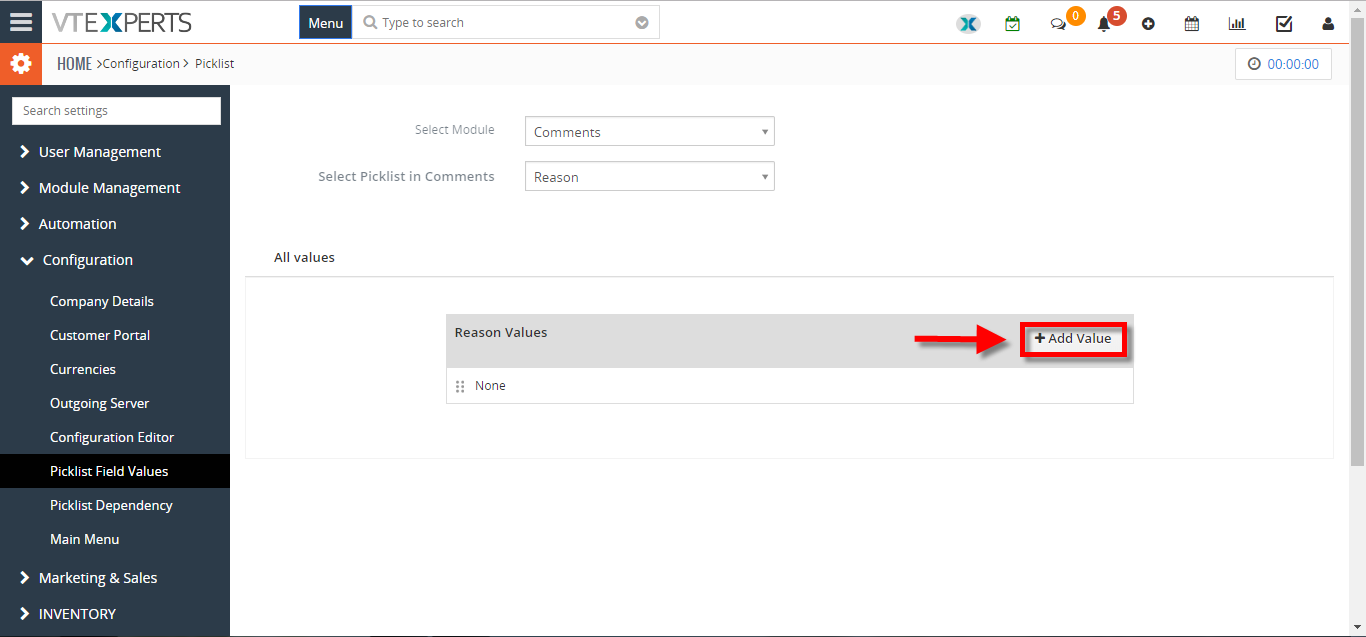
- Click on the “+ Add Value” button to add a new Custom Field.
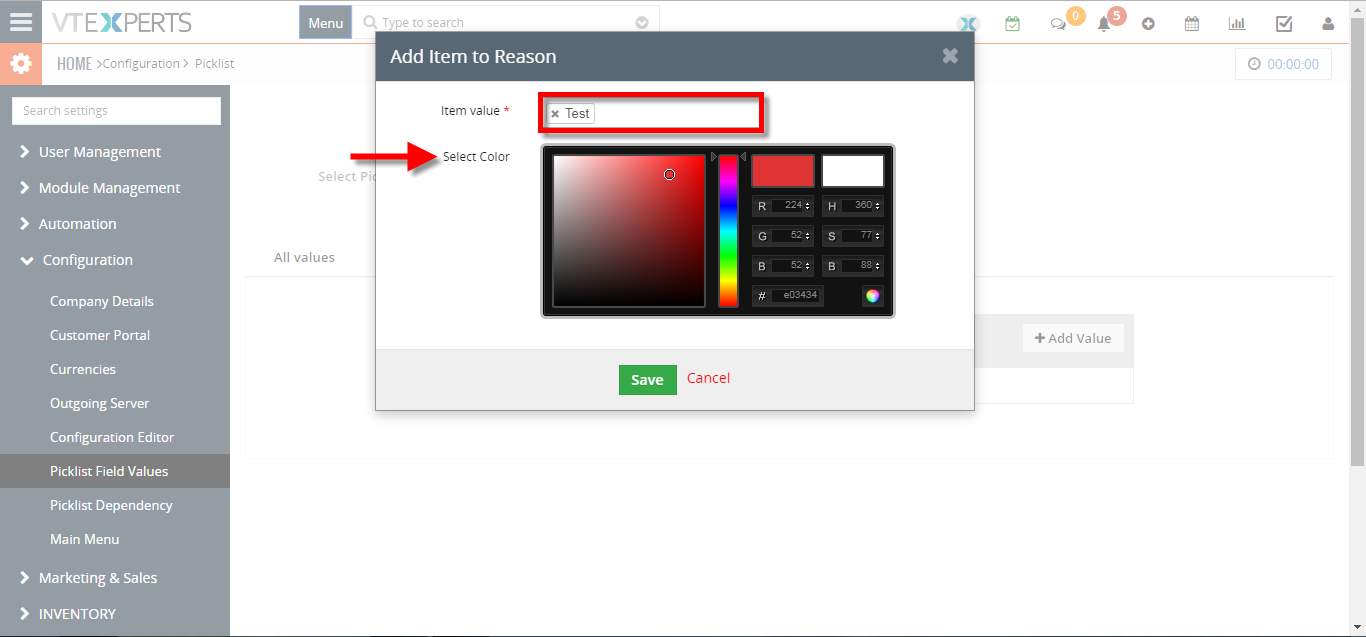
- Enter a value name and select a color.
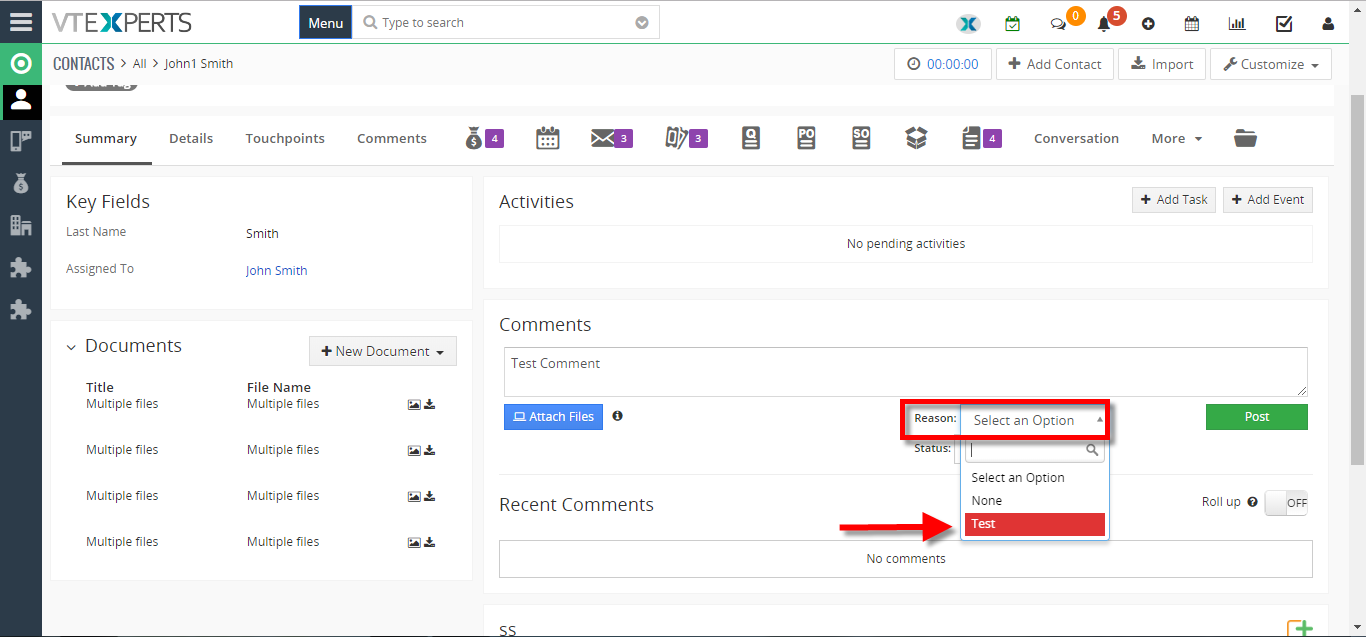
- Here you can see the added Custom Field.
For further help. contact us on [email protected]. We’ll be glad to be of service.



In Vtiger 7 user can add color comments by using our Advanced Comments extension. It is simply an enhancement to existing comments functionality. It adds up to two picklist fields to the comments section and allows the user to “categorize” comments added. In addition, comments are highlighted based on the configured picklist value, which makes it even more useful. In addition, it supports rich text formatting in comments
How to Add Custom Fields in Comments
For further help. contact us on [email protected]. We’ll be glad to be of service.
Related posts
VTExperts VTiger Customer Portal Direct Login – Customization
VTiger Advanced Customer Portal vs Default Customer Portal: What’s the Difference?
VTExperts: Vtiger Employee Contract Management Customization
Multi-Currency Vtiger Quotes with VTExperts IDCA (Customziation)