Integration And Configuration Of VTiger & Quickbooks Online
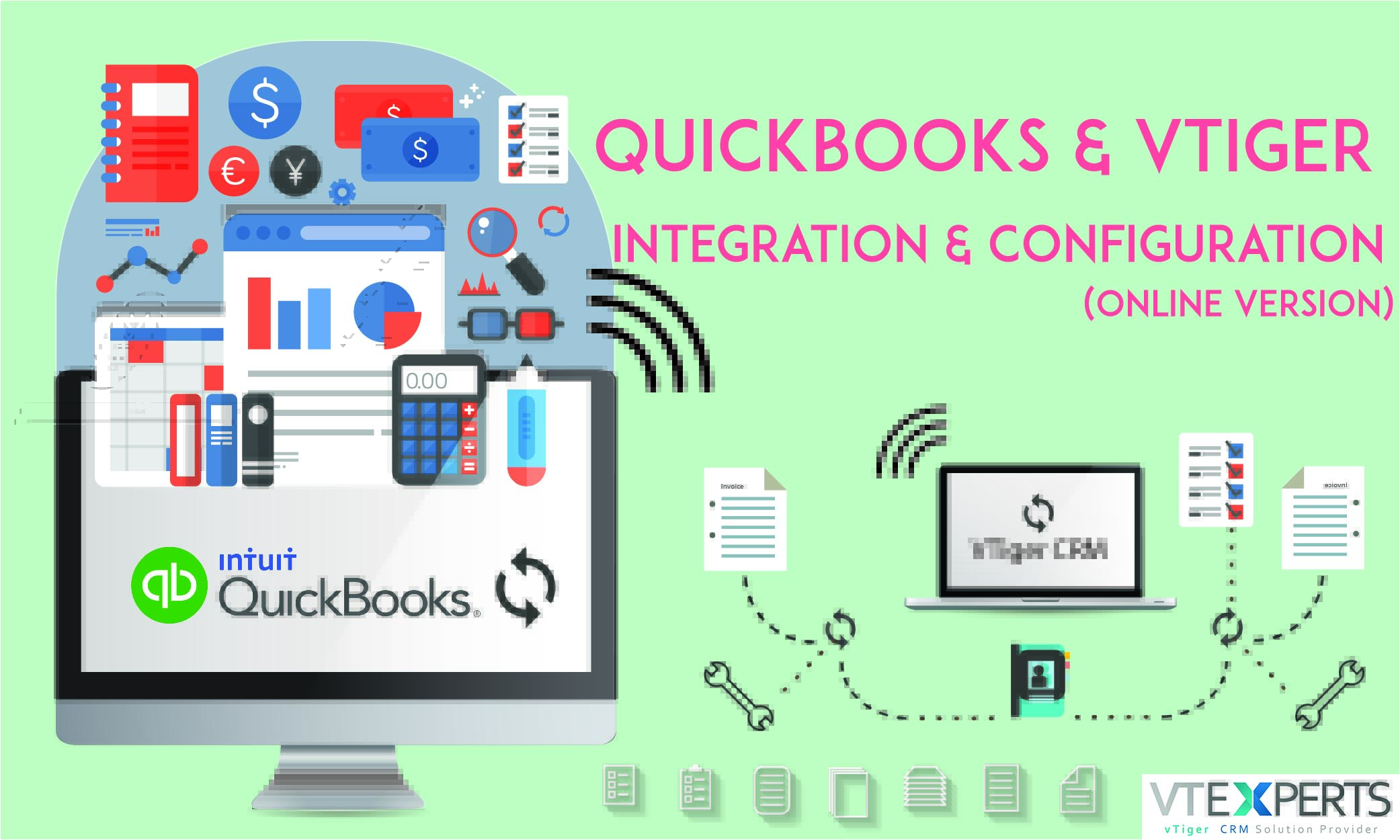
As we are on a streak to discuss the integrations of multiple extremely valuable tools with VTiger 7, here comes another one, Quickbooks (Online). This useful tool of VTiger 7 allows you to integrate your Contacts, Products, Services, Vendors and Invoices with QuickBooks (Online) very easily. All you have to do is gather information in one place and it will sync QuickBooks Online and VTiger 7 CRM accounts.

Note! The feature is available for Sales Professional and Ultimate Edition users.
Officially this feature is proposed for users residing in USA, UK, India, Australia and Canada. But, customers from other regions can also avail it.
VTiger & Quickbooks Integration is designed to meet your requirements in an efficient way. Check it out.
Fulfilling Requirements
In this section we will brief you how to use this integration in VTiger 7 CRM. Prior of initiating the integration process you have to connect the VTiger 7 and QuickBooks.
Installation
First things first! You will need to download and install Quickbooks from the VTiger Marketplace as it does not come with VTiger 7 as a default option. Following are steps to install the feature:
- First of all click the Menu button
- Then go to the Extension Store
- Type QuickBooks in search box

- Finding the correct file, click Install to move on
- After successful installation, click OK to proceed
Configuration and Setup
Now that we have successfully installed the Quickbooks tool, it’s time to get it ready for integration. Follow these simple steps to configure Quickbooks in VTiger 7:
- Go to list view of Contacts/Products/Services/Invoices/Vendors You will be redirected automatically to the page that looks like this:

- Use the dropdown menu to choose the edition of QuickBooks and click Proceed

- Check the Pre-requisites and press Connect with QuickBooks

- Login with the QuickBooks details

- Upon successful login, a pop-up will appear. Choose Authorize option to move further

- Afterwards you have to select Income account and Expense account in VTiger 7 QuickBooks module. It will be used in syncing information among the two softwares

- Then click on Save settings, as a result following screen will be shown

Performing the Synchronization of Contacts, Products/Services, Vendors and Invoices
A very easy to establish sync process will not only update records regarding Contacts, Products/Services, Vendors and Invoices in VTiger 7, but it will also update them in QuickBooks. In sync process you will not have to re-enter data regarding important fields because they are mapped automatically.
Following are steps to complete sync process
- Go to list view of Contacts/Product/Invoices/Vendor module and choose QuickBooks
- Choose Sync Settings option
- Mark the corresponding checkbox of the module you want to sync

- Select one of the 3 options that define the direction of synchronization
- QuickBooks data to Vtiger
- Vtiger data to QuickBooks
- Sync Both Ways
- Save your Settings
- After the essential configurations, click Sync Now to begin the process
- The records created and updated will be shown in tabular form upon successful synchronization
- The synced and skipped records with relevant reasons are shown upon clicking on the number of the record

Notes!
- The records are synced as Customers on the both ends (VTiger 7, QuickBooks), you can also sync each record exclusively
- The Products/Services in QuickBooks are synced as Products in VTiger 7, while Products and Services in VTiger 7 CRM are synced as Products/Services in QuickBooks
- Vendors in Vtiger CRM are synced as Vendors in QuickBooks.
- You cannot sync Invoices one at a time. Invoices (VTiger 7) are synced as Invoices in QuickBooks. You have to sync Contacts and Products with Invoices.
- Enabling Contacts, Products and Services module is mandatory if you want to sync Invoices
- You cannot perform any Delete operation using syncing feature
- Any record deleted from one database will not be removed from the other database (VTiger 7, QuickBooks)
Fields Mapping
Field mapping is an important process that carries the responsibility to successfully transfer the data on both platforms (Mutually).
You will find this list pretty helpful. You can save it for regular use.
Contacts Synchronization
| Vtiger | QuickBooks |
| First Name | First Name |
| Last Name | Last Name |
| Organization Name | Company Name |
| Office Phone | Phone |
| Mobile Phone | Mobile |
| Secondary Phone | Other Phone |
| Fax | Fax |
| Primary Email | |
| Mailing Street | Street |
| Mailing City | City |
| Mailing State | State |
| Mailing Zip | Zip |
| Mailing Country | Country |
| Description | Notes |
Some Crucial Points!
When information is transferred from Vtiger to QuickBooks
- One of the mandatory fields in “QuickBooks” is “Display Name” field. It is responsible for the linkage of “First Name” and “Last Name” fields that are passed as “Display Name” field in QuickBooks.
When Information is Transferred from QuickBooks to Vtiger
- “Last Name” field cannot be left empty in the VTiger 7 system. If somehow, the field is left blank in the QuickBooks, “Display Name” will be filled in the “Last Name” field of VTiger 7 CRM.
- In case “Company field” is not filled in, a default “QB Sync No Company” record will be created and the contact will be connected to it.
Products & Services Synchronization
| Vtiger | QuickBooks |
| Product Name | Name |
| Service Name | Name |
| Unit Price | Price/Rate |
| Description | Description |
Caution!
Vtiger to QuickBooks
- In QuickBooks, “Products” and “Services” are considered a single entity, where as in VTiger 7 both of them are considered different. During sync process, “Products” and “Services” are conjointly mapped to “Products/Services” module in QuickBooks
QuickBooks to Vtiger
- Records in “Products/Services” of QuickBooks are synced to VTiger 7’s “Products” module
Vendors Synchronization
| Vtiger | QuickBooks |
| Vendor Name | Name |
| Primary Email | |
| Primary Phone | Phone |
| Website | Website |
| Street | Street |
| City | City |
| State | State |
| Postal Code | Zip |
Invoices Synchronization
| Vtiger | QuickBooks |
| Contact Name | Customer Name |
| QB Invoice No | Invoice No |
| Invoice Date | Invoice Date |
| Invoice Due Date | Invoice Due Date |
| Billing Address | Bill Address |
| Shipping Address | Ship Address |
| Products | Products |
| Services | Products |
| Quantity | Quantity |
| List Price | List Price |
| Tax | Tax |
| Discount | Discount |
| Shipping Charges | Shipping |
| Shipping Address | Shipping Address |
Heads up!
Vtiger to QuickBooks
- Syncing process do not sync any of the “Invoices” that are not associated to any record in VTiger 7
- If you do not enable handling charges in QuickBooks, “Invoices” will fail to sync from VTiger 7
- All the Taxes will be passed as a single Tax if “Tax mode” is set as “Group” in VTiger 7
- Individual Taxes will be calculated if Tax Mode is set to Individual in VTiger 7 and total amount will be updated in QuickBooks
- “Shipping and Handling charges” total will be updated to “Shipping” in QuickBooks
QuickBooks to Vtiger
- It is up to the data type from QuickBooks upon which the “Invoice Tax Type” in VTiger 7 is selected (Individual or Group)
- “QuickBooks Shipping” will be included to “Vtiger Shipping and Handling Charges”.
- To create an Invoice in VTiger 7, an “Organization Name” is After synchronization, the information in Company field in QuickBooks Invoice will be populated as Organization name in VTiger 7
- “QB Sync No Company Organization” record will be established if “Company” field is not filled in VTiger 7 and “Invoice” will be attached to it.
Please do keep in mind the following Limitations:
- For US Edition
- All the taxes from QuickBooks will be copied to VTiger 7 upon first synchronization
- All the line items should have same taxes if tax type in VTiger 7 is set to individual.
- Any Invoice whose currency is not USD in VTiger 7 will not be entertained in QuickBooks (QuickBooks’ limitation)
- In order to track shipping charges from VTiger 7 Invoice module, you have to enable shipping from QuickBooks Company settings
- For Non US Edition
- Make sure the currency which you want to use in QB Invoices should exist in VTiger 7 while syncing Invoices from QuickBooks to Vtiger.
- Make sure shipping tax percentage remain same on both platforms.
- While syncing Invoices from VTiger 7 to QuickBooks at least one tax type should be active in VTiger 7.
- If tax values are zero in VTiger 7 then Invoices will be created in QuickBooks and mode will be set as out of scope
- Income account and Expense account are mapped according to the details customer provide when Products from VTiger 7 are synced to QuickBooks.
- The individual tax types in VTiger 7 which offer group or item level discounts are not entertained.
- If any of the line items in Vtiger is not having taxes in individual mode, we will be checking for a zero value tax in QuickBooks and sync the Invoice. If Zero value tax is not available then Invoice will be skipped.
- All the sales tax will be copied from QuickBooks and pasted to VTiger 7 when synchronization is done for the first time. Every type of purchase taxes will be avoided.
You can synchronize your data bidirectionally with VTiger Quickbook integrating extension. The data may include Customers (Organizations/Contacts), Invoices, Quotes (Estimates), Purchase & Sales Orders, Vendors as well as Items/Services.