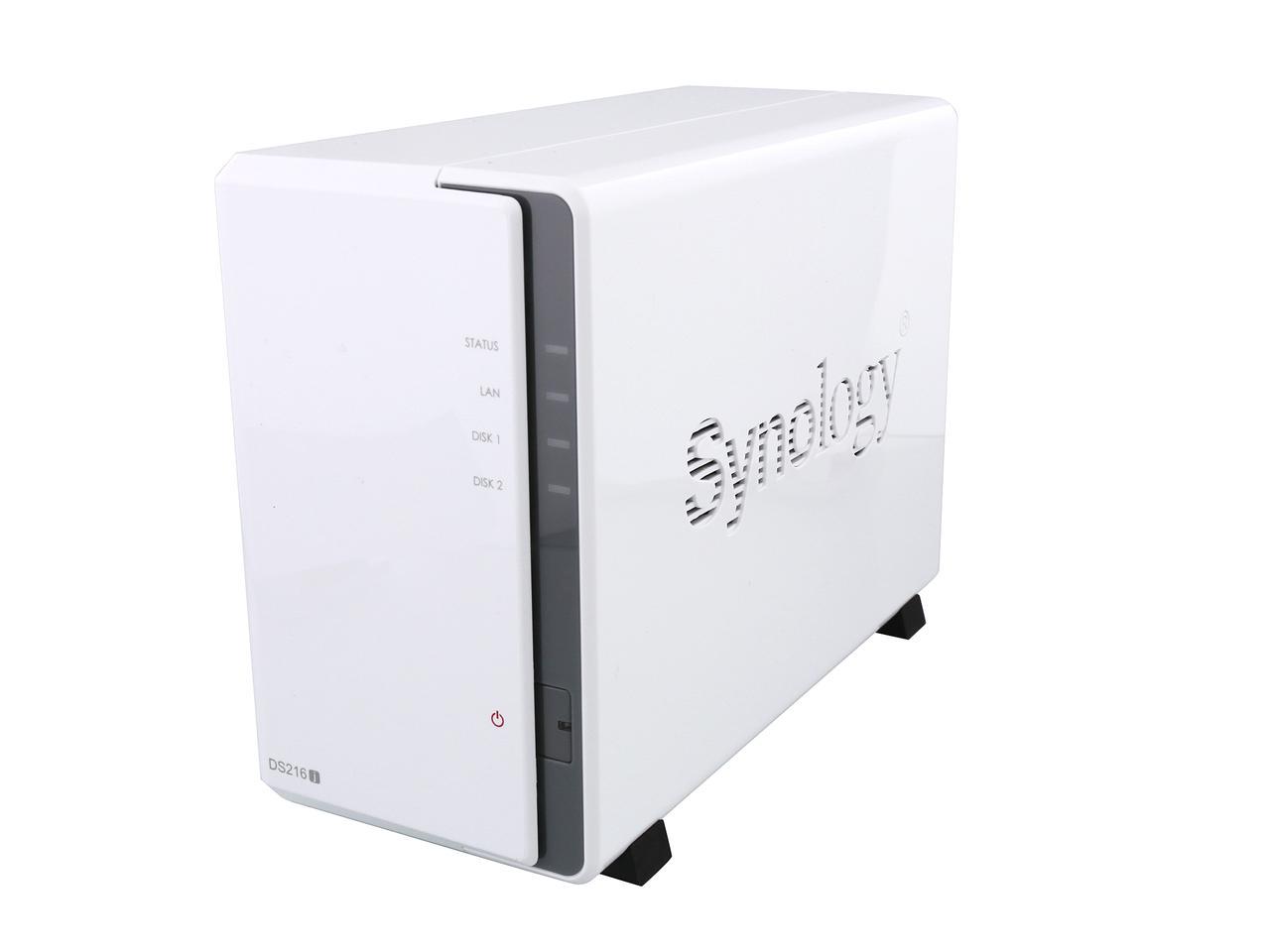
IonCube is a widely used php extensions, however the it does not come standard with Synology NAS Drives. Unfortunately, there isn’t any documentation on Synology & IonCube installation and since our VTiger extensions require ioncube – we decided to provide a step by step guide on how to install & enable IonCube on Synology NAS Drive.
How to Install Ioncube on Synology NAS Drive
Enable SSH
First you will need to enable SSH. To do so, login to Synology NAS control panel and go to “Control Panel” and under Applications click on “Terminal & SNMP”
Login To Synology via SSH
Then login to to your Synology NAS using Putty or any other client. You will need to make yourself a root after you login – to do so type
sudo -i
and you will be promoted for password.
Download IonCube Loader
Next, you need to download IonCube. You can download it from here: https://www.ioncube.com/loaders.php
Tip: Check your php version on by creating phpinfo(); before you proceed.
Tip: You probably need Linux (64 Bits) files. (most of Synology drives use that)
Download the loaders to your Synology NAS Drive and extract them.
Tip: Download them locally first, extract files and only upload one .so file to your synology drive. If your php version is 5.6 – you then need the file ioncube_loader_lin_5.6.so
Place IonCube Loader Files
Once the file is on your server, you then need to copy it to certain folder. To do so – go back to your logged in Putty session(SSH) and copy the file.
Copy “ioncube_loader_lin_5.6.so” from the folder(you initially uploaded file to) to “/usr/local/lib/php56/modules/”: sudo cp /[volume name]/[shared folder name]/ioncube_loader_lin_5.6.so /usr/local/lib/php56/modules/
Update HTTPD Configuration File
Next, modify the extensions.ini file and add the ioncube loader.so. To do so use ‘vi’ editor in SSH session.
type: vi /usr/local/etc/php56/conf.d/extensions.ini
and add ‘extension=ioncube_loader_lin_5.6.so’
Save the file.
Restart HTTPD/Apply Changes
Finally restart httpd and load the ioncube, to do so type (in ssh)
httpd -k restart
reload pkg-php56-fpm
And that should load the IonCube Loader on your Synology NAS Drive
If you run into any issues – check this:
The procedure is very similar to enable Zend Guard Loader.
Applies To
Avoton: RS2416(RP)+, RS815(RP)+, DS2415+, DS1815+, DS1515+, DS415+
Braswell: DS916+, DS716+, DS716+II, DS416play, DS216+, DS216+II
Broadwell: RS3617xs+, RS3617RPxs
Bromolow: RC18015xs+, RS18016xs+, RS10613xs+, RS3617xs, RS3614xs+, RS3413xs+, RS3614(RP)xs, RS3412(RP)xs, RS3411(RP)xs, DS3615xs, DS3612xs, DS3611xs
Cedarview: RS2414(RP)+, RS2212(RP)+, RS814(RP)+, RS812(RP)+, DS2413+, DS1813+, DS1812+, DS1513+, DS1512+, DS713+, DS412+
Docker x64: Docker DSM
Evansport: DS415play, DS214play
KVM x64: Virtual DSM
x86: RS2211(RP)+, RS810(RP)+, DS2411+, DS1511+, DS1010+, DS712+, DS710+, DS411+, DS411+II
Doesn’t Work? Try this
Do it as if you were to do it on any linux server. Here are very high level steps:
- Download ioncube loaders from ioncube.com
- Extract them
- Determine your PHP version i.e php56 (on the server)
- Locate php.ini that is used in your server apache configuration (easiest way is to create php file with <?php phpinfo();? ?> and open it in the browser (while the file is on the server i.e https://your.server.com/info.php). You will then see where php.ini is located.
- Open php.ini (you will need to login via SSH (see instructions above).
- Add to php.ini zend_extension = /path/to/ioncube/loaders/ioncube_loader_xxx.so (basically path to where you put #2 ioncube loaders + #3 what php version it’s for).
- Restart server/apache.
If this still doesn’t work – delete .htaccess file from vtiger directory. It’s usually in /volume1/web/vtigercrm/.htaccess
Contact us if you need help with this.