VTiger Extensions (Tips)
Pre-Format Phone Numbers To Your Requirement In VTiger 7
October 18, 2017
Article
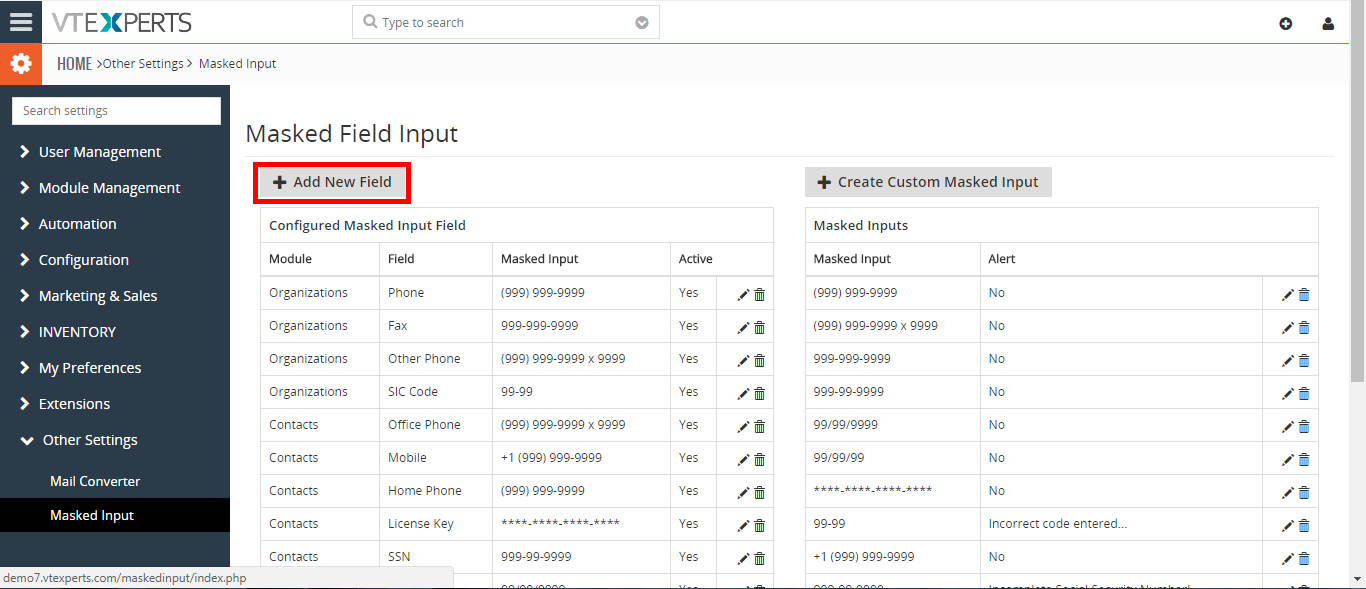
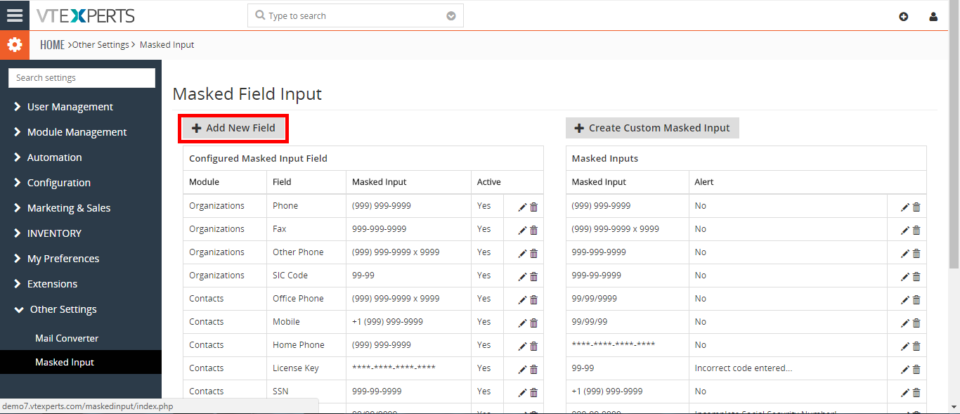
Admin can restrict users to enter fields in a certain format by using Masked Input extension. This feature allows you to configure the formats of Phone numbers and set them default in VTiger. So when users work and add data to the CRM, they will only need to enter phone numbers without the need of formatting each number for example adding “-” or space or “()”. How to Preformat Phone Number First, install the extension Masked Input extension from the Extension pack for VTiger. Then, go to the “CRM Settings” and select the “Other Settings” and click “Masked Input“. Then Click on the “Add New Field” button to create a new preformatted field. Select a Module you want to add field to. Select the field type. Select the format for the field you have selected. Click on the “Save” button to save the changes. For further help, contact us
VTiger Tip: How to hide fields based on other field conditions/values?
September 28, 2017
Article
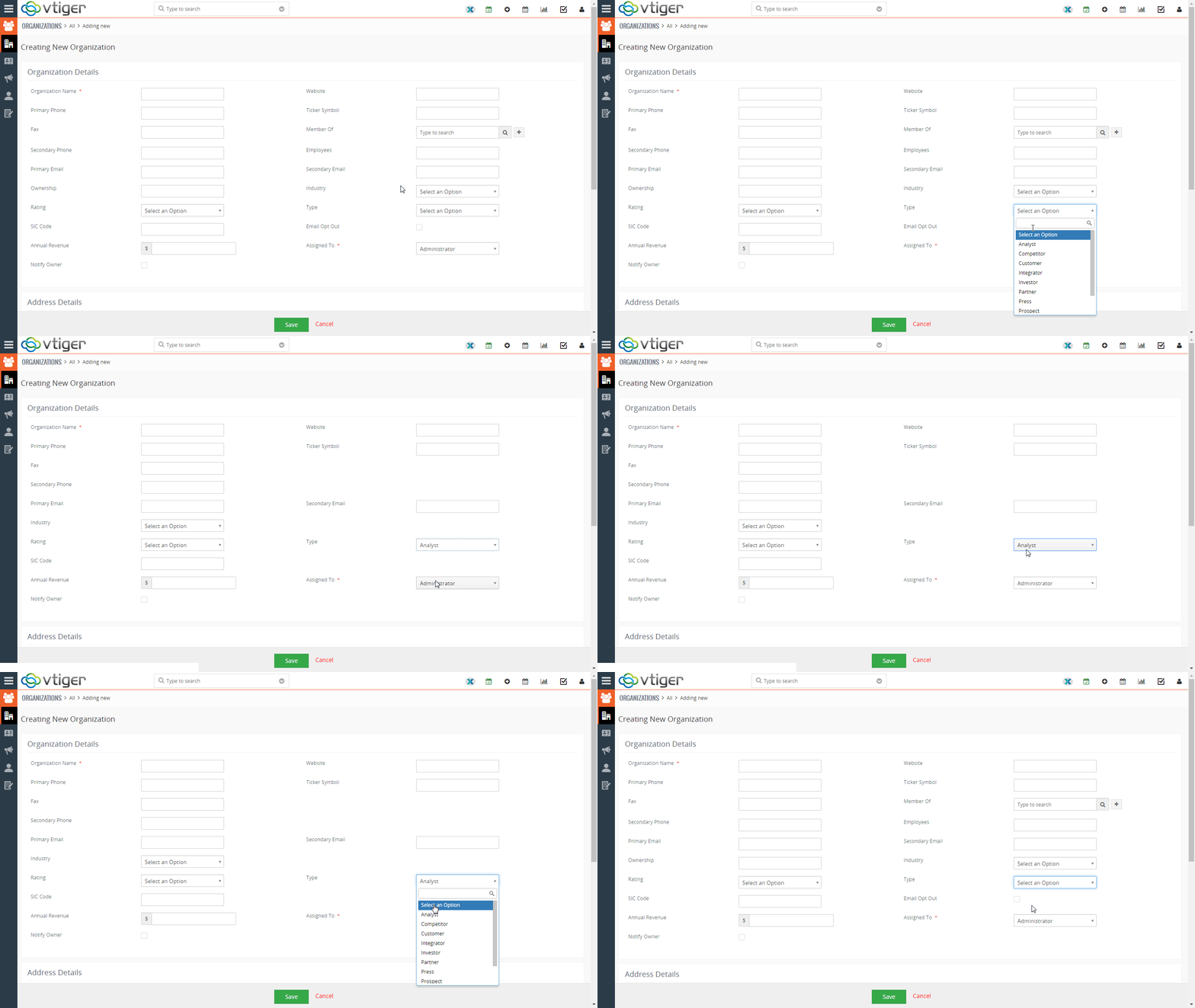
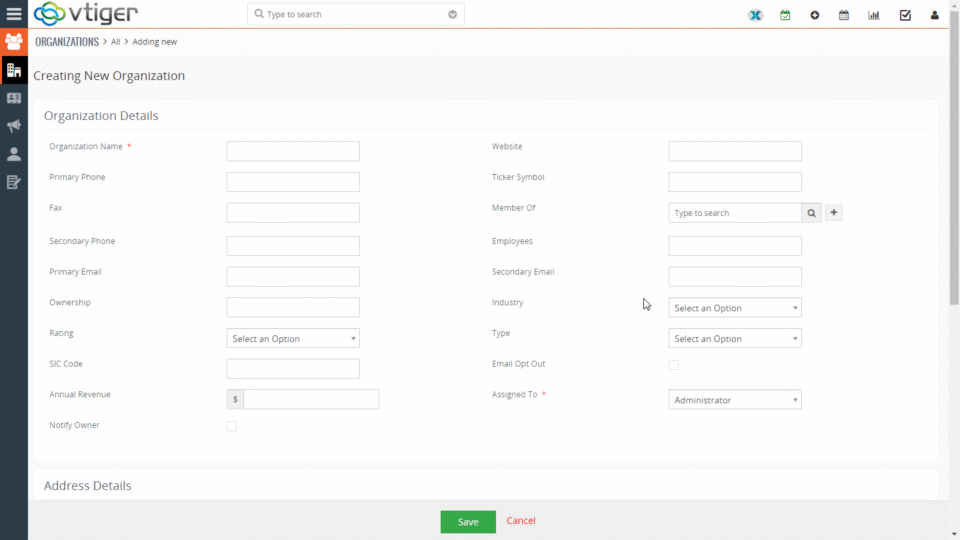
If you are looking to hide field in VTiger based on another field value e.g “Hide Contact.Billing_Country if Contact.Type is “Local Supplier” or any other field – you can do that utilizing Conditional Layouts VTiger Extension, which helps to transform standard VTiger layouts into powerful forms. It only takes few seconds to setup such forms, here are the steps: 1. Open Conditional Layouts Area Go to Menu > Settings > Go to Extension List > Conditional Layouts 2. Hit “+New Conditional Layouts” This is where all conditional layouts that have been setup are shown. 3. Select Module Select any module and name the condition e.g “Hide XXX,AAA,BBB” 4. Add Conditions You can add as many conditions as needed, the action(hide fields), will only be triggered once conditions have been met. 5. Add Tasks This is where all your tasks are,