How to Disable Email Notifications for Trouble Tickets/Opportunities?
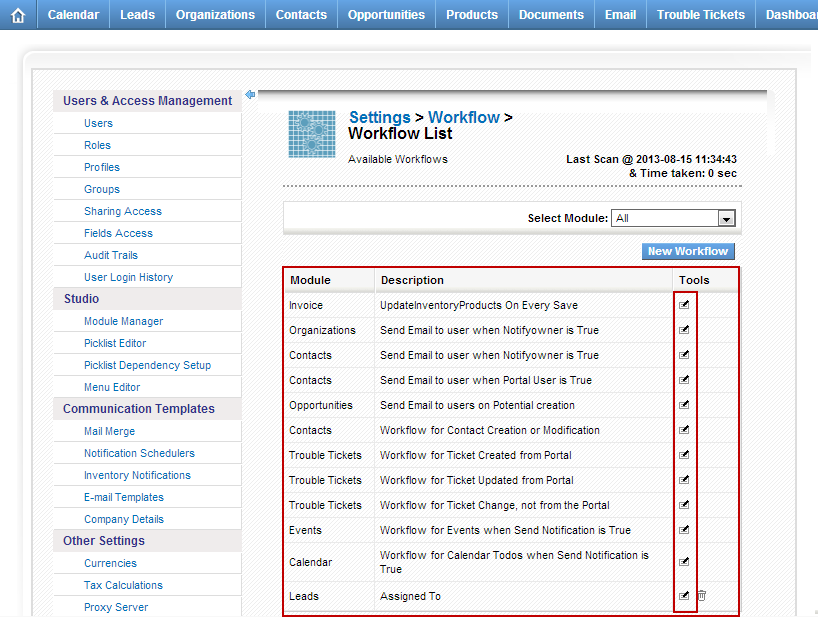
Out of the box vTiger comes with few email notifications already enabled. The notifications are triggered when:
- Opportunity is created
- Trouble Ticket has been updated from Customer Portal
- Trouble Ticket has been created from Customer Portal
- New Comment has been added to the Trouble Ticket
These notifications are triggered by vTiger workflow. To turn the notifications off, you would do:
- Mouse over the “gear” icon on the right upper corner
- Click “CRM Settings”
- Under “Other Settings” click “Workflow“
- Click on the Workflow you want to disable
- Scroll down to “Tasks” section and modify the Task
- Once the task opens, set the “Status” to “Inactive” and save the task.
-

- How to Disable Email Notifications for Trouble Tickets or Opportunities
-

- How to Disable Email Notifications – Modify Task
-

- How to Disable Email Notifications – Set Task to Inactive