Put Vtiger 7 Into Service To Configure Business Hours For Multiple Time Zones
Are you operating a company in multiple countries? Administering business worldwide is tricky and holds hundreds of complications from currency to market trends. While handling the manoeuvre, depending on a huge team for little tasks shall slow you down. Time zone is another complication on the list, for which Vtiger 7 has the perfect solution.
Setup Business Hours and holidays for the support department of your company, not worrying about the multiple time zones at the same time.
Configure Business Hours
The duration of availability of your support team for the customer care will be marked as Business hours. It will be in reference to the time zones of the customers’ location.
Setting up Business Hours in Vtiger 7 is quite simple:
- Start by hovering your mouse over the Menu icon and pressing the Settings button
- In Settings, click Business Hoursunder Support menu

- Then click Add Business Hourbutton
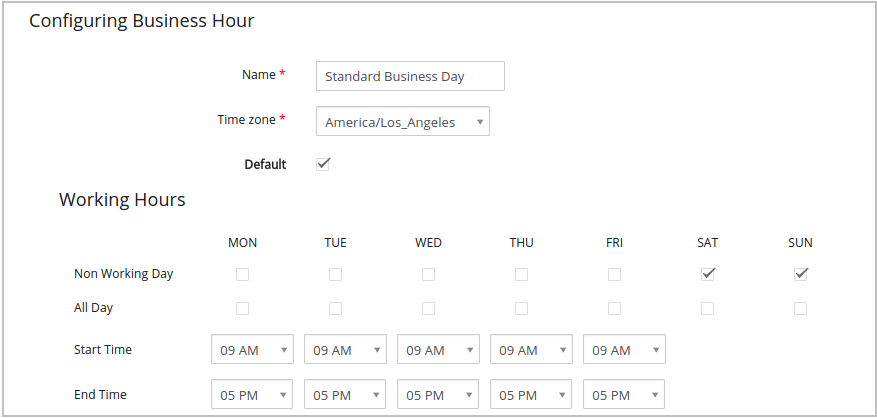
- In the Configuring Business Hour page, you’ll have to assign a Name for the custom Business Hour. You can choose the one you are most comfortable with e.g. England Business Hour for the respective country.

- From the Time Zonedropdown, pick one. For example, Europe/England
- Tick marking the Default box will set this one as default for the new cases. So there won’t be the need to select the business hour every time a case is created in Vtiger 7.
- For 24/7 support, enable all the checkboxes of All Day
- If that’s not the case, then configure the Start timeand End time of the company’s business hours.
- You can also mention the Holiday dates in this section. It will turn off the support for those days. To designate a day or days as holidays, click the +Add Holiday button
- Populate the holiday description and date.

- Click the Savebutton in the end to apply the changes.
If you need to Remove a configured Business Hour, press the trash bin icon in the list view to remove the unwanted record.