

VTiger Customer Portal Establishment On A Website And Enabling Or Disabling It For Contacts
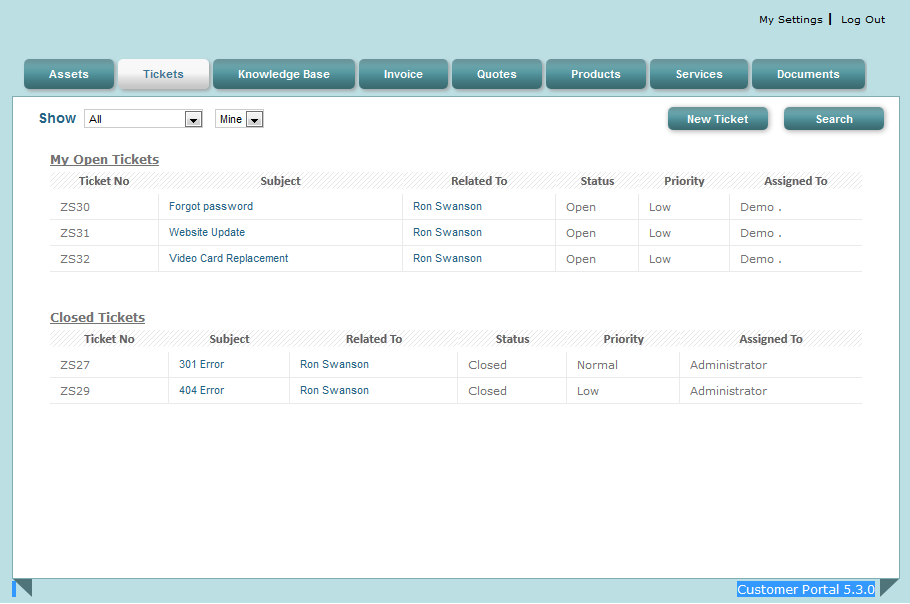
While we had thoroughly discussed the Customer Portal’s basic setup for Vtiger 7’s dashboard in this article, the versatility and customizability of the tool to a company’s requirements was also explained.
As much as the Portal is productive, it would be of no use if your company’s clients cannot reach it. The best possible way to do so is to host the customer portal on your company’s website. So it would be accessible to the customers when they’d visit the site.
How is the Customer Portal Hosted on a Website?
As much as it sounds complicated, the task is no rocket science, as Vtiger 7 has made it easiest as it could be. The procedure is explained here step by step:
- First of all download this product
- Then you need to modify the config file (<web root>/portal/config.inc.php)
- $site_URL : CRM instance path
- $CompanyName : Enter the name of the company to be appeared on the browser tab
- $logoPath : Custom Organization logo with the name and extension as logo.ico has to be placed in the path mentioned here.
Note! You can also refer /Help.txt for more instructions to configure on downloading the file from the link.
The portal is now accessible through your own website. We are explaining, what’s need to be done, in the next section.
Enabling Customer Portal
Hosting the portal on company’s website is certainly basic. Granting customers open access to the portal is another subject. This can be done for individual contacts. In the Customer Portal Details section in a contact’s record, Portal User check-box is the switch. Turning it off will no longer give the user open access to the Portal. The login credentials i.e. username and password will be sent to users via email. There is no need for extra information as the email address in CRM’s database will be used.
These simple steps describe how to grant Customer Portal access:
- In the App Menu, Click Contacts
- Enable the Portal User switch to give the access. The switch can be found in the Create view for new contact record, or Edit view of existing record.
- Choose duration during which the user will be able to avail the portal. The duration can be configured by selecting Support Start Date and Support End Date. Other than the selected duration, the portal will be unavailable to the contact.

- An email containing Customer Portal login URL, User Name, and Password will be sent to the customer automatically. Those credentials are unique for every contact and help the user to own some unique space in the Vtiger 7.
Heads Up
- Provide following URL in the address bar to view customer portal plugin
https://yourcompanyname.od1.vtiger.com/portal - Kindly replace yourcompanyname with your actual company name. For example, if your company name is Grasspods, your customer portal URL will be https://grasspods.od1.vtiger.com/portal
While setting them up:
- Configuration of your Outgoing Server is mandatory.
- Keep it in consideration that email will not be sent to a contact if “Email Opt Out” field is enabled.
- It is not possible for the user to log in to the Customer Portal outside of the Support Start and End Dates.


3 Comments
When I check “Portal User” on “Customer Portal Details” after save it doesn’t send me a mail with a username and password. My Outgoing server is correct.
Make sure workflow/cron is setup, that’s what triggers the email
How can I setup workflow/cron in vTiger7?
Thanks