


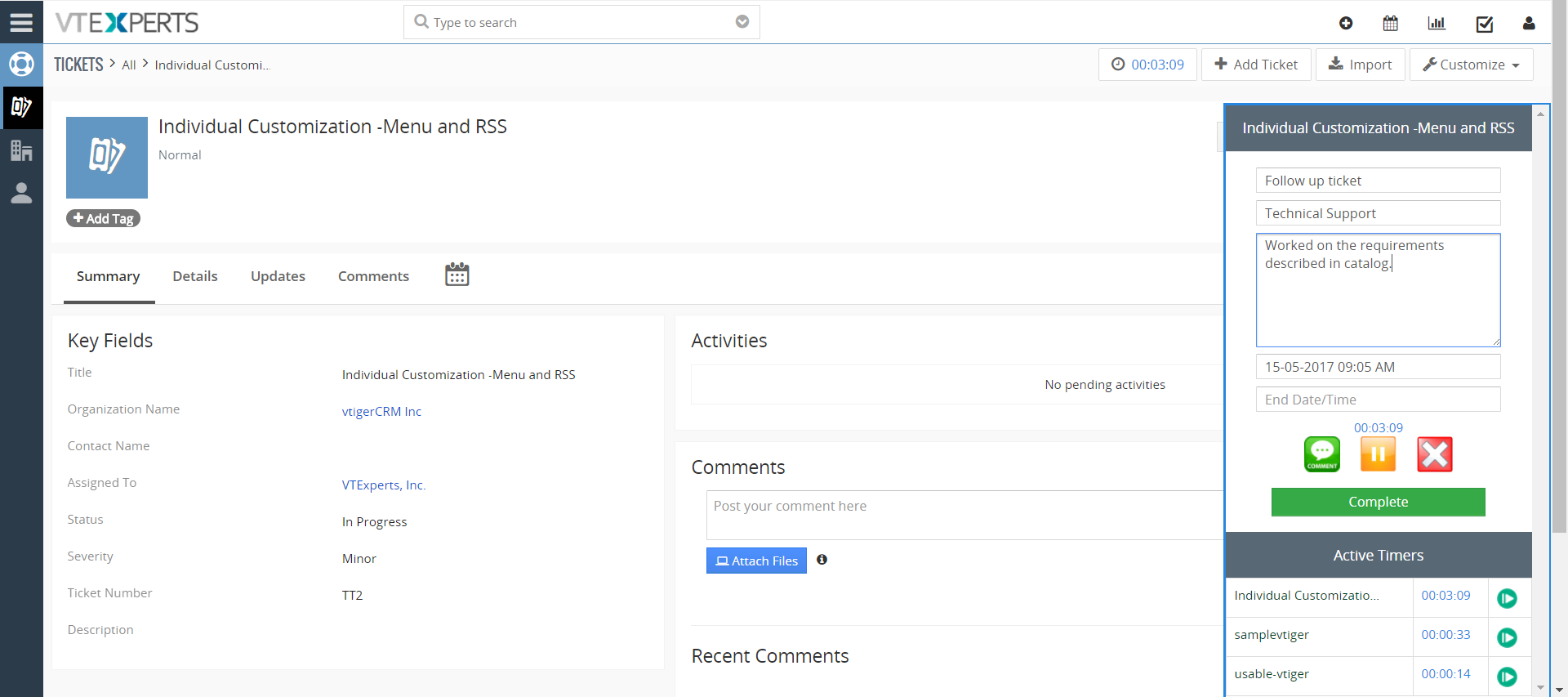
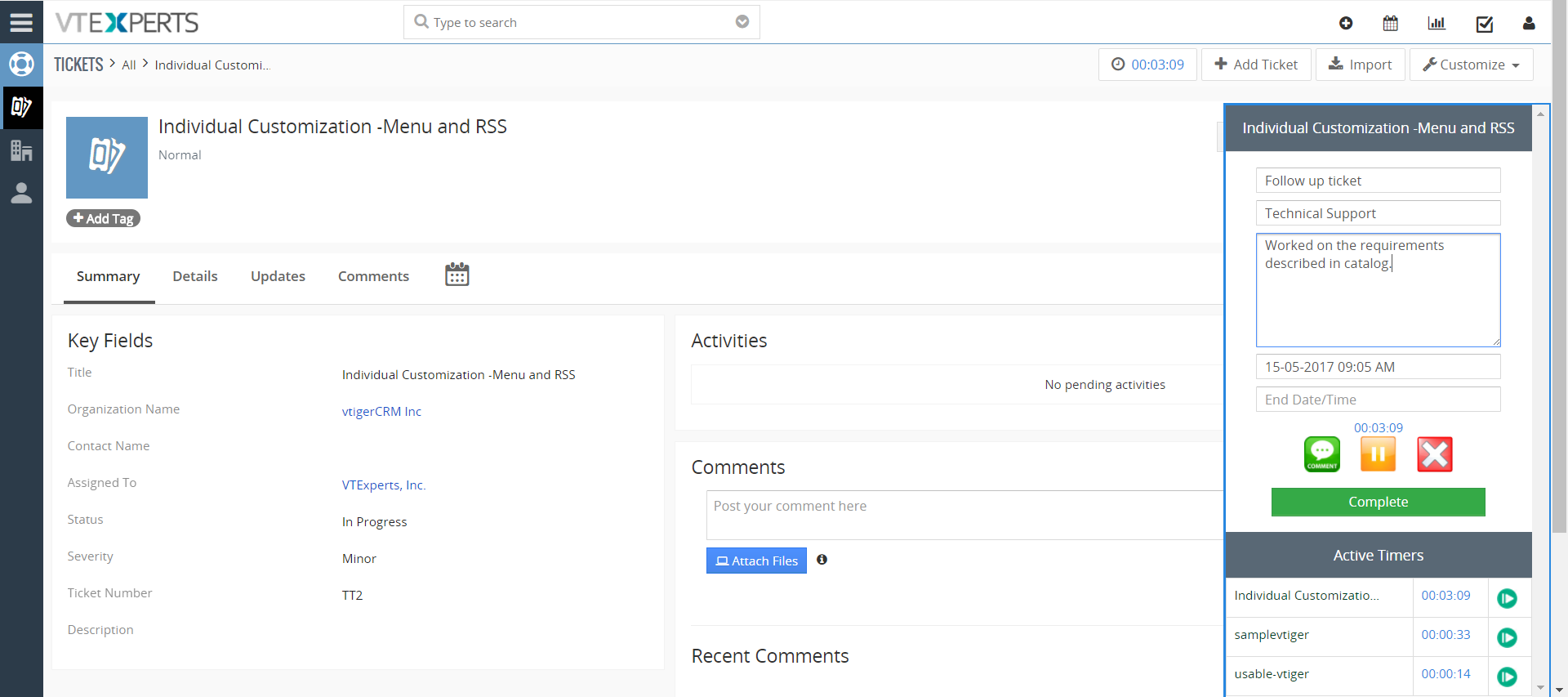
Time Tracker for VTiger Extension is designed to quickly & easily track the time spent while working on a task. It’s unique design allows to show and hide the timer within a single click without leaving the page. It also includes the ability to run multiple timers & switch between them. Custom fields, comments, & manual time tracking are also supported.
It integrates with Accounting/Invoicing and allows rates to be specified for each type of “time tracking activity” as well as custom rates per client. It is compatible with Contacts, Organizations, Leads, Tickets, Projects & Opportunities.

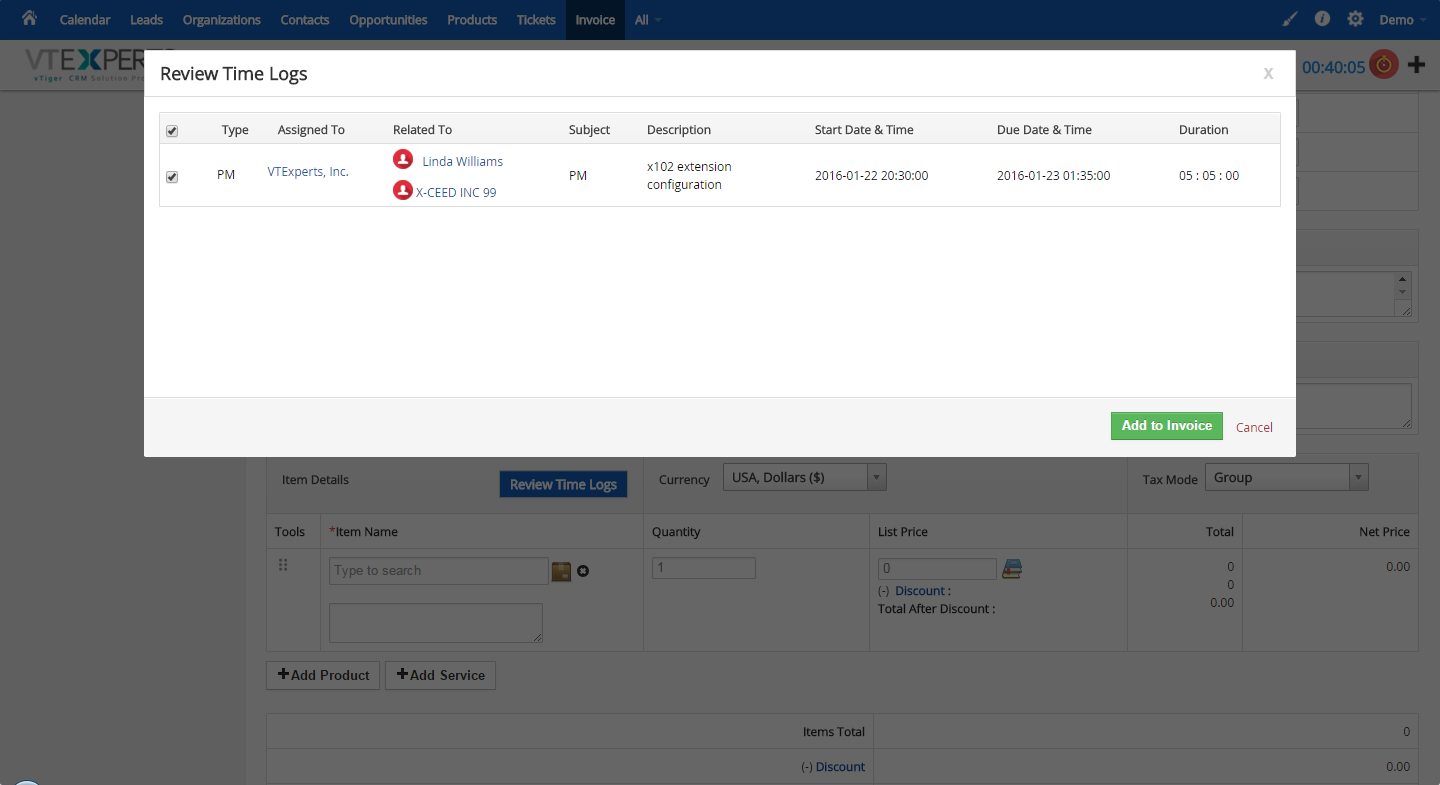
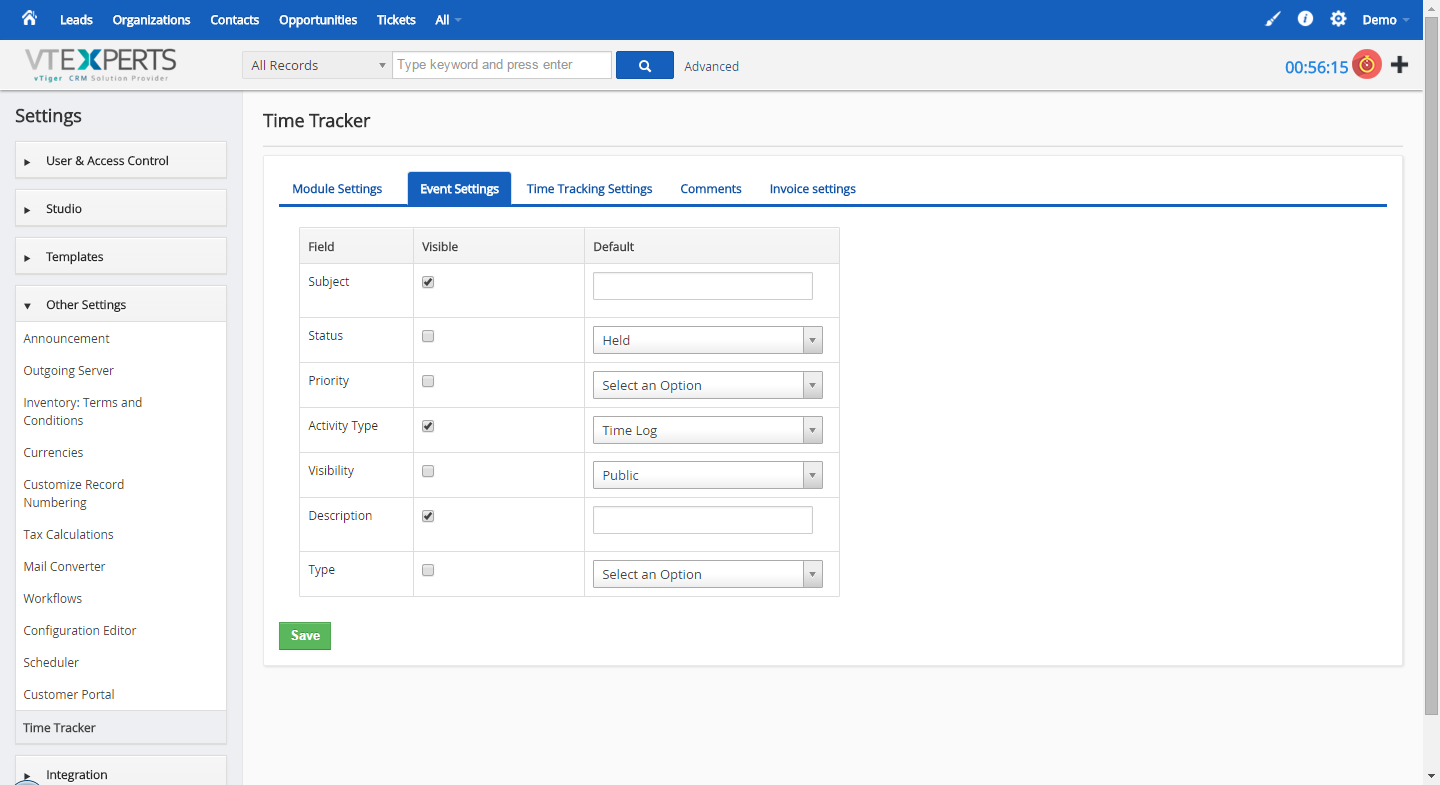
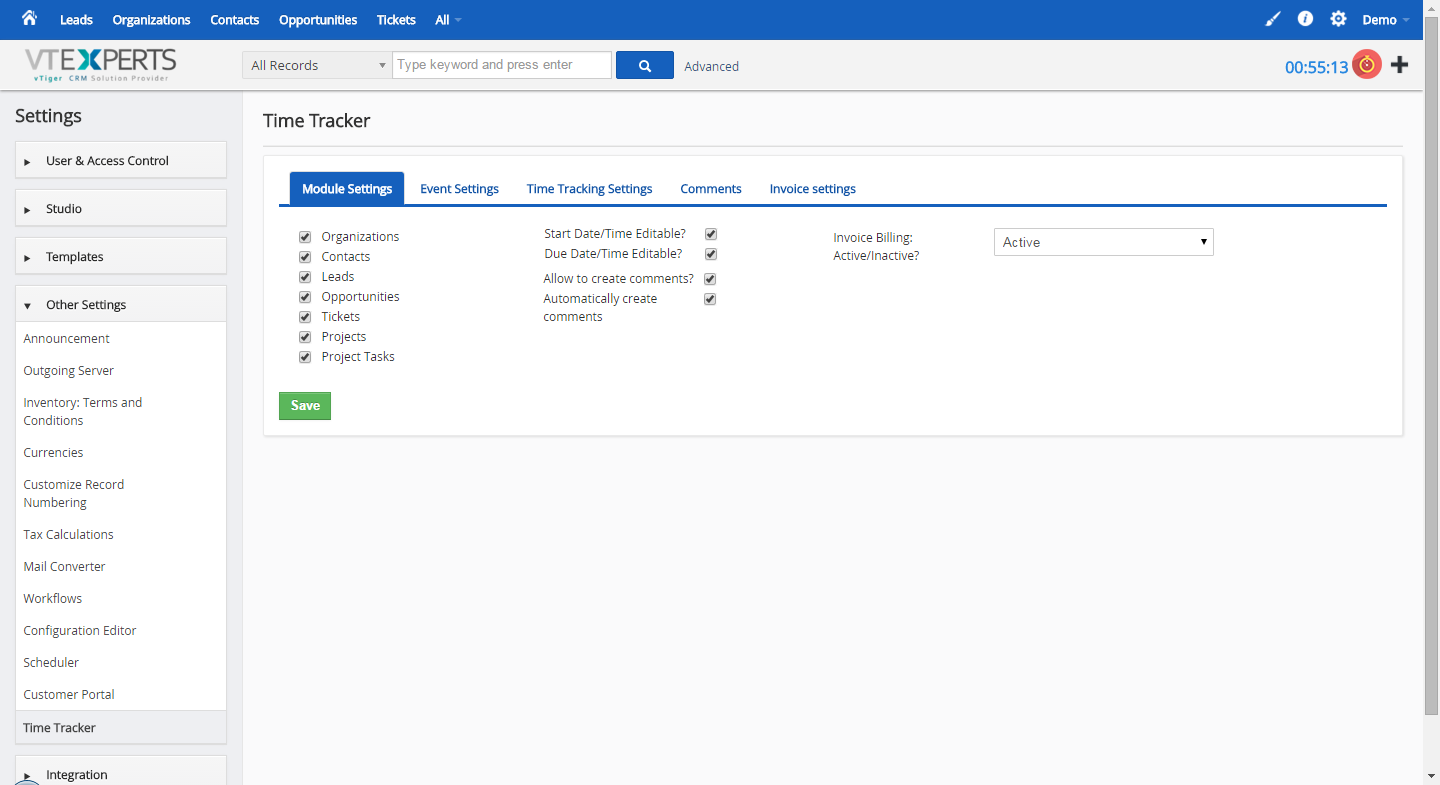


Here are some of the key features that make our extension unique:
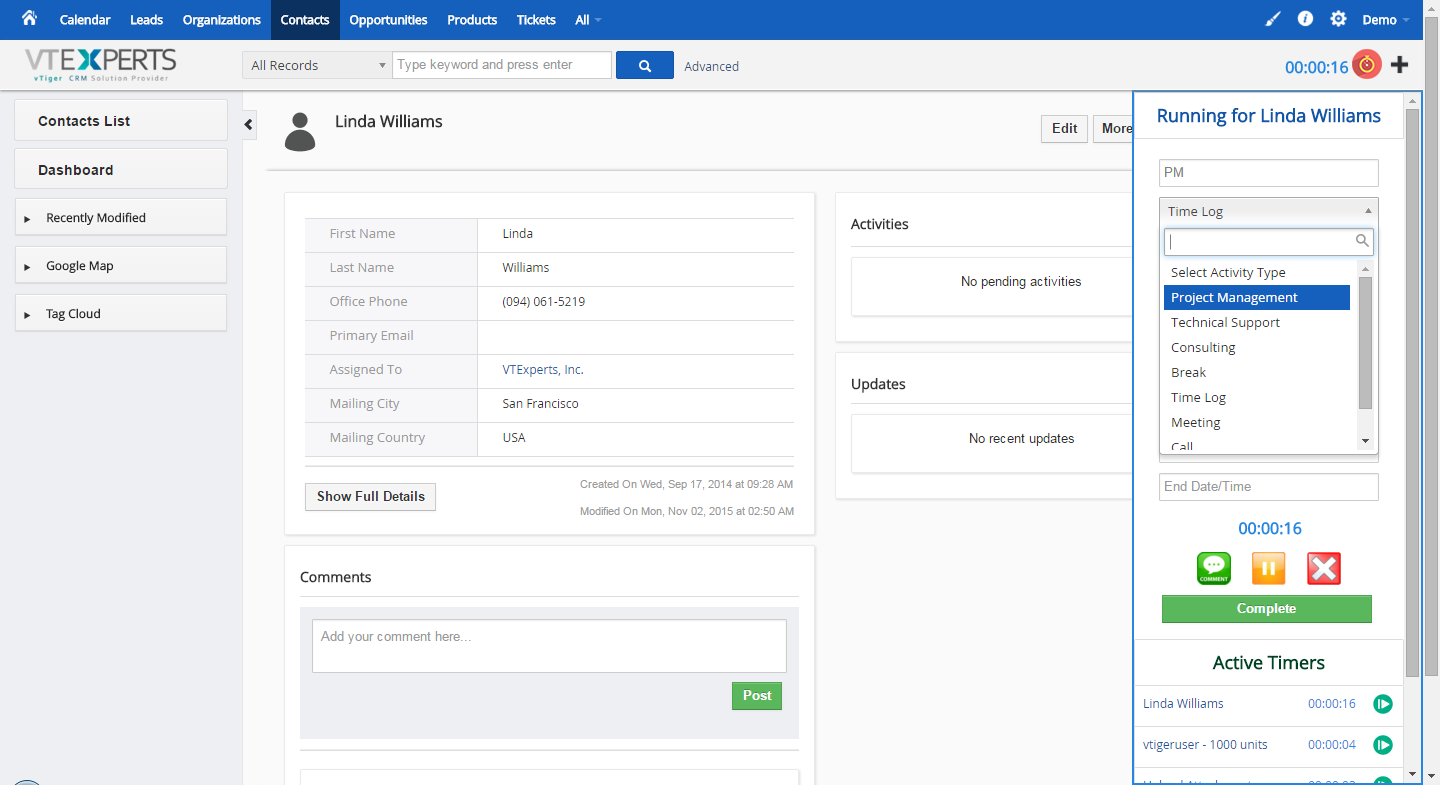
- Enables users to track their time within VTiger
- The time spent & timer icon is always displayed on the header
- Open or close time tracker with a single click without leaving the page
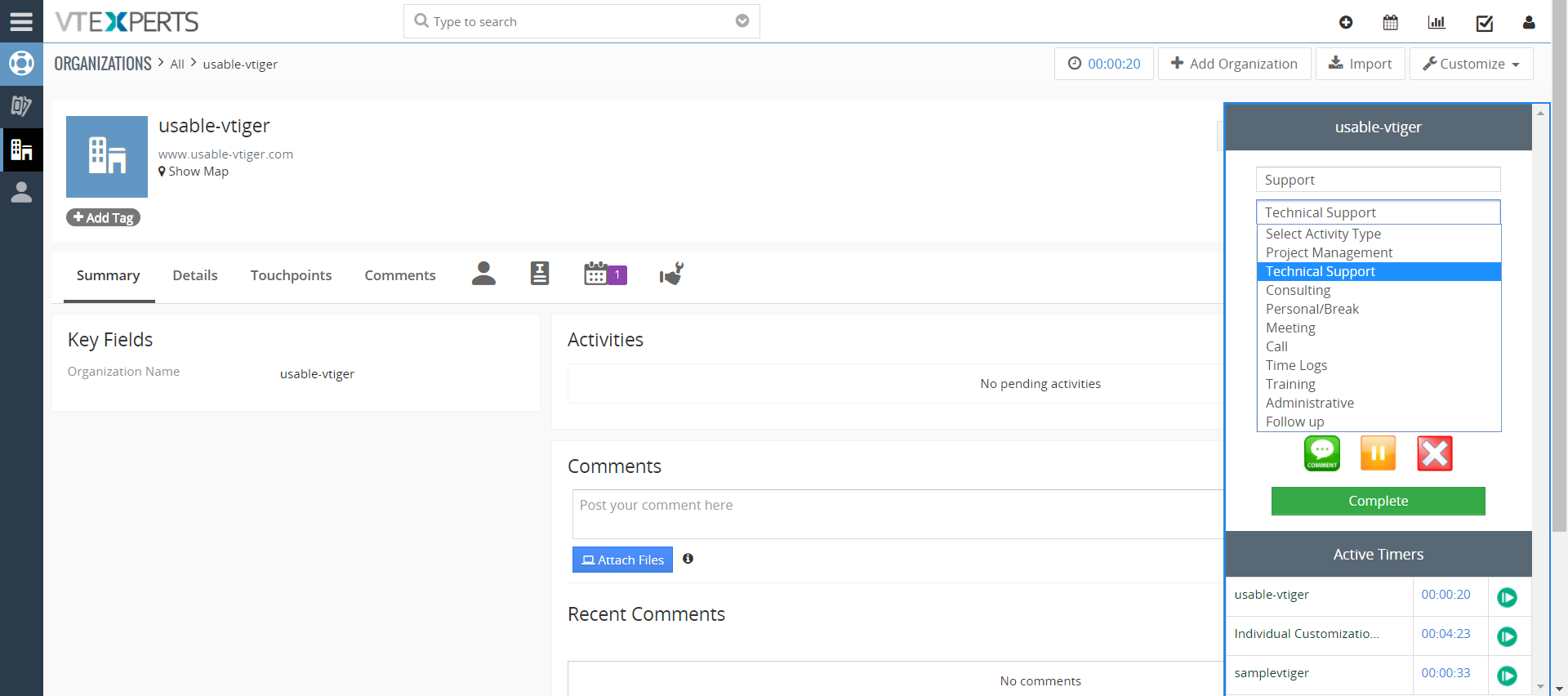
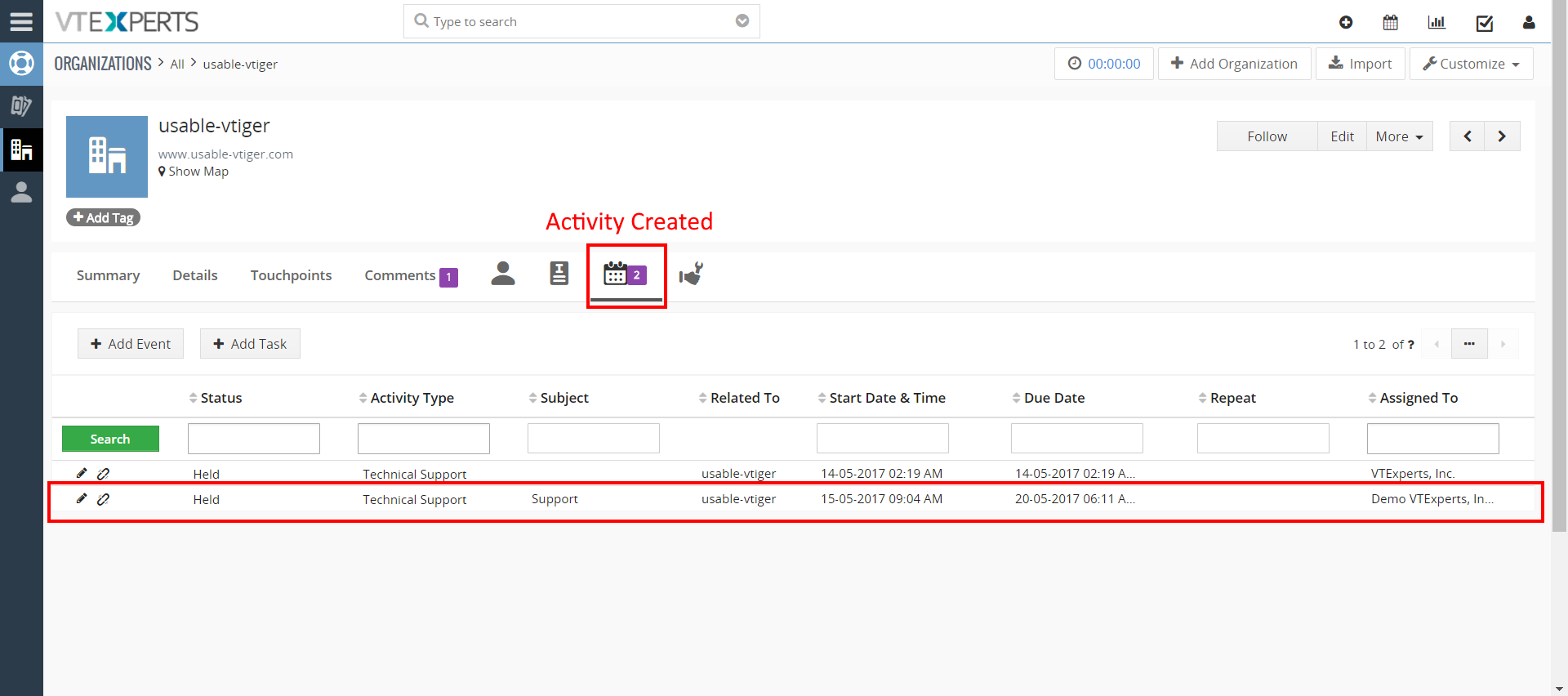
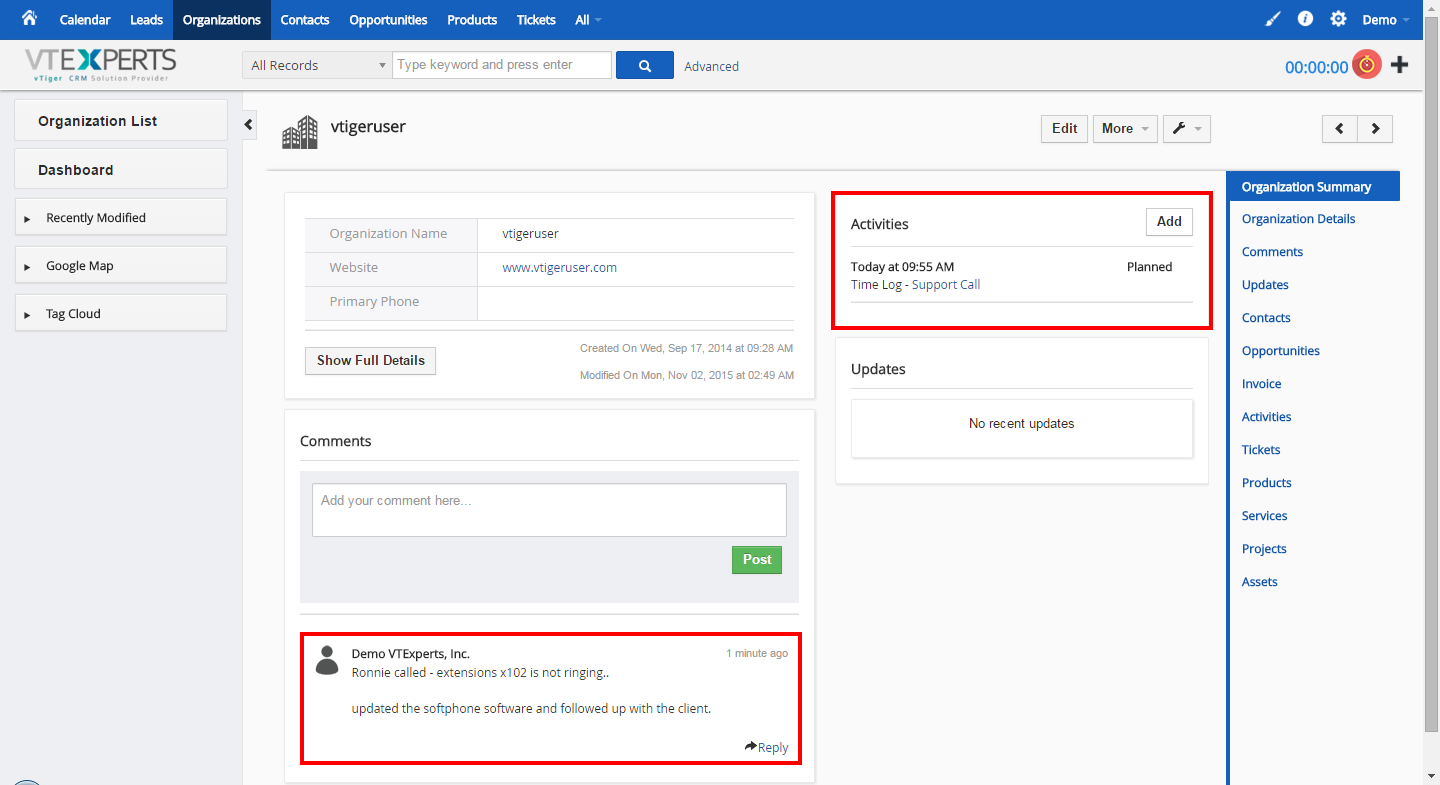
- Integrates with VTiger Standard Activities (Events)
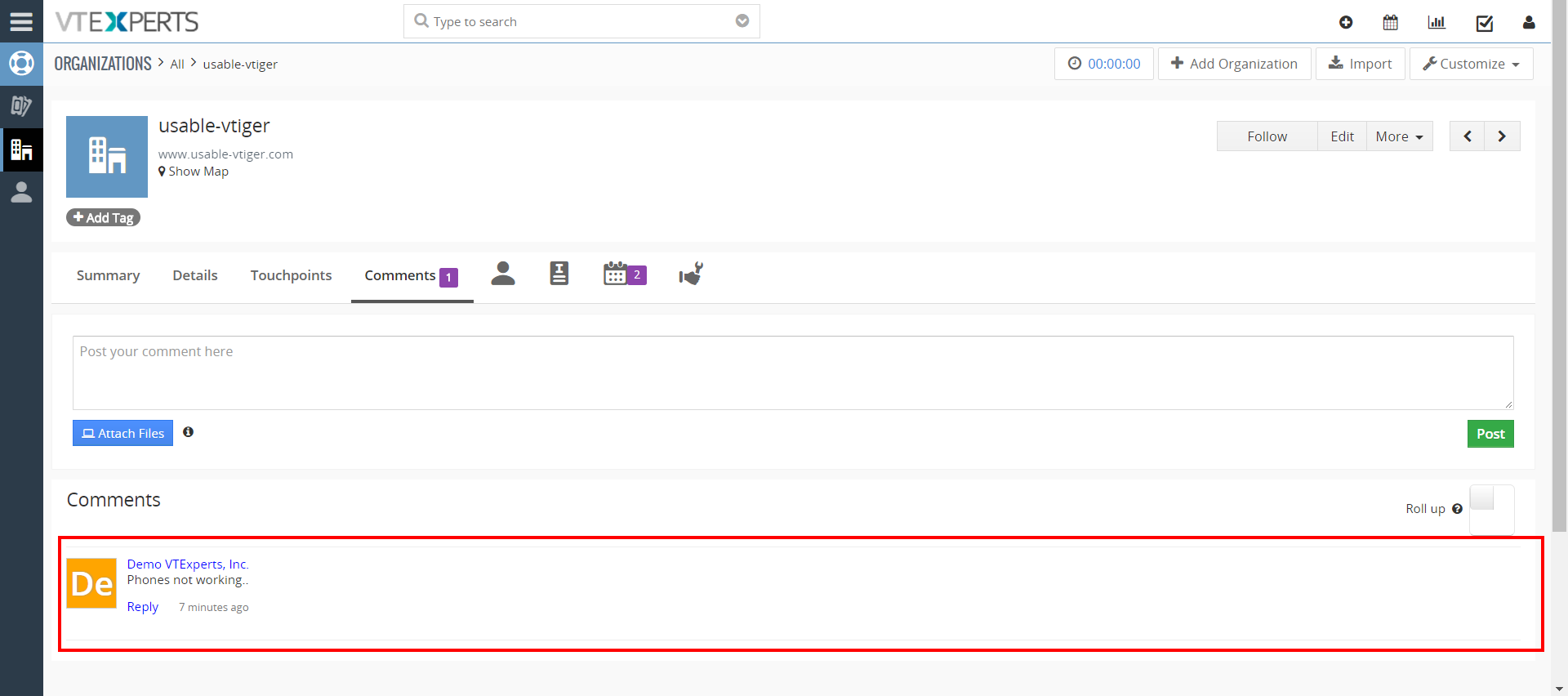
- Option to create a comment when completing the time log
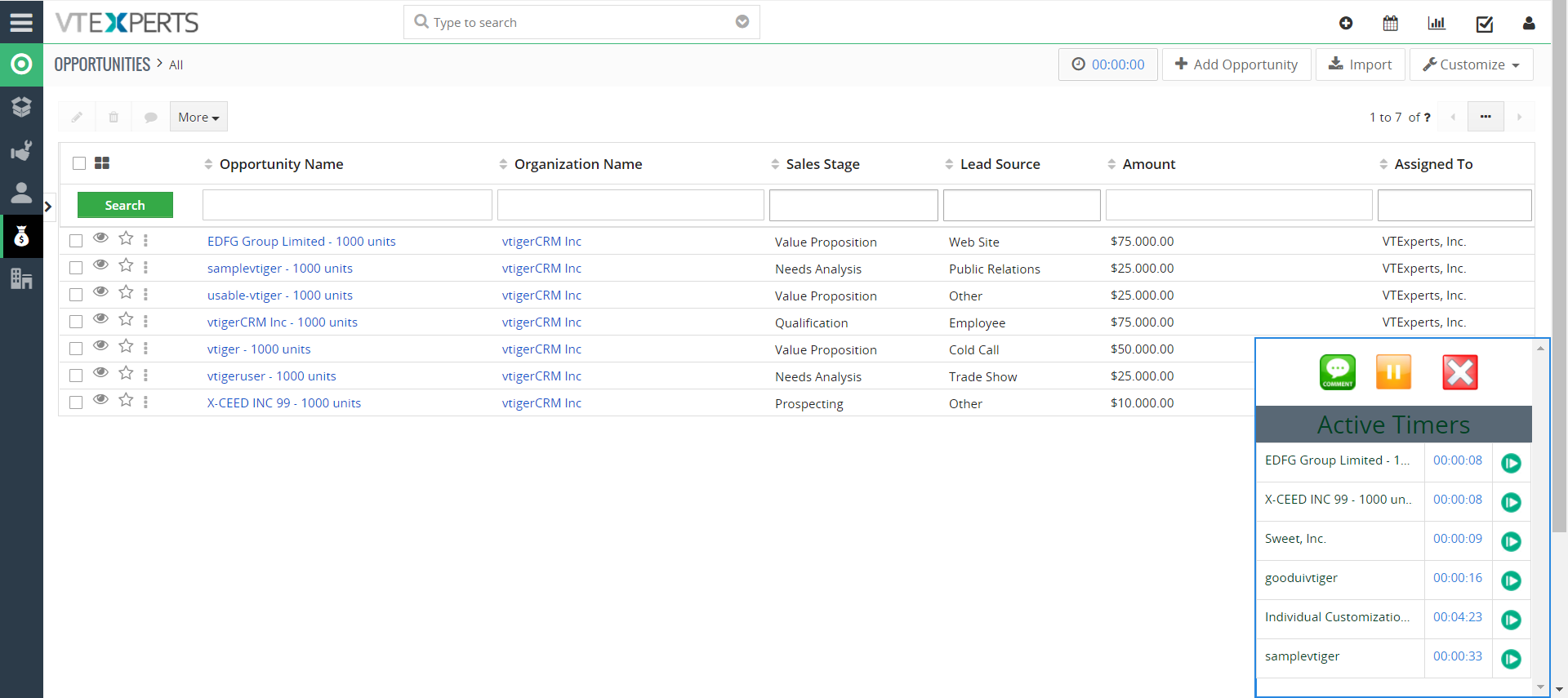
- Allows to Pause, Stop, or Restart the timer
- Allows to manually input Start/End Date/Time (can be restricted as well)
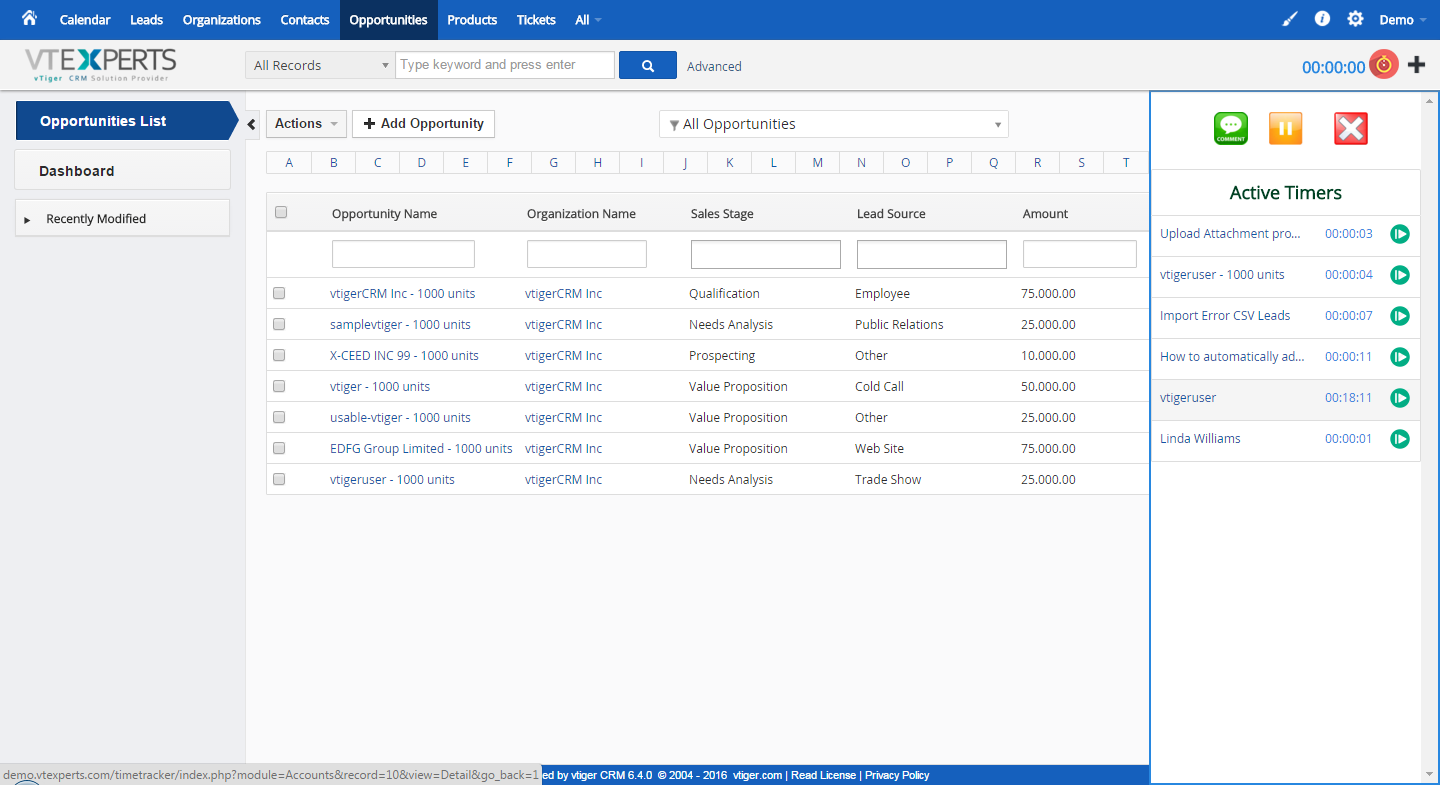
- Displays list of active timers on the same popup
- Allows to switch between timers with a single click
- Allows to run concurrent timers at the same time
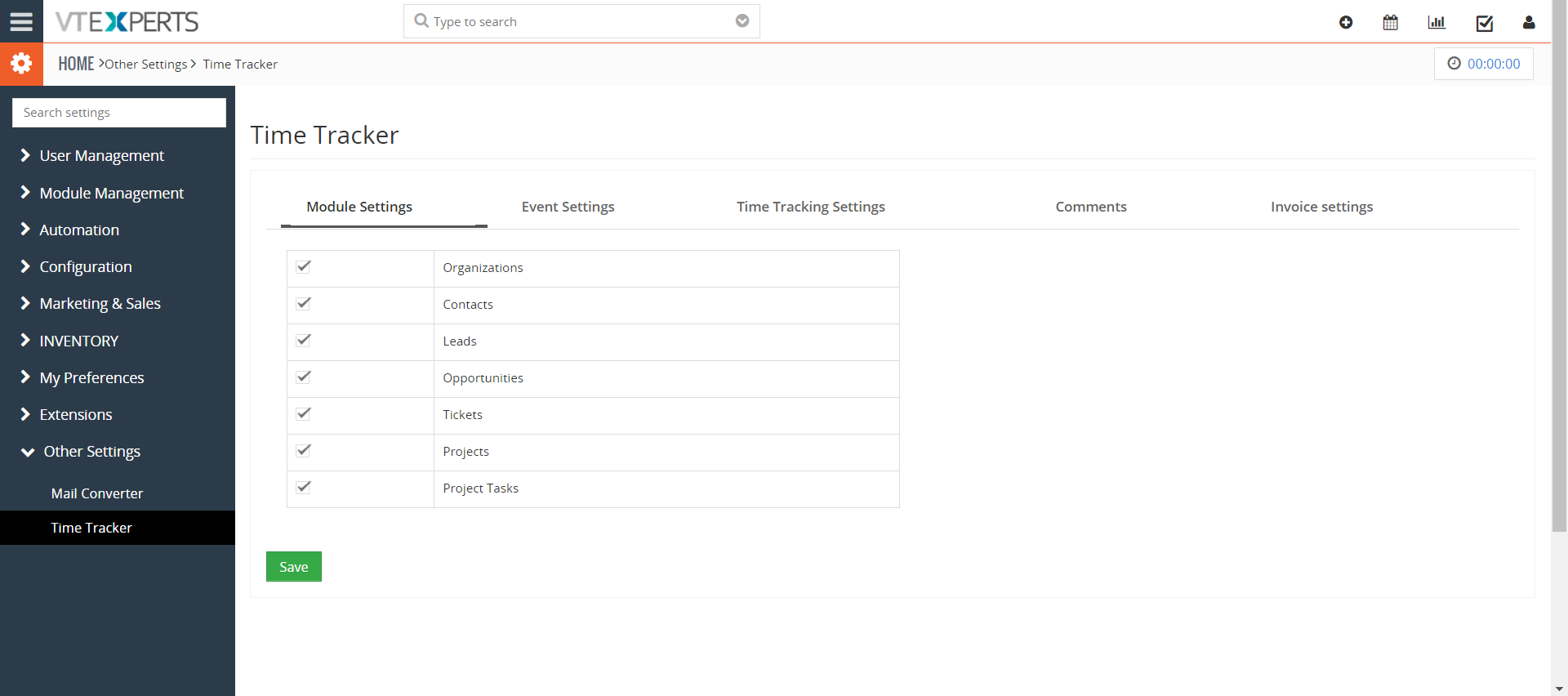
- Compatible with Organizations, Contacts, Leads, Opportunities, Tickets, Projects, & Project Tasks
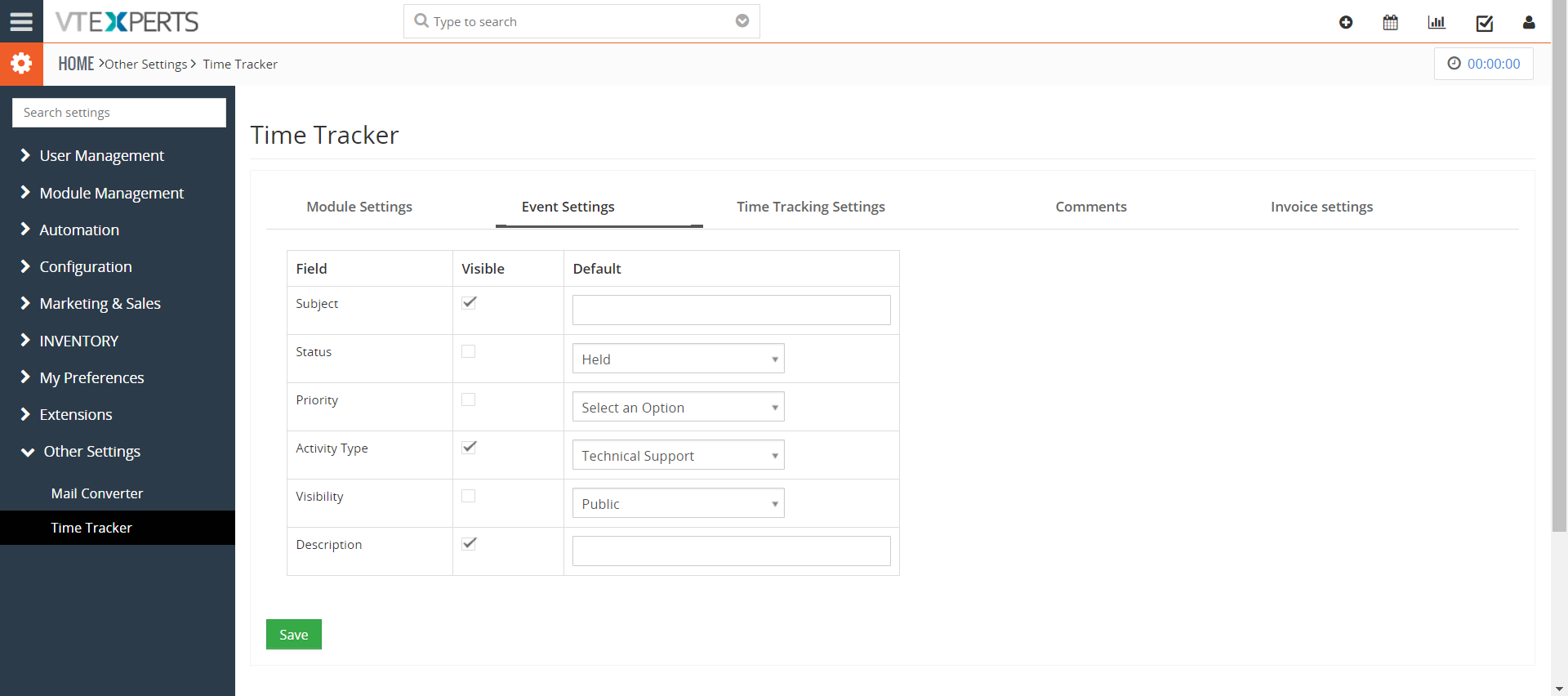
- Intuitive Configuration panel allows to create and show custom fields on the timer
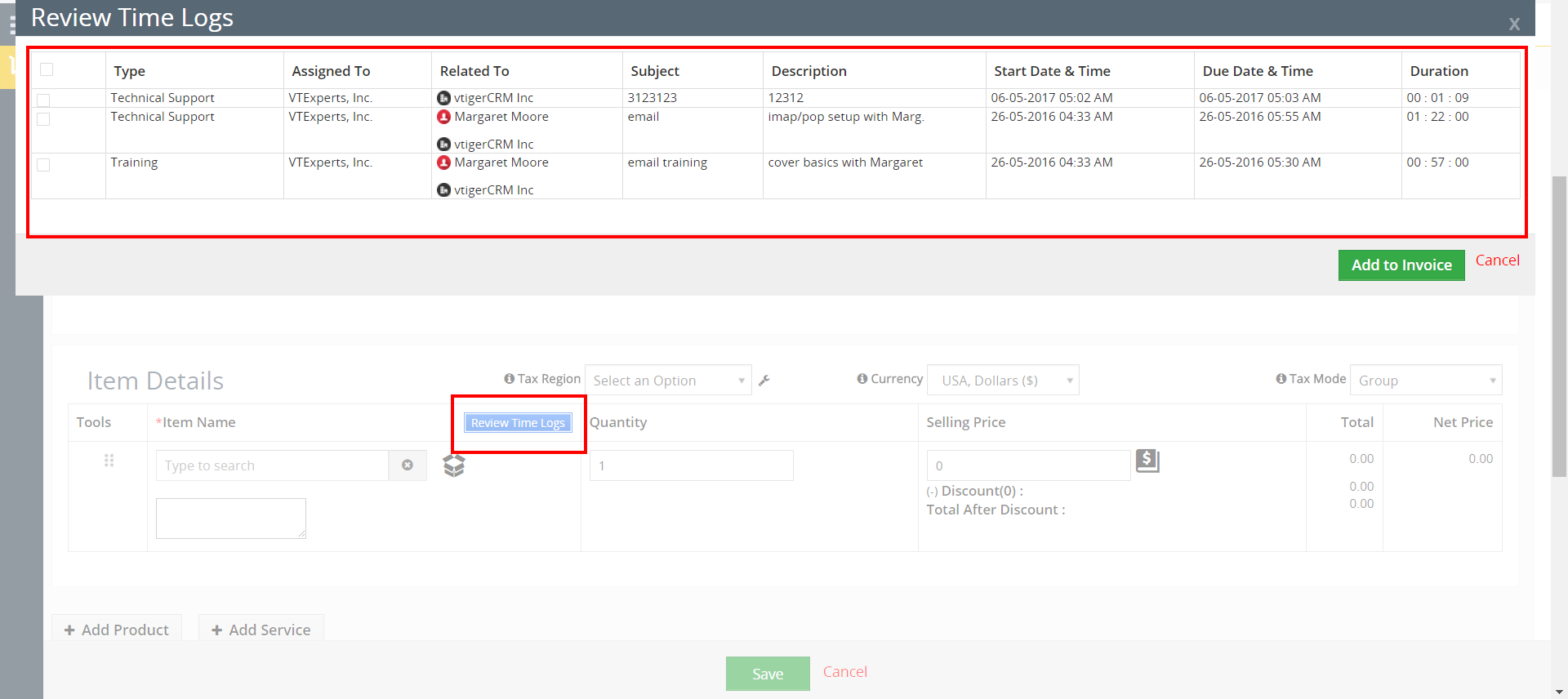
- Integrates with Billing/Invoicing (with a single click, you can pull in all time logs into invoice).
- Includes the ability to specify hourly price for each time log type as well as custom rates for each client
- Includes Intuitive Configuration Panel
- Module Manager Compatible
- Available on VTiger Marketplace
We provide a unique demo instance for all our extensions. Each demo instance is pre-configured to only show features available for the specific extension. It is likely that some of the standard vTiger modules have been disabled to make the demo more user friendly.
VTiger 7 Demo
Please use credentials below to access the demo.
- Link: https://demo7.vtexperts.com/timetracker/index.php (Will open in new window)
- User: demo
- Pass: demo
VTiger 6 Demo
Please use credentials below to access the demo.
- Link: https://demo.vtexperts.com/timetracker/index.php (Will open in new window)
- User: demo
- Pass: demo
If you are not able to access the demo or find an issue - please send us an email at [email protected] or via contact form.
All extensions come with an extensive user guide, which includes setup instructions, suggestions as well as usability tips. Please click the link below to access user guide for this extension.
User Guide: https://www.vtexperts.com/helpdesk/time-tracker (Will open in new window)
For assistance or any questions - please contact us via [email protected].
 Benefits of VTExperts Time Tracker May 21, 2021 - While organizing projects one of the major problem that managers face is keeping the track of time. A project consist of several tasks and every task takes different amount of time to be completed. Their is a possibility that on each tasks multiple staff member are working and the time they put on doing that task is also different. Filling so many timesheets manually not only takes a lot of time but is a task full of hassle.. Recording such an extensive time log is a task in itself. Vtiger CRM provided the feature of time tracker, which does the job quite well. But, if you need something more then take a look at long list of benefits of VTExperts Time Tracker extension. This new and improved time tracking feature of VTiger allows to automatically log the time each employee spent on a task. In VTiger tasks are… Read More
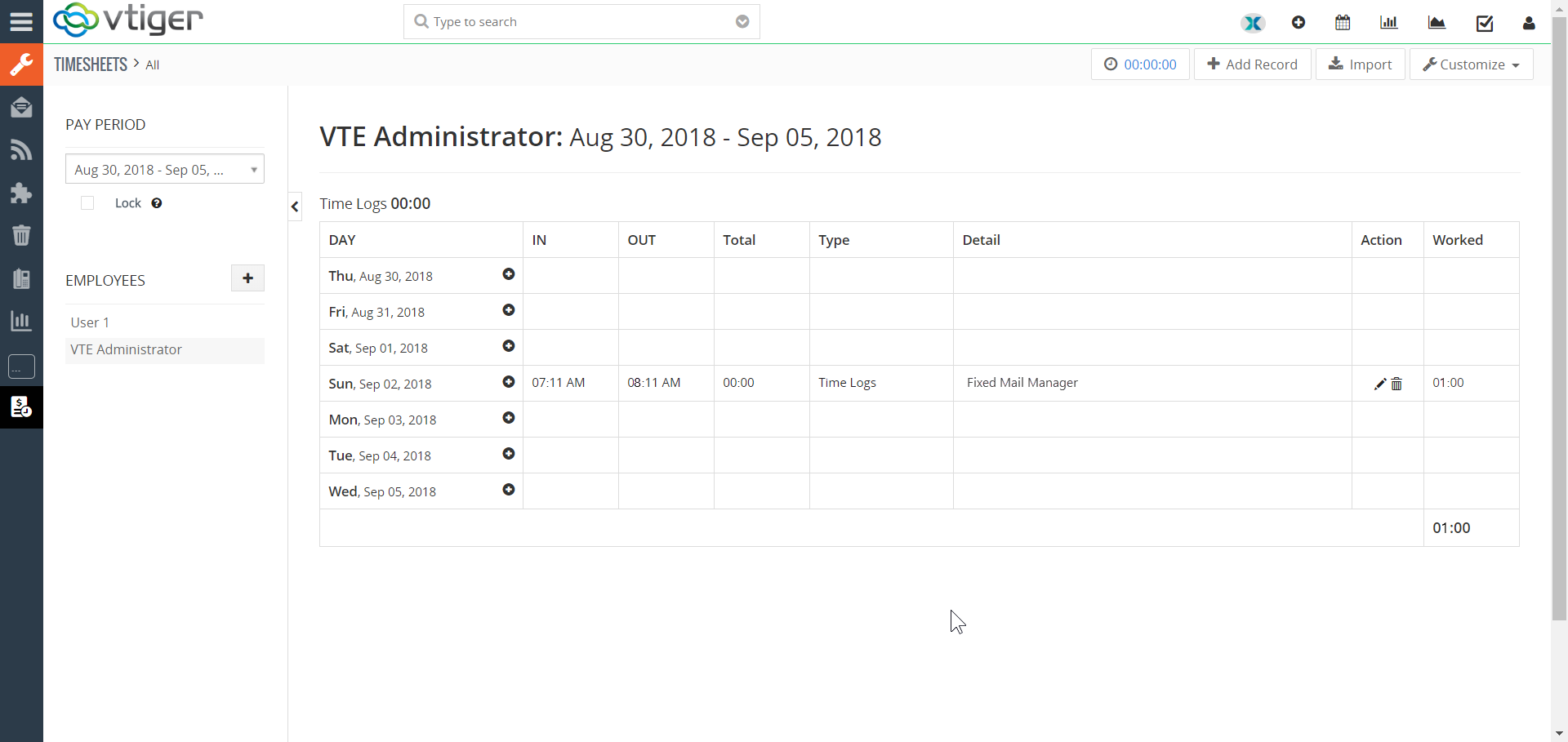 Log Employee Times Automatically Into Time Sheets With Time Tracker September 2, 2018 - The Timesheet extension enables the VTiger users to track employee/user time, visually. It basically allows users to log time spent on particular tasks, with their exact duration. These time logs can then be associated with any record within VTiger. This extension supports custom periods, which allows to adjust the length of the period suitable for the business hours. The time records can then be locked to prevent any further modifications. It also automatically calculates the Totals and show them in an easily understandable manner. Lastly, the admins can import/export the data, run reports, or create workflows using these time records as well as run reports. So, this is a must-have extension for payroll management and tracking the time spent (how and where) by contractors. We have further enhanced the efficiency of Timesheets by making it compatible with another very useful tool of ours, Timetracker. It allows showing and hiding the… Read More
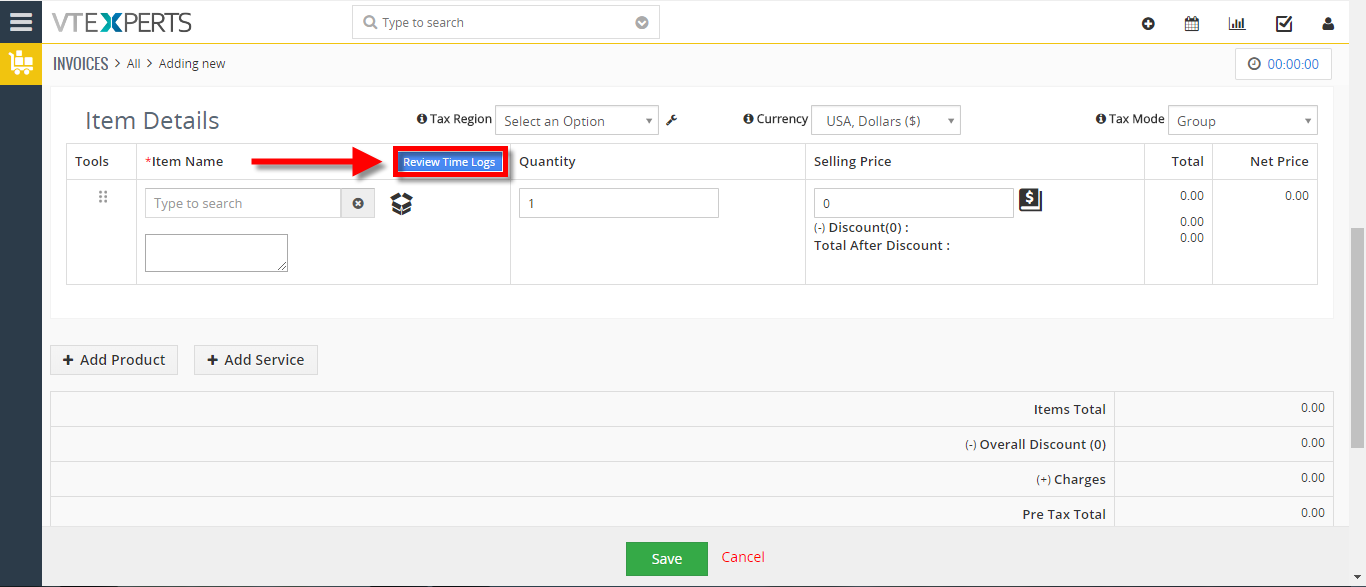 Bill For Time Spent Via Time Tracker In VTiger 7 June 27, 2018 - Time Tracker for VTiger Extension is designed to quickly & easily track the time spent while working on a task. It’s unique design allows to show and hide the timer within a single click without leaving the page. It integrates with Accounting/Invoicing and allows rates to be specified for each type of “time tracking activity” as well as custom rates per client. It is compatible with Contacts, Organizations, Leads, Tickets, Projects & Opportunities. How to Bill for Time Spent Go to the Invoice's and create a new Invoice. After adding a Contact/Organization scroll down and click on the "Review Time Logs" button to bill for the time spent. These are all the time logs that we have not billed the customer for. Here you can also see all the detail (Type, Assigned to, Duration). Check box the time log and click on the "Add To Invoice" button. Here you can see the time logs has been added to the… Read More
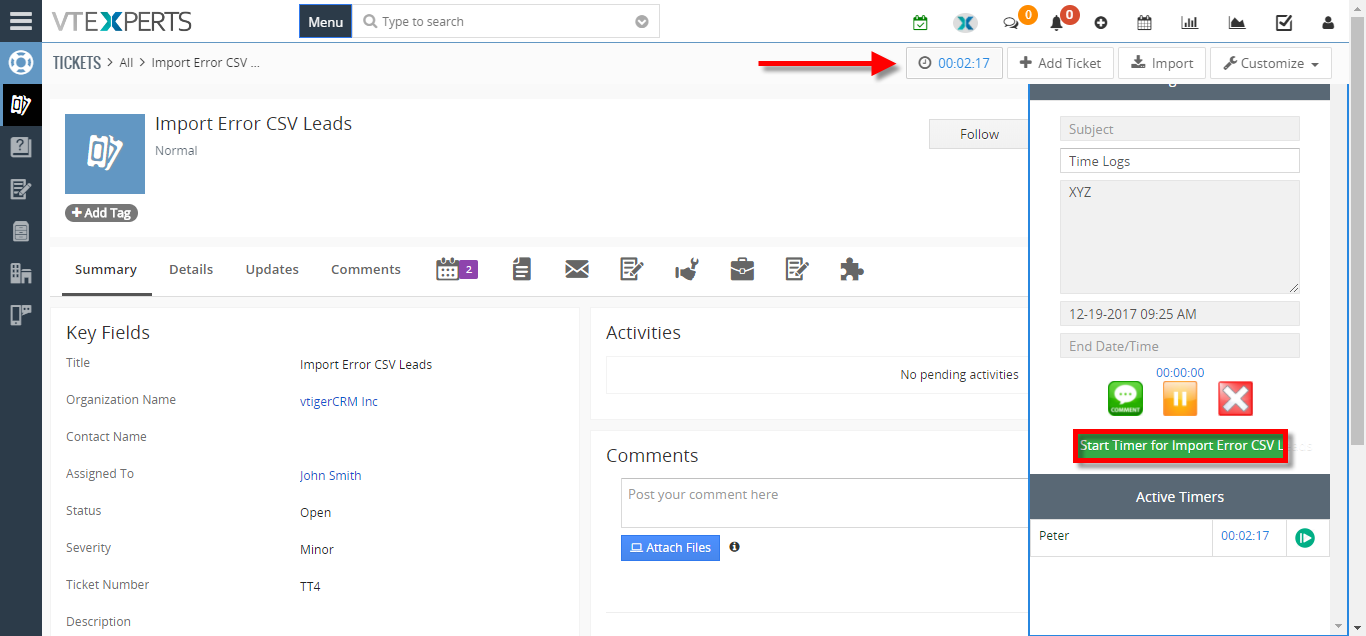 Track Time Spent On Tickets, Projects Or Contacts In VTiger 7 December 19, 2017 - In VTiger 7, User can easily track the time spent while working on a task by using our Time Tracker extension. It’s unique design allows to show and hide the timer within a single click without leaving the page. It also includes the ability to run multiple timers & switch between them. Custom fields, comments, & manual time tracking are also supported. How to Track Time Click on the "Menu" button and select "Contacts". Select a contact you want to start tracking the time for. Click on the "Timer Icon" to open the Time Tracker popup window and start the timer. Go to the "Tickets Module" and select a ticket you want to track time for. Click on the "Timer Icon" and then click on the "Start timer for the (Module Name)" button in the Time Tracker popup window. For further help contact us on [email protected] we'll be glad to be of… Read More
Related products
Time Tracker for VTiger Extension is designed to quickly & easily track the time spent while working on a task. It’s unique design allows to show and hide the timer within a single click without leaving the page. It also includes the ability to run multiple timers & switch between them. Custom fields, comments, & manual time tracking are also supported.
It integrates with Accounting/Invoicing and allows rates to be specified for each type of “time tracking activity” as well as custom rates per client. It is compatible with Contacts, Organizations, Leads, Tickets, Projects & Opportunities.
Here are some of the key features that make our extension unique:
- Enables users to track their time within VTiger
- The time spent & timer icon is always displayed on the header
- Open or close time tracker with a single click without leaving the page
- Integrates with VTiger Standard Activities (Events)
- Option to create a comment when completing the time log
- Allows to Pause, Stop, or Restart the timer
- Allows to manually input Start/End Date/Time (can be restricted as well)
- Displays list of active timers on the same popup
- Allows to switch between timers with a single click
- Allows to run concurrent timers at the same time
- Compatible with Organizations, Contacts, Leads, Opportunities, Tickets, Projects, & Project Tasks
- Intuitive Configuration panel allows to create and show custom fields on the timer
- Integrates with Billing/Invoicing (with a single click, you can pull in all time logs into invoice).
- Includes the ability to specify hourly price for each time log type as well as custom rates for each client
- Includes Intuitive Configuration Panel
- Module Manager Compatible
- Available on VTiger Marketplace
We provide a unique demo instance for all our extensions. Each demo instance is pre-configured to only show features available for the specific extension. It is likely that some of the standard vTiger modules have been disabled to make the demo more user friendly.
VTiger 7 Demo
Please use credentials below to access the demo.
- Link: https://demo7.vtexperts.com/timetracker/index.php (Will open in new window)
- User: demo
- Pass: demo
VTiger 6 Demo
Please use credentials below to access the demo.
- Link: https://demo.vtexperts.com/timetracker/index.php (Will open in new window)
- User: demo
- Pass: demo
If you are not able to access the demo or find an issue - please send us an email at [email protected] or via contact form.
All extensions come with an extensive user guide, which includes setup instructions, suggestions as well as usability tips. Please click the link below to access user guide for this extension.
User Guide: https://www.vtexperts.com/helpdesk/time-tracker (Will open in new window)
For assistance or any questions - please contact us via [email protected].
Benefits of VTExperts Time Tracker May 21, 2021 - While organizing projects one of the major problem that managers face is keeping the track of time. A project consist of several tasks and every task takes different amount of time to be completed. Their is a possibility that on each tasks multiple staff member are working and the time they put on doing that task is also different. Filling so many timesheets manually not only takes a lot of time but is a task full of hassle.. Recording such an extensive time log is a task in itself. Vtiger CRM provided the feature of time tracker, which does the job quite well. But, if you need something more then take a look at long list of benefits of VTExperts Time Tracker extension. This new and improved time tracking feature of VTiger allows to automatically log the time each employee spent on a task. In VTiger tasks are… Read More Log Employee Times Automatically Into Time Sheets With Time Tracker September 2, 2018 - The Timesheet extension enables the VTiger users to track employee/user time, visually. It basically allows users to log time spent on particular tasks, with their exact duration. These time logs can then be associated with any record within VTiger. This extension supports custom periods, which allows to adjust the length of the period suitable for the business hours. The time records can then be locked to prevent any further modifications. It also automatically calculates the Totals and show them in an easily understandable manner. Lastly, the admins can import/export the data, run reports, or create workflows using these time records as well as run reports. So, this is a must-have extension for payroll management and tracking the time spent (how and where) by contractors. We have further enhanced the efficiency of Timesheets by making it compatible with another very useful tool of ours, Timetracker. It allows showing and hiding the… Read More Bill For Time Spent Via Time Tracker In VTiger 7 June 27, 2018 - Time Tracker for VTiger Extension is designed to quickly & easily track the time spent while working on a task. It’s unique design allows to show and hide the timer within a single click without leaving the page. It integrates with Accounting/Invoicing and allows rates to be specified for each type of “time tracking activity” as well as custom rates per client. It is compatible with Contacts, Organizations, Leads, Tickets, Projects & Opportunities. How to Bill for Time Spent Go to the Invoice's and create a new Invoice. After adding a Contact/Organization scroll down and click on the "Review Time Logs" button to bill for the time spent. These are all the time logs that we have not billed the customer for. Here you can also see all the detail (Type, Assigned to, Duration). Check box the time log and click on the "Add To Invoice" button. Here you can see the time logs has been added to the… Read More Track Time Spent On Tickets, Projects Or Contacts In VTiger 7 December 19, 2017 - In VTiger 7, User can easily track the time spent while working on a task by using our Time Tracker extension. It’s unique design allows to show and hide the timer within a single click without leaving the page. It also includes the ability to run multiple timers & switch between them. Custom fields, comments, & manual time tracking are also supported. How to Track Time Click on the "Menu" button and select "Contacts". Select a contact you want to start tracking the time for. Click on the "Timer Icon" to open the Time Tracker popup window and start the timer. Go to the "Tickets Module" and select a ticket you want to track time for. Click on the "Timer Icon" and then click on the "Start timer for the (Module Name)" button in the Time Tracker popup window. For further help contact us on [email protected] we'll be glad to be of… Read MoreInformation
- Ioncube & PHP SOAP (hands-on)
- Install & Setup (hands-on)
- Meeting Server Requirements
- Assisting with any issues related to plugins
