


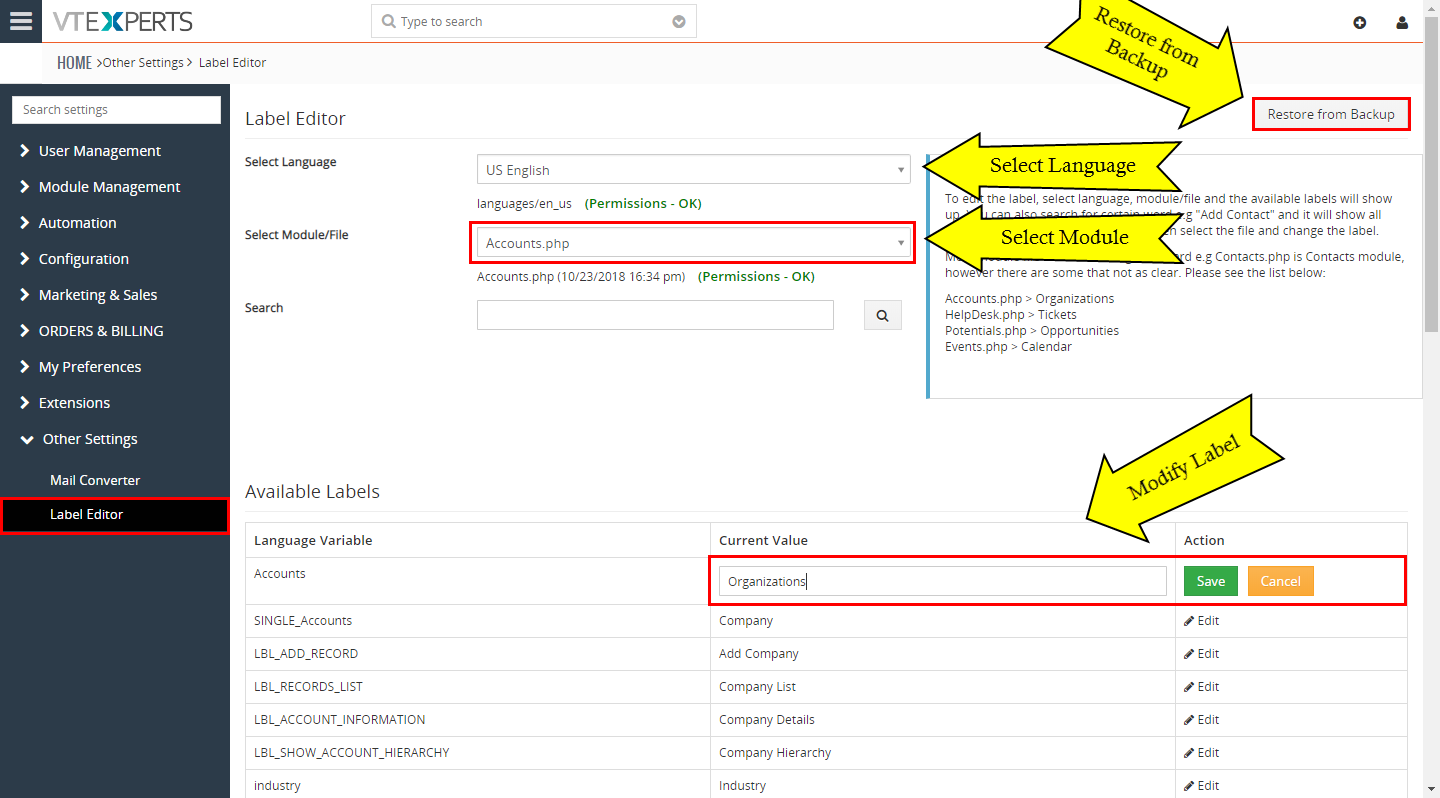
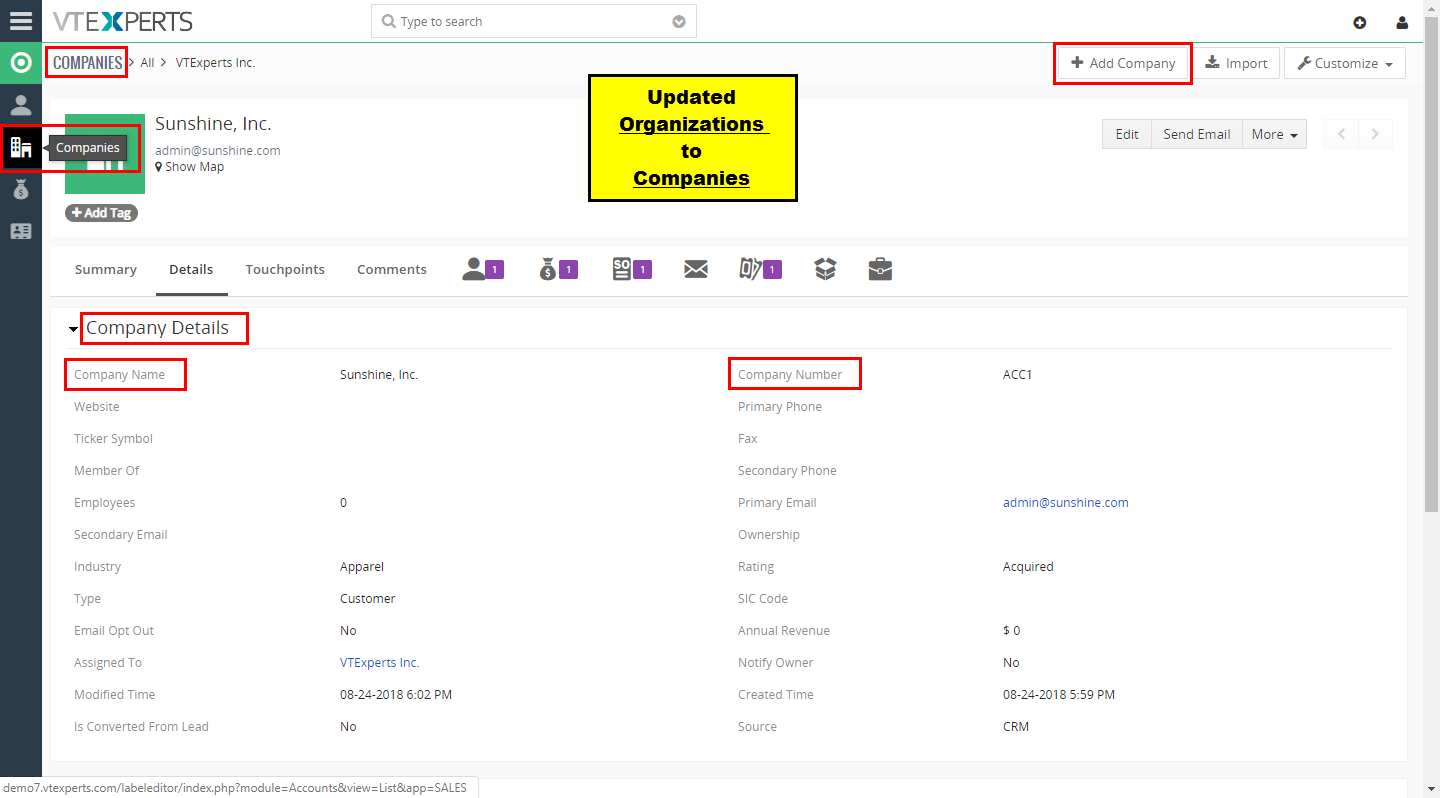
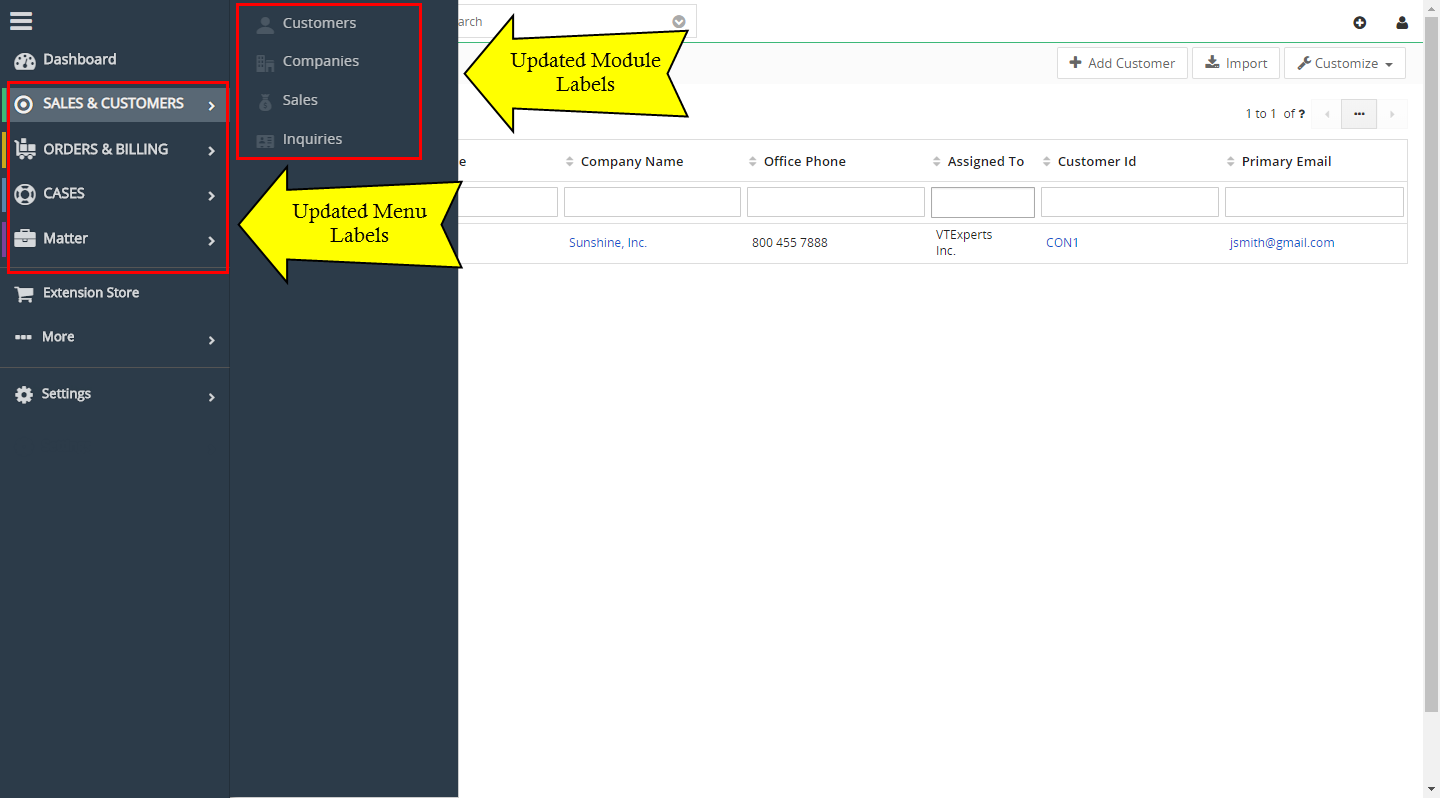
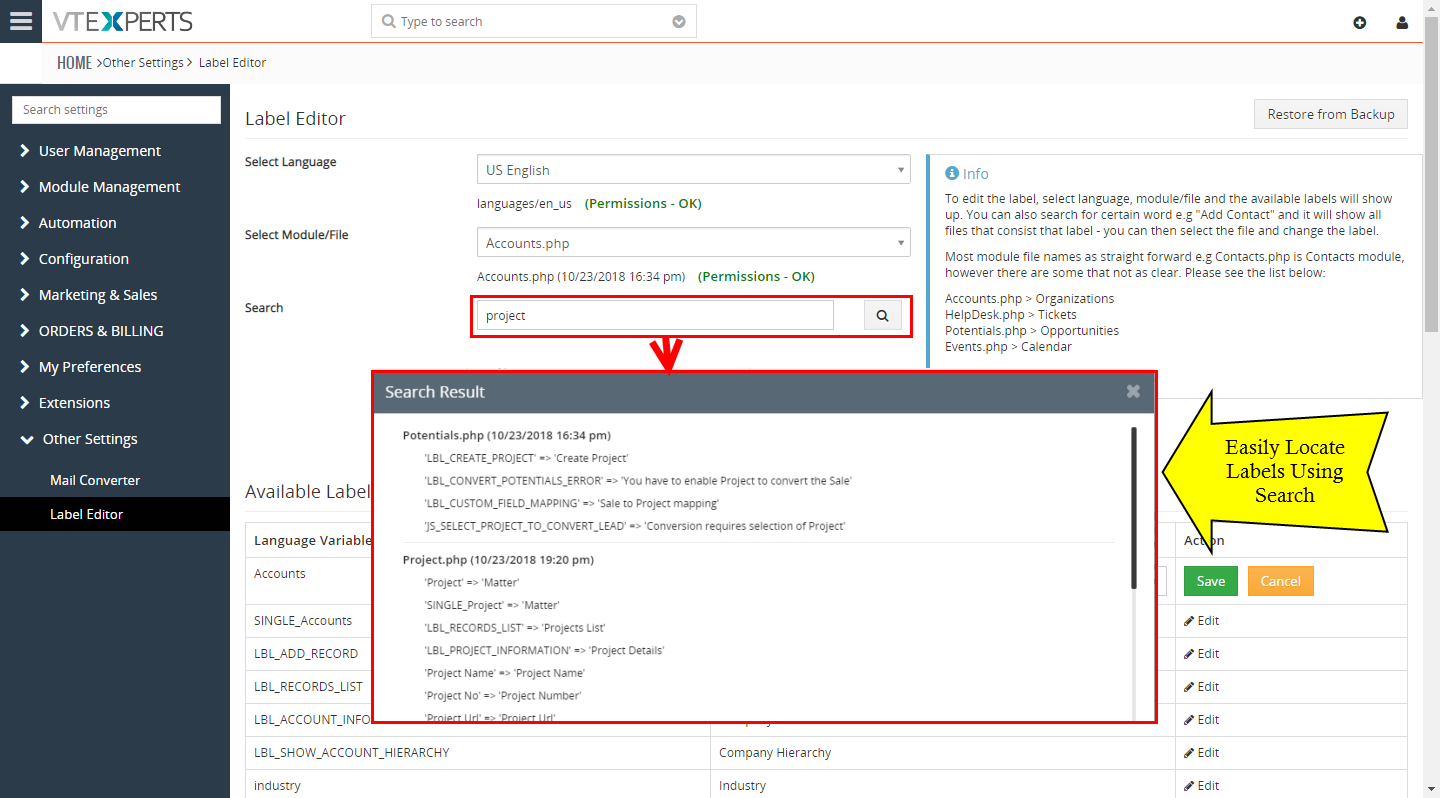
Label Editor for VTiger was designed to change any label/element in VTiger. It supports fields, modules, buttons, menu items, lists and much more! Very easy to use interface (pick language, module, search and edit labels). It has a built-in search to locate any labels that are not as obvious.



Here are some of the key features that make our extension unique.
- Supports all standard & custom modules
- Supports buttons, lists, fields (every element in vtiger)
- Restore from backup option
- Module Manager Compatible
- Available on VTiger Marketplace
We provide a unique demo instance for all our extensions. Each demo instance is pre-configured to only show features available for the specific extension. It is likely that some of the standard vTiger modules have been disabled to make the demo more user friendly.
VTiger 7 Demo
Please use credentials below to access the demo.
- Link: https://demo7.vtexperts.com/labeleditor/index.php (Will open in new window)
- User: demo
- Pass: demo
If you are not able to access the demo or find an issue - please send us an email at [email protected] or via contact form.
All extensions come with an extensive user guide, which includes setup instructions, suggestions as well as usability tips. Please click the link below to access user guide for this extension.
User Guide: https://www.vtexperts.com/helpdesk/label-editor (Will open in new window)
For assistance or any questions - please contact us via [email protected].
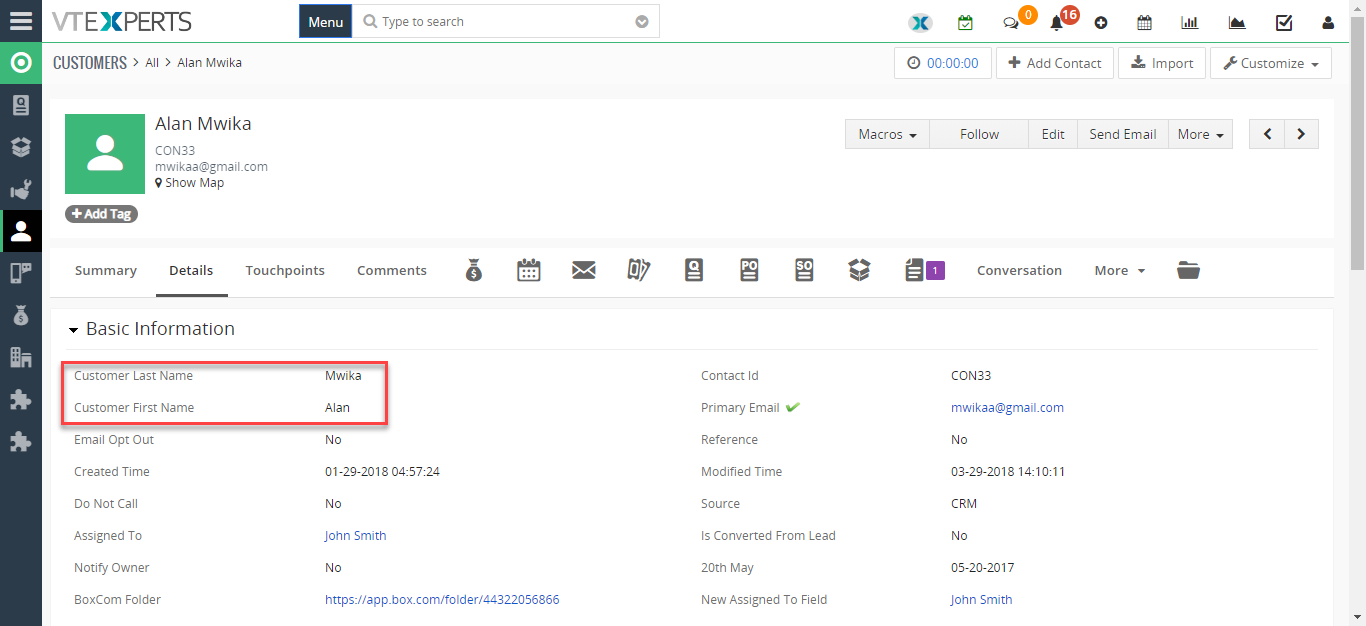 Change/Rename Field Labels In VTiger 7 November 4, 2018 - Label Editor for VTiger was designed to change any label/element in VTiger. It supports fields, modules, buttons, menu items, lists and much more! Very easy to use interface (pick language, module, search and edit labels). It has a built-in search to locate any labels that are not as obvious. How to Change/Rename Field labels Go to Menu > Settings > CRM Settings > Extension Pack > Label Editor. Select your input language. Select Module file you want to put changes in. It will show all the Variables and from there you can change the Labels. Click on “Edit” button and enter the new Label. The First/Last Name field labels are changed to Customer First/Last Name. For further help, contact us on [email protected]. We’ll be glad to be of service. Read More
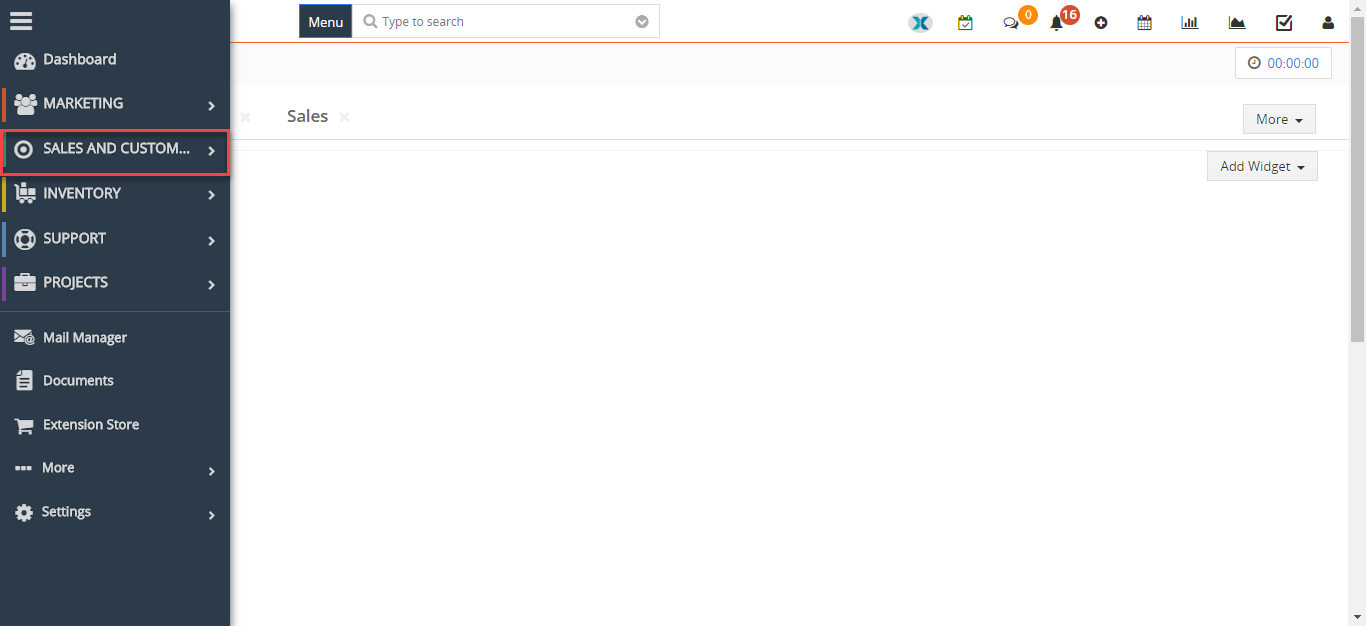 Change Menu Name In VTiger 7 November 4, 2018 - Label Editor for VTiger was designed to change any label/element in VTiger. It supports fields, modules, buttons, menu items, lists and much more! Very easy to use interface (pick language, module, search and edit labels). It has a built-in search to locate any labels that are not as obvious. How to Change Menu Name Go to Menu > Settings > CRM Settings > Extension Pack > Label Editor. Select your input language. Select Module file you want to put changes in. It will show all the Variables and from there you can change the Labels. Click on “Edit” button and enter the new Label. The Sales menu label has been changed to Sales and Customers. For further help, contact us on [email protected]. We’ll be glad to be of service. Read More
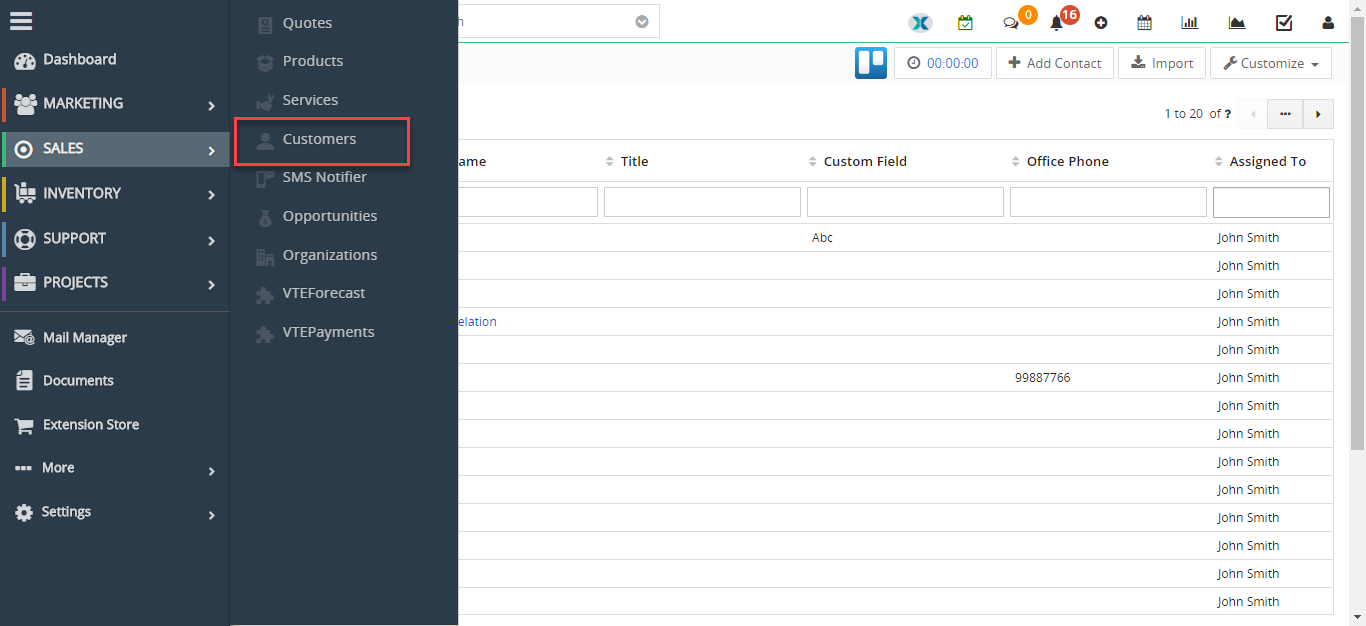 Rename Module In VTiger 7 October 25, 2018 - Label Editor for VTiger was designed to change any label/element in VTiger. It supports fields, modules, buttons, menu items, lists and much more! Very easy to use interface (pick language, module, search and edit labels). It has a built-in search to locate any labels that are not as obvious. How to Rename Modules Go to Menu > Settings > CRM Settings > Extension Pack > Label Editor. Select your input language. Select Module file you want to put changes in. It will show all the Variables and from there you can change the Labels. Click on "Edit" button and enter the new Label. The Contacts module label has been changed to Customers. For further help, contact us on [email protected]. We'll be glad to be of service. Read More
Related products
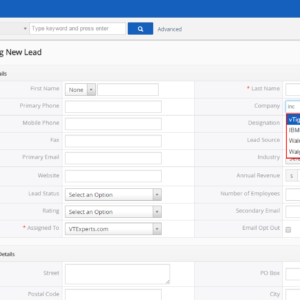
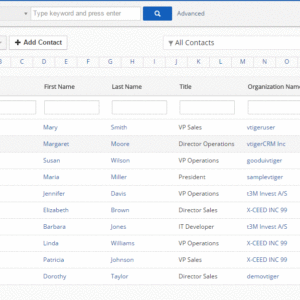
Label Editor for VTiger was designed to change any label/element in VTiger. It supports fields, modules, buttons, menu items, lists and much more! Very easy to use interface (pick language, module, search and edit labels). It has a built-in search to locate any labels that are not as obvious.
Here are some of the key features that make our extension unique.
- Supports all standard & custom modules
- Supports buttons, lists, fields (every element in vtiger)
- Restore from backup option
- Module Manager Compatible
- Available on VTiger Marketplace
We provide a unique demo instance for all our extensions. Each demo instance is pre-configured to only show features available for the specific extension. It is likely that some of the standard vTiger modules have been disabled to make the demo more user friendly.
VTiger 7 Demo
Please use credentials below to access the demo.
- Link: https://demo7.vtexperts.com/labeleditor/index.php (Will open in new window)
- User: demo
- Pass: demo
If you are not able to access the demo or find an issue - please send us an email at [email protected] or via contact form.
All extensions come with an extensive user guide, which includes setup instructions, suggestions as well as usability tips. Please click the link below to access user guide for this extension.
User Guide: https://www.vtexperts.com/helpdesk/label-editor (Will open in new window)
For assistance or any questions - please contact us via [email protected].
Reviews
There are no reviews yet.
Change/Rename Field Labels In VTiger 7 November 4, 2018 - Label Editor for VTiger was designed to change any label/element in VTiger. It supports fields, modules, buttons, menu items, lists and much more! Very easy to use interface (pick language, module, search and edit labels). It has a built-in search to locate any labels that are not as obvious. How to Change/Rename Field labels Go to Menu > Settings > CRM Settings > Extension Pack > Label Editor. Select your input language. Select Module file you want to put changes in. It will show all the Variables and from there you can change the Labels. Click on “Edit” button and enter the new Label. The First/Last Name field labels are changed to Customer First/Last Name. For further help, contact us on [email protected]. We’ll be glad to be of service. Read More Change Menu Name In VTiger 7 November 4, 2018 - Label Editor for VTiger was designed to change any label/element in VTiger. It supports fields, modules, buttons, menu items, lists and much more! Very easy to use interface (pick language, module, search and edit labels). It has a built-in search to locate any labels that are not as obvious. How to Change Menu Name Go to Menu > Settings > CRM Settings > Extension Pack > Label Editor. Select your input language. Select Module file you want to put changes in. It will show all the Variables and from there you can change the Labels. Click on “Edit” button and enter the new Label. The Sales menu label has been changed to Sales and Customers. For further help, contact us on [email protected]. We’ll be glad to be of service. Read More Rename Module In VTiger 7 October 25, 2018 - Label Editor for VTiger was designed to change any label/element in VTiger. It supports fields, modules, buttons, menu items, lists and much more! Very easy to use interface (pick language, module, search and edit labels). It has a built-in search to locate any labels that are not as obvious. How to Rename Modules Go to Menu > Settings > CRM Settings > Extension Pack > Label Editor. Select your input language. Select Module file you want to put changes in. It will show all the Variables and from there you can change the Labels. Click on "Edit" button and enter the new Label. The Contacts module label has been changed to Customers. For further help, contact us on [email protected]. We'll be glad to be of service. Read MoreInformation
- Vtiger 8.x
- Vtiger 7.x
- Vtiger 6.x
- Ioncube & PHP SOAP (hands-on)
- Install & Setup (hands-on)
- Meeting Server Requirements
- Assisting with any issues related to plugins

Reviews
There are no reviews yet.